Physical Address
304 North Cardinal St.
Dorchester Center, MA 02124
Physical Address
304 North Cardinal St.
Dorchester Center, MA 02124

Your Guide to the Latest in Tech
Your Guide to the Latest in Tech
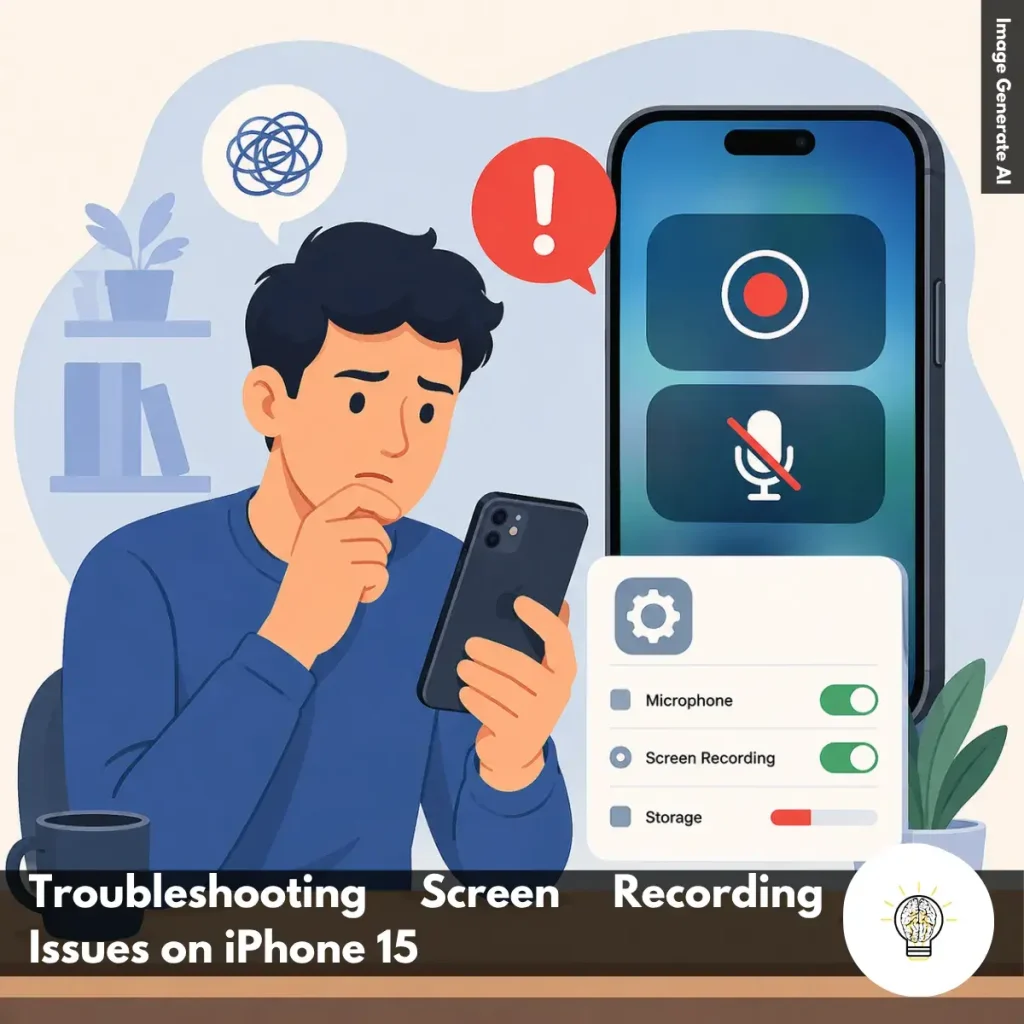
Ruminesia – Have you ever started a screen recording on your iPhone 15, only to find that the video didn’t save, the audio was missing, or the recording stopped unexpectedly? It’s one of those frustrating issues that often shows up when you’re trying to capture something important, whether it’s a tutorial, a gameplay moment, or a quick guide for someone else.
When it comes to Troubleshooting Screen Recording Issues on iPhone 15, the challenge is that the cause isn’t always obvious. Sometimes it’s a simple setting you’ve overlooked, while other times it could be related to storage, permissions, or a temporary software glitch running in the background.
Interestingly, screen recording problems are usually easier to fix than most people expect. A few quick checks can often reveal what’s going wrong, helping you get back to recording smoothly without spending hours digging through settings or assuming there’s a serious issue with your device.
Key Highlights
- Missing audio is often caused by the microphone being disabled before recording.
- Screen Time restrictions can block screen recording without displaying obvious errors.
- Restarting your iPhone often resolves temporary glitches affecting recording performance.
- Low storage space can prevent recordings from saving properly or finishing successfully.
- Keeping iOS updated helps eliminate bugs that may disrupt screen recording.
- If one app causes problems, restarting it may quickly restore recording functionality.
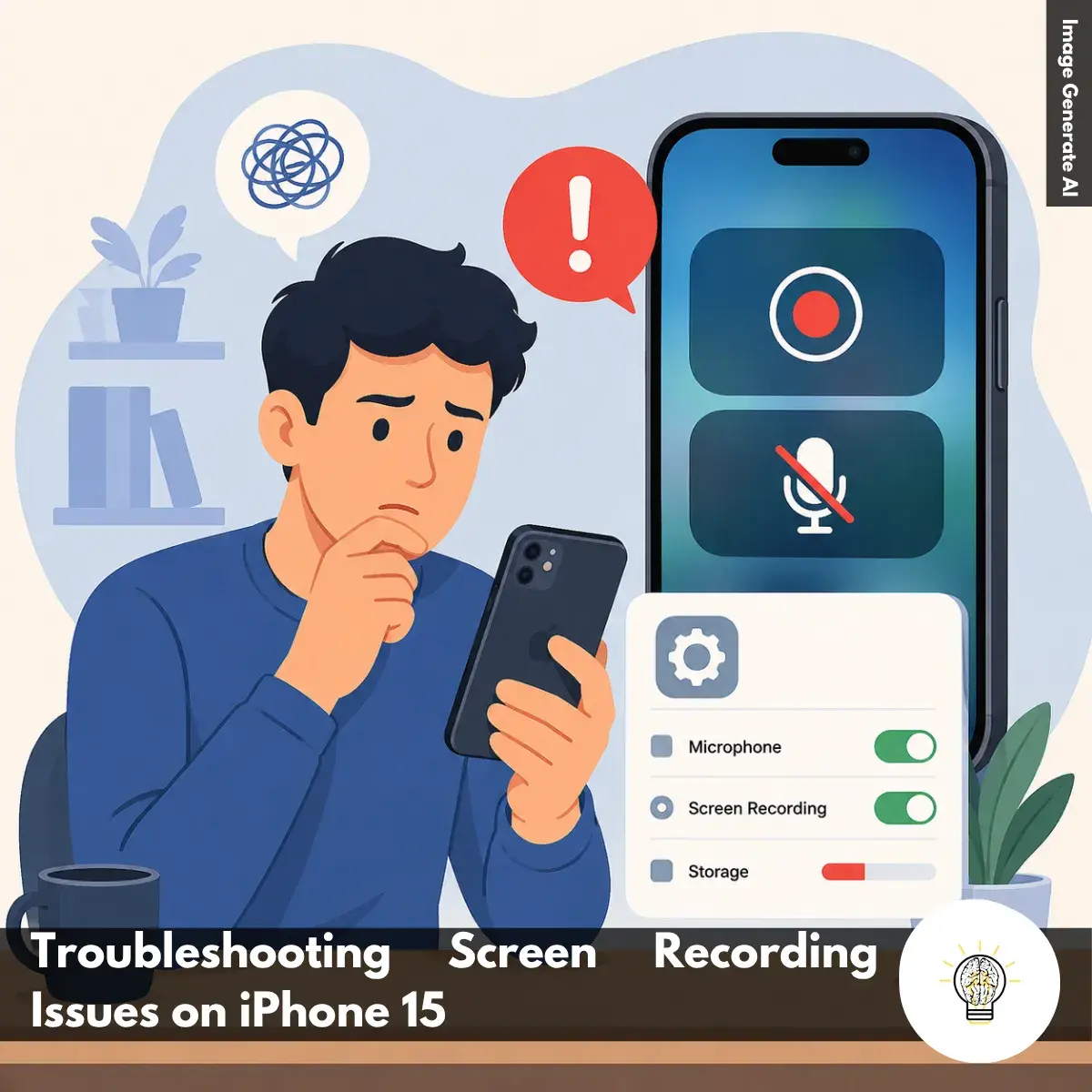
If you’re troubleshooting screen recording issues on iPhone 15, problems like recordings not starting, missing audio, failed saves, or unexpected interruptions are usually caused by settings, permissions, low storage, or temporary software glitches. The good news is that most of these issues can be fixed with a few simple checks, helping you get screen recording working properly again in just a few minutes.
One of the most common complaints is recording a video only to discover there’s no sound. To verify microphone access:
When enabled, your iPhone can capture external audio such as voice narration, commentary, or ambient sounds during the recording.
What many users don’t realize is that screen recording and microphone recording are controlled separately. A screen recording can appear successful while still producing a silent video if microphone access was disabled before starting the session.
If you’re creating tutorials, gameplay recordings, or walkthroughs, checking this setting first can save you from having to record everything again.
Screen Time settings can sometimes block screen recording without making the cause immediately obvious. To check:
This is especially important if the iPhone is used for work, school, or has previously been configured with parental controls.
The problem is that the Screen Recording button may still appear in Control Center even when restrictions are active. As a result, users often assume the feature is broken when it’s actually being blocked by system permissions.
In practice, reviewing Screen Time settings is one of the quickest ways to resolve unexplained screen recording issues on iPhone 15 devices.
A simple restart can often fix screen recording issues that appear without warning. To restart your iPhone 15:
Restarting clears temporary software glitches that may interfere with background processes responsible for recording, saving, or processing video files.
Interestingly, many screen recording problems occur after prolonged device usage, software updates, or apps running continuously in the background. A restart refreshes system services and allows iOS to start those processes from a clean state.
Before trying more advanced fixes, it’s worth testing screen recording again after a reboot.
Screen recordings can consume a surprising amount of storage, especially when recording for extended periods. To check your available space:
Ideally, you should have several gigabytes of free storage available before starting a recording session.
When storage is nearly full, recordings may stop unexpectedly, fail to save, or disappear after completion. This happens because iOS needs temporary space to process and encode video files while recording.
Besides that, low storage can impact overall system performance, making screen recording less stable. Removing unused apps, large videos, or old downloads often resolves these issues and improves device responsiveness at the same time.
Low Power Mode is useful for extending battery life, but it can sometimes interfere with resource-intensive tasks. To disable it:
When this mode is enabled, iOS reduces background activity and limits certain system processes to conserve power.
While screen recording usually continues to function, some users experience interruptions, performance drops, or unexpected behavior during longer recording sessions.
If you’re troubleshooting screen recording issues on iPhone 15, temporarily disabling Low Power Mode helps ensure the device can dedicate its full resources to capturing and saving video without unnecessary restrictions.
Keeping iOS updated is one of the most effective ways to prevent software-related recording problems. To check for updates:
Apple regularly releases updates that address bugs, improve stability, and fix issues affecting built-in features such as screen recording.
What many users don’t realize is that some recording problems may already be known software bugs that Apple has resolved in a newer release. Continuing to use an outdated version can make troubleshooting far more difficult than necessary.
If screen recording suddenly stopped working after behaving normally in the past, checking for an iOS update should be high on your troubleshooting list.
If the issue persists despite trying the previous fixes, resetting system settings may help. To do this:
This process restores system preferences to their default state without deleting personal files, photos, apps, or documents.
Over time, conflicting settings, corrupted preferences, or unusual configurations can affect how iPhone features behave. Screen recording is no exception.
In practice, this step is often useful when the exact cause isn’t obvious, and standard troubleshooting hasn’t worked. After the reset, you’ll need to reconfigure settings such as Wi-Fi passwords and display preferences, but your data remains intact.
Sometimes the issue isn’t with iOS itself, but with the app you’re trying to record. Try the following:
Apps occasionally encounter temporary bugs, permission conflicts, or memory-related issues that interfere with screen recording functionality.
Interestingly, some apps recover immediately after being relaunched, making this one of the fastest fixes available. If recording works normally in other apps but fails in a specific one, there’s a good chance the app itself is the source of the problem.
Before moving on to more advanced troubleshooting, it’s always worth testing a fresh recording session after restarting the app.
Read Also:
Looking for quick answers about screen recording on iPhone? Here are the most common questions users ask, along with practical solutions you can use right away.
To enable Screen Recording, open Settings > Control Center and tap the green + icon next to Screen Recording.
Once added, the feature will appear in Control Center and remain there unless you remove it manually. This only takes a few seconds and gives you quick access whenever you need to screen record on iPhone.
Starting a recording is simple:
A red indicator at the top of the screen confirms that recording is active.
In most cases, iPhone automatically captures internal audio from supported apps and games. To improve results:
Keep in mind that some apps restrict audio capture for copyright or privacy reasons.
To include your voice during recording:
This is useful for tutorials, walkthroughs, and narrated demonstrations.
All screen recordings are automatically saved in the Photos app. To find them:
You can edit, share, or delete recordings directly from there.
The most common cause is insufficient storage space. Other possible reasons include:
Try freeing up storage and restarting your iPhone before recording again.
You can stop recording in two ways:
After stopping, the video is automatically saved to Photos.
You can edit recordings directly in the Photos app.
You can also crop, rotate, and apply basic adjustments without installing another app.
Missing audio is usually caused by recording settings. Check the following:
One thing many users overlook is that microphone audio and internal audio are controlled separately.
No, iPhone does not allow FaceTime call audio to be captured through Screen Recording.
While you can record the screen itself, the audio portion is typically blocked for privacy and legal reasons. This restriction helps protect participants and comply with recording consent laws in many regions.
Screen recording is one of those iPhone features you rarely think about until it suddenly stops working. Whether you’re capturing a tutorial, saving an important moment, or sharing a quick walkthrough, even a small issue can be surprisingly frustrating when you need the feature most.
The good news is that most problems uncovered while Troubleshooting Screen Recording Issues on iPhone 15 are usually tied to settings, permissions, storage, or temporary software hiccups rather than anything serious. Sometimes the fix is as simple as enabling the microphone, restarting the device, or clearing a little storage space.
Interestingly, these situations are a reminder that technology doesn’t always fail because something is broken—sometimes it just needs a quick adjustment. Have you ever run into a screen recording issue on your iPhone 15? It would be interesting to hear which fix worked for you or whether you’ve discovered another solution worth sharing.