Physical Address
304 North Cardinal St.
Dorchester Center, MA 02124
Physical Address
304 North Cardinal St.
Dorchester Center, MA 02124

Your Guide to the Latest in Tech
Your Guide to the Latest in Tech
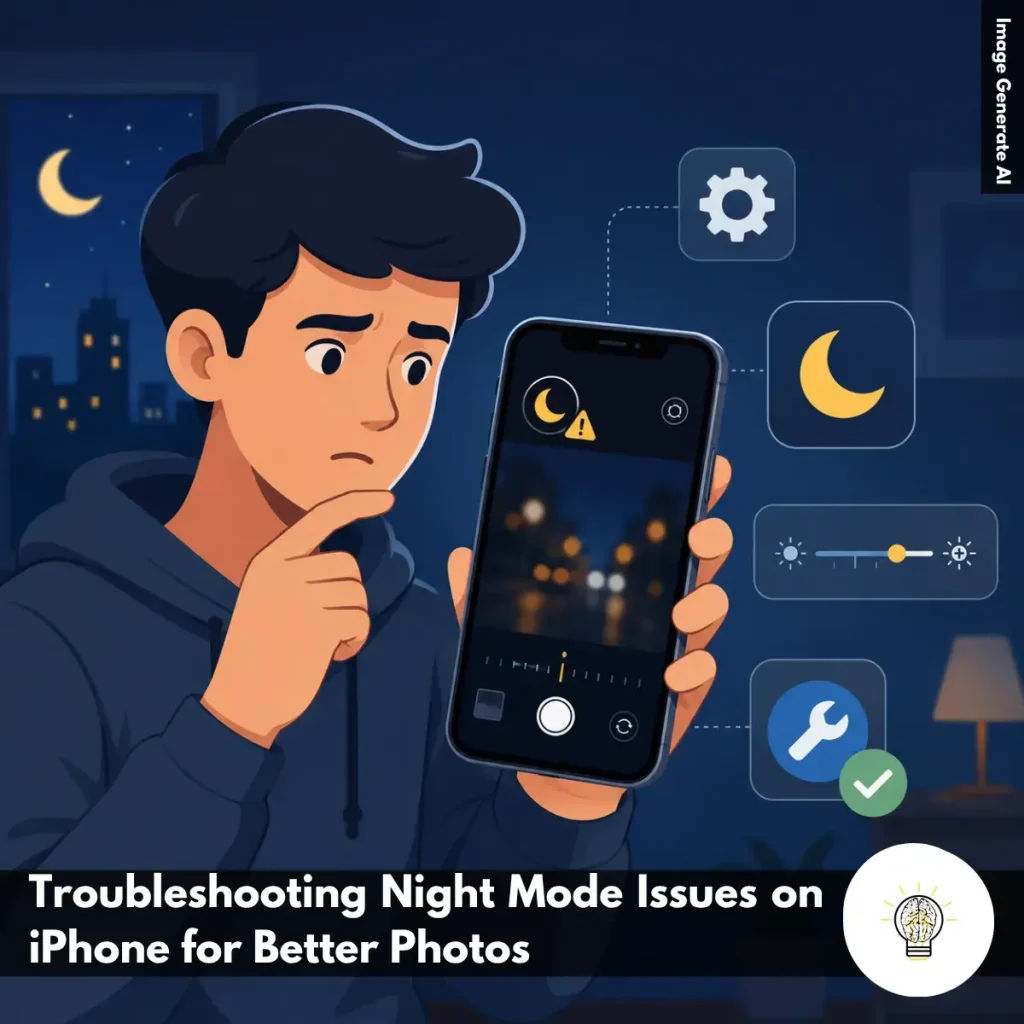
Ruminesia – You line up the perfect low-light shot, tap the shutter, and expect Night mode to work its magic. Instead, the photo turns out blurry, too dark, or Night mode doesn’t activate at all. It’s a frustrating experience, especially when one of the iPhone’s biggest camera strengths suddenly feels unreliable.
That’s why troubleshooting Night Mode Issues on iPhone is worth understanding. In many cases, the problem isn’t caused by a faulty camera. It can be something as simple as a setting, a software glitch, or the way the photo is being captured.
Interestingly, Night mode relies on a combination of hardware and software working together behind the scenes. When something interrupts that process, the results can be disappointing. The good news is that most Night mode problems can be fixed with a few quick adjustments, without needing professional support.
Key Highlights
- Most Night mode issues are caused by settings or software, not hardware failures.
- Always check the Night mode icon before assuming the feature isn’t working.
- A quick restart can resolve many temporary camera and image-processing glitches.
- Keeping your iPhone steady often improves low-light photos more than any setting.
- Live Photos and Flash can interfere with Night mode performance in dark scenes.
- Updating iOS helps ensure the latest camera fixes and Night mode improvements.
Learning how to Turn On Night Mode on the iPhone Camera is easier than many people expect. While the feature usually activates automatically, knowing how to control it manually can help you get better results in challenging low-light situations.
What many users forget is that stability often matters just as much as the camera settings themselves. A steady iPhone gives Night Mode more time to collect light, resulting in clearer, brighter, and more natural-looking photos.

Night mode usually works automatically, but there are times when it doesn’t activate or produce the results you expect. If your low-light photos look blurry, too dark, or inconsistent, the troubleshooting steps below can help you identify the cause and improve Night mode performance.
Before trying more advanced fixes, make sure Night mode is actually enabled. Many users assume it automatically activates in every dark environment, but the feature only appears when the iPhone detects low-light conditions.
Open the Camera app and look for the moon-shaped icon near the top of the screen. If it’s dimmed or crossed out, tap it to turn Night mode on manually. Once activated, the camera will automatically determine the ideal exposure time for the scene.
What many users don’t realize is that lighting conditions can affect whether Night mode appears at all. A room that feels dark to your eyes may still provide enough light for the camera to use standard photo settings. That’s why checking the Night mode icon before taking a shot is a simple but important first step when troubleshooting low-light photography issues.
If Night mode suddenly stops working or behaves unexpectedly, restarting your iPhone is often one of the quickest fixes.
The Camera app relies on several background processes to handle image processing and low-light optimization. Occasionally, temporary software glitches can interfere with those processes and affect features like Night mode.
To restart your iPhone:
While it may sound basic, restarting refreshes system processes and clears temporary issues that could be affecting camera performance. In practice, many minor camera-related problems can be resolved without additional troubleshooting simply by giving the device a fresh start.
Night mode automatically chooses an exposure duration based on available light, but its settings aren’t always perfect for every scene. If your photos appear too dark, overly bright, or inconsistent, manually adjusting the exposure can help improve the result.
Tap the Night mode icon and use the slider above the shutter button to increase or decrease the exposure time. A longer exposure allows the camera to capture more light, while a shorter one can help prevent bright areas from becoming overexposed.
This adjustment is especially useful when shooting in challenging environments, such as dark streets, indoor events, or scenes with a mix of bright and dim lighting. Even a small change can make a noticeable difference in image quality. If Night mode photos aren’t turning out the way you expect, experimenting with the exposure slider is often worth the extra few seconds.
Because Night mode relies on longer exposure times, stability plays a major role in photo quality. Even slight hand movements can introduce blur and reduce sharpness, particularly in very dark environments. To improve stability:
The longer the exposure time, the more important stability becomes. While Apple’s image stabilization technology helps reduce motion blur, it can’t completely compensate for significant movement during capture.
If your Night mode photos consistently look soft or blurry, improving how you hold the device may have a bigger impact than changing any camera setting.
Certain camera features can limit Night mode functionality or prevent it from activating altogether. Before taking low-light photos, it’s worth checking whether other settings are affecting how the camera behaves. The most common features to disable are:
Live Photos prioritizes capturing motion before and after the shutter is pressed, while Flash adds artificial light to the scene. Both can change how the camera processes an image and may reduce Night mode’s effectiveness.
Interestingly, many users overlook these settings when troubleshooting camera issues. Turning them off allows the iPhone to focus entirely on gathering available light and optimizing exposure for the scene. If Night mode isn’t activating consistently, disabling these features is a quick adjustment that can often improve results immediately.
Software updates don’t just add new features—they often include important camera improvements and bug fixes as well. If you’re running an older version of iOS, Night mode issues may be linked to software problems that have already been addressed by Apple. To check for updates:
Apple regularly refines image processing, camera stability, and low-light photography algorithms through iOS updates. These improvements may help resolve issues such as delayed Night mode activation, inconsistent exposure, or unexpected camera behavior.
Even if your iPhone appears to work normally, keeping iOS up to date ensures you’re using the latest camera optimizations available for your device.
If none of the previous solutions work, a system setting may be interfering with camera performance. In that case, resetting all settings can help restore normal behavior without deleting your personal data. To reset all settings:
This process resets system preferences such as Wi-Fi settings, keyboard settings, privacy preferences, and network configurations. Your photos, apps, messages, and other personal files remain untouched.
Read Also:
Night Mode is one of the most useful iPhone camera features, but it can also be a little confusing at first. Here are answers to the most common questions users have about getting better low-light photos.
Night Mode is a camera feature that automatically activates in low-light environments to produce brighter and clearer photos without using the flash. It works by capturing multiple images at different exposures and combining them into a single, more detailed shot.
Night Mode only appears when your iPhone detects that the scene is dark enough. Try the following:
Night Mode is available on:
Older devices such as the iPhone X, XS, XR, and iPhone 8 do not include native Night Mode support.
Yes, but support depends on your iPhone model. The main difference is:
Keep in mind that Ultra Wide photos may require longer exposure times in very dark conditions.
Blurry Night Mode photos are usually caused by movement during the exposure. To improve sharpness:
One thing many users overlook is that even slight movement can affect image quality.
Yes. If you’re learning Frequently Asked Questions about Night Mode on iPhone Camera, this is one of the most useful controls to understand. When Night Mode is active:
Longer exposures capture more light but require a steadier camera.
Not exactly. Night Mode is designed for photos, not standard video recording. However, iPhone 12 and newer models support Night Mode Time-lapse, which improves brightness when creating time-lapse videos in dark environments.
Yes, but only on newer models.
When available, the feature activates automatically in low-light situations.
You can make your iPhone remember your preferred Night Mode setting. Follow these steps:
After that, the camera remembers whether you last left Night Mode on or off.
Night Mode can occasionally struggle with mixed lighting sources, such as neon signs, LED lights, or moonlight. To improve color accuracy:
In practice, a few quick edits are often enough to make colors look much more natural.
Night mode is one of those iPhone features that usually works quietly in the background—until it doesn’t. When low-light photos suddenly look blurry or the feature stops behaving as expected, it’s easy to assume something is seriously wrong. In reality, many issues come down to simple settings, software hiccups, or how the photo is being captured.
Interestingly, Troubleshooting Night Mode Issues on iPhone is often less about fixing the camera itself and more about understanding how the feature works. A small adjustment, a quick restart, or a steadier hand can sometimes make a bigger difference than most people expect.
At the end of the day, great low-light photography isn’t just about having the latest iPhone. It’s also about knowing how to get the most out of the tools already available. Have you ever run into Night mode problems on your iPhone, or discovered a fix that worked surprisingly well? We’d love to hear about your experience.