Physical Address
304 North Cardinal St.
Dorchester Center, MA 02124
Physical Address
304 North Cardinal St.
Dorchester Center, MA 02124

Your Guide to the Latest in Tech
Your Guide to the Latest in Tech
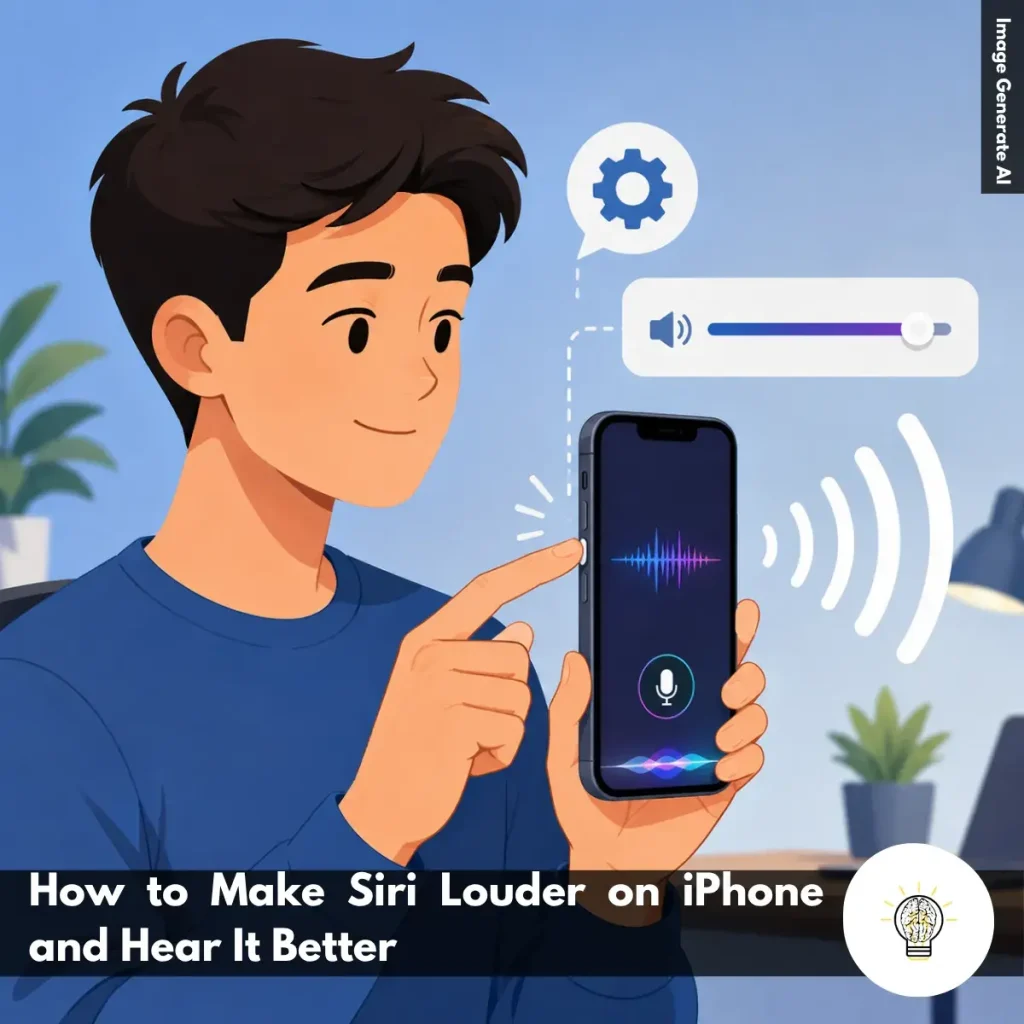
Ruminesia – Have you ever asked Siri a question, only to miss the response because it was too quiet? It often happens when you’re driving, walking on a busy street, or simply not paying full attention to your iPhone. What should be a quick and convenient interaction can quickly become frustrating.
If you’ve been searching for How to Make Siri Louder on iPhone, you’re definitely not the only one. Many users assume the problem is a bug or speaker issue, when in reality it often comes down to a few settings that are easy to adjust.
Interestingly, Siri’s volume doesn’t always behave the same way as music, videos, or notifications. Understanding how Siri handles voice output can make a big difference, helping you hear responses more clearly and get more value from Apple’s voice assistant in everyday situations.
Key Highlights
- Siri’s volume can often be adjusted without changing other iPhone audio settings.
- Increasing volume while Siri speaks is usually the quickest solution.
- Voice commands let Siri raise its own volume completely hands-free.
- Connected devices like AirPods may have separate volume levels to check.
- Noisy environments are a common reason Siri responses seem too quiet.
- Adjusting Siri’s speaking rate can improve clarity, even without higher volume.
There are several situations where increasing Siri’s volume can improve your experience. Understanding these common scenarios can help you hear Siri more clearly and avoid missing important responses.
If you’re looking for how to make Siri Louder on iPhone, there are several quick ways to increase Siri’s voice volume. Whether you’re in a noisy environment or simply find Siri too quiet, these methods can help make responses easier to hear.
The fastest way to make Siri louder is to adjust the volume while Siri is actively responding.
Activate Siri and ask a simple question, such as “What’s the weather today?” While Siri is speaking, press the Volume Up button on the side of your iPhone.
What many users don’t realize is that Siri uses its own audio level in certain situations. Adjusting the volume during a Siri response ensures you’re changing Siri’s voice volume directly rather than modifying another audio setting.
Interestingly, Siri can adjust its own speaking volume through voice commands. Simply say:
Siri will automatically raise its voice output without requiring you to open any settings. This is especially useful when your hands are busy or when you’re using Siri through AirPods or while driving.
Another easy method is to use the volume controls available in Control Center. While Siri is responding:
This approach gives you more precise control over the volume level compared to repeatedly pressing the physical volume buttons.
If you’re using AirPods, Bluetooth earbuds, or wired headphones, Siri’s volume may depend on the connected audio device. While Siri is speaking:
In practice, many users notice that Siri sounds quieter through headphones because the connected device maintains its own audio settings.
Sometimes the issue isn’t volume but how quickly Siri speaks. To adjust Siri’s speaking speed:
While this setting doesn’t actually increase Siri’s volume, slowing down Siri’s speech can make responses easier to understand. This can be particularly helpful if you often use Siri in busy environments where words are harder to catch clearly.
Read more:
Frequently Asked Questions about Siri often focus on privacy, customization, voice commands, and everyday usability. Below are some of the most common Siri questions, along with concise and practical answers for Apple users.
You can change Siri’s voice by going to Settings > Apple Intelligence & Siri > Siri Voice. From there, choose different accents and voice options, including American, British, Australian, and more.
Once selected, your iPhone will automatically download the voice files over Wi-Fi. This allows Siri to sound more natural based on your preference.
Yes, Siri can handle several basic commands offline on supported iPhones. You can set alarms, open apps, control music, or adjust settings without internet access.
However, requests that need live information, such as weather updates or web searches, still require Wi-Fi or cellular data.
This usually happens because voice activation is disabled or the microphone is blocked. Check Settings > Apple Intelligence & Siri and make sure “Listen for ‘Hey Siri’” is turned on.
Besides that, avoid placing your iPhone face down or inside a thick case that may affect microphone detection. Restarting the device can also help fix temporary Siri issues.
To enable this feature:
Once enabled, Siri can read incoming messages aloud and let you reply hands-free.
Apple does not currently allow completely custom wake words for Siri. However, newer iOS versions let users shorten the phrase from “Hey Siri” to simply “Siri.” If you want more customization, you can use Vocal Shortcuts inside Accessibility settings to trigger certain actions using custom phrases.
You can delete Siri history directly from your iPhone settings. Go to Settings > Apple Intelligence & Siri > Siri & Dictation History, then choose the delete option. This removes stored voice recordings and Siri interaction history linked to your account. One thing many users overlook is that this can improve privacy management.
No, Siri does not continuously record private conversations. Your device only listens locally for the wake phrase like “Hey Siri” or “Siri.” Once Siri detects the trigger phrase, it begins processing your request. If preferred, you can disable voice activation entirely in the settings.
Activate Siri and say, “Learn how to pronounce my name.” Siri will guide you through a short pronunciation setup process. You’ll be asked to repeat your name, then select the pronunciation that sounds most accurate. Siri will save it automatically to your contact profile.
Yes, Siri can help locate a misplaced iPhone using other Apple devices like Apple Watch, HomePod, or iPad. Simply say, “Where is my iPhone?” to trigger the search. Even if the iPhone is in silent mode, it will still make a loud sound to help you find it quickly.
First, enable Siri access for WhatsApp in your iPhone settings. Open Settings > WhatsApp and turn on the “Use with Siri” option.
After that, specify WhatsApp directly in your voice command. For example, say “Send a WhatsApp message to Sarah” instead of only saying “Message Sarah.”
Sometimes, the difference between a frustrating Siri experience and a helpful one comes down to a simple volume adjustment. If you’ve been looking for How to Make Siri Louder on iPhone, you’ll find that the solution is often easier than most people expect.
Interestingly, the issue isn’t always Siri itself. It can be related to your current volume settings, connected audio devices, or even the environment around you. A few small tweaks can make Siri’s responses much clearer and help voice interactions feel more natural in everyday situations.
Technology works best when it adapts to how we use it, not the other way around. Have you ever had trouble hearing Siri at the wrong moment, or found another trick that worked well for you? It’s always interesting to see how different users customize their experience.