Physical Address
304 North Cardinal St.
Dorchester Center, MA 02124
Physical Address
304 North Cardinal St.
Dorchester Center, MA 02124

Your Guide to the Latest in Tech
Your Guide to the Latest in Tech
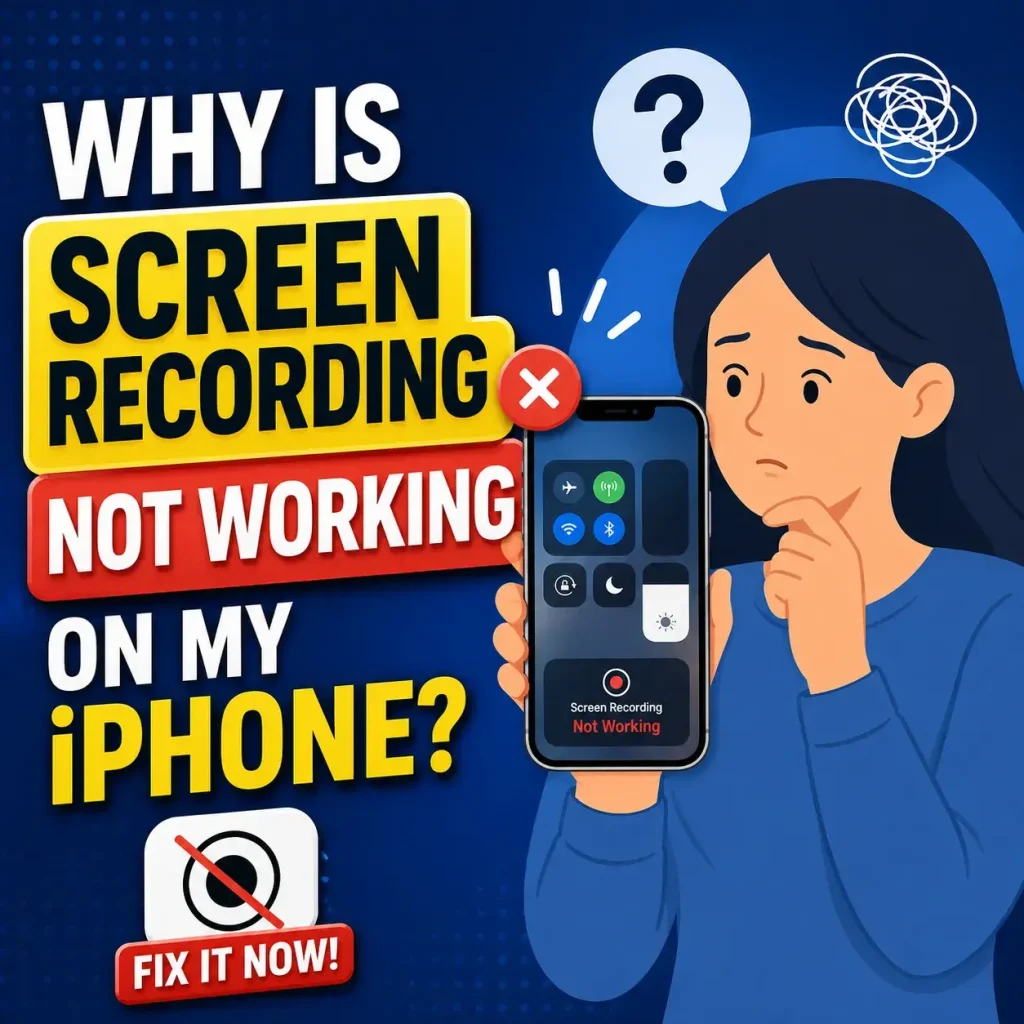
Ruminesia – You tap the Screen Recording button, wait for the countdown, and expect everything to work. Instead, nothing happens, the button is grayed out, or the recording never gets saved. If you’ve been asking yourself, why is screen recording not working on my iPhone, you’re definitely not the only one.
The tricky part is that the problem isn’t always caused by a software bug. Sometimes it’s a hidden Screen Time restriction, low storage, an active Screen Mirroring session, or even an app that intentionally blocks recording. Until you know what’s actually causing it, it’s easy to waste time trying fixes that don’t solve anything.
Interestingly, most Screen Recording issues have straightforward solutions once you understand where to look. A few quick checks are often all it takes to get the feature working again, without resetting your iPhone or assuming something is seriously wrong.
Key Highlight
- Screen Recording issues usually come from settings, storage, or app restrictions—not hardware failures.
- Check Screen Time, Control Center, and Screen Mirroring before trying more advanced fixes.
- Streaming and banking apps may block Screen Recording through DRM and security protections.
- Freeing up storage and updating iOS can resolve many recording and saving problems.
- Test simple solutions first to avoid unnecessary resets or changes to your iPhone.
- A step-by-step approach makes it easier to identify the real cause and restore Screen Recording quickly.
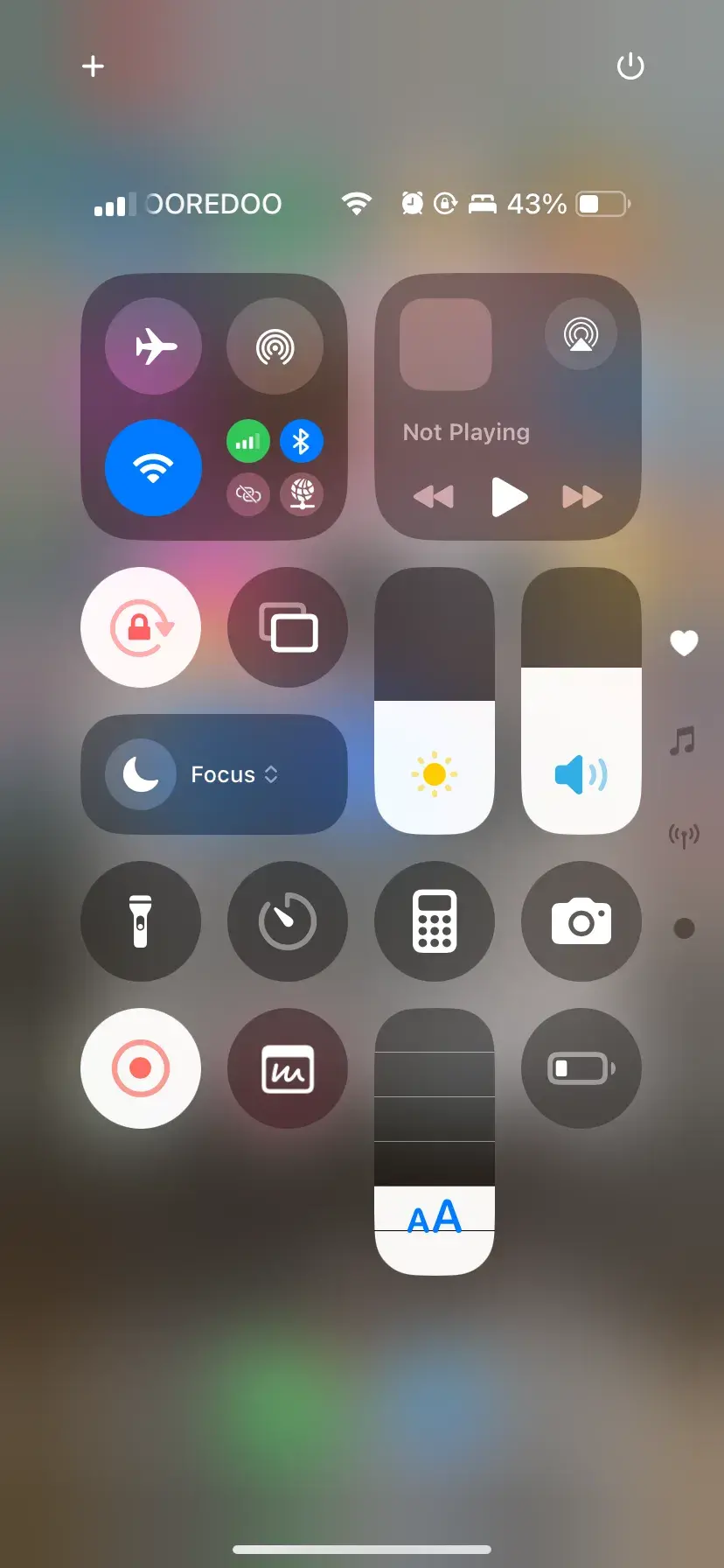
It’s frustrating when you’re about to record your screen, only to find that the feature won’t start, the button is missing, or the recording fails to save. If you’ve been wondering why screen recording is not working on my iPhone, the good news is that the cause is usually easy to identify.
In most cases, the problem comes down to a handful of settings, storage limitations, or app-specific restrictions. Once you know what’s preventing screen recording, fixing it usually takes just a few minutes.
If screen recording works on your Home Screen but stops or shows a black screen inside apps like Netflix, Disney+, Prime Video, or some banking apps, your iPhone is likely working exactly as intended.
The reason is that these apps use Digital Rights Management (DRM) to protect copyrighted content or sensitive user information. Rather than a bug, it’s a built-in security measure enforced by both the app and iOS.
Unfortunately, there isn’t a workaround for this. Since the restriction is implemented at the system level, Apple’s built-in Screen Recording feature cannot bypass it. If recording only fails in one specific app while everything else works normally, the app itself is almost certainly the cause.
If the Screen Recording button is visible but grayed out—or the feature refuses to start—Screen Time restrictions may be preventing access.
This commonly happens on devices with parental controls, school-managed settings, or accidental Screen Time configuration changes. What many users don’t realize is that this restriction can remain enabled even if they rarely use Screen Time. To check:
After changing the setting, reopen Control Center and try recording again.
Your iPhone can’t record its screen while simultaneously mirroring it to another display. If you’re connected to an Apple TV, a smart TV, or another AirPlay-compatible device, screen recording may fail until that connection is disconnected.
This limitation helps prevent conflicts between broadcasting and recording the display. Here’s what to do:
Once the connection is closed, try starting Screen Recording again.
Screen recordings are saved as video files, which can consume storage surprisingly quickly—especially when recording for several minutes.
If your iPhone is nearly full, recording may fail to start, stop unexpectedly, or disappear without being saved. In practice, this is one of the easiest issues to overlook because iOS doesn’t always display a clear warning.
To free up space:
Aim to free at least 2–3 GB of available storage before trying again.
Sometimes Screen Recording isn’t broken at all—it simply hasn’t been added to Control Center. This often happens after setting up a new iPhone, restoring a backup, or resetting system settings. To add it back:
Once added, you can start recording with a single tap whenever you need it.
Although Low Power Mode doesn’t always disable Screen Recording, it can occasionally interfere with background processes or prevent recordings from saving properly—particularly when your battery is running very low.
If nothing else seems to work, it’s worth checking this setting before moving on to more advanced troubleshooting. To disable it:
Besides that, if your battery is critically low, connecting your iPhone to a charger before recording can also help avoid unexpected interruptions.
If you’re still wondering why screen recording is not working on my iPhone, use this quick checklist to identify the problem and apply the right fix before trying more advanced troubleshooting.
| Problem | Quick Fix |
|---|---|
| Screen Recording button is missing | Add Screen Recording to Control Center in Settings. |
| Screen Recording button is grayed out | Allow Screen Recording under Screen Time > Content Restrictions. |
| Screen recording shows a black screen | The app uses DRM protection, which blocks recording. |
| Recording won’t save | Free up at least 2–3 GB of storage on your iPhone. |
| Recording fails immediately | Restart your iPhone and try again. |
| Screen Recording stopped working after an iOS update | Install the latest available iOS update. |
| Recording has no sound | Toggle the Microphone option before starting the recording. |
| Nothing works | Reset All Settings or contact Apple Support for further assistance. |
If Screen Recording still doesn’t function after trying every solution, the issue may be caused by:
This is especially possible if your iPhone is issued by a company or school, where administrators can disable certain features remotely. At this point, contacting Apple Support or visiting an Apple Store is the most reliable next step.
From my experience, screen recording on an iPhone is rarely broken. More often than not, it’s being blocked by a specific setting, limited storage, or an app that intentionally prevents recording. Identifying where the problem occurs is usually the fastest way to narrow down the cause.
When troubleshooting Why Is Screen Recording Not Working on My iPhone?, I always start with the simplest checks first, such as Screen Time restrictions, available storage, or whether Screen Mirroring is active. These small details are easy to miss but are often the real reason the feature isn’t working.
Taking a step-by-step approach has consistently saved time and avoided unnecessary resets. In most cases, once the actual cause is identified, Screen Recording starts working again without needing any complicated fixes.
Read more:
If you’re still looking for answers after trying the fixes above, these are some of the most common questions people ask about screen recording not working on iPhone. Each answer covers a specific issue and offers practical steps you can take to get Screen Recording working again.
A grayed-out Screen Recording button usually means the feature has been restricted through Screen Time. This often happens on devices with parental controls, work profiles, or settings that were enabled accidentally. The problem is that iOS hides the restriction behind the Screen Time menu, so it’s easy to overlook.
To fix it, open Settings > Screen Time > Content & Privacy Restrictions > Content Restrictions, then make sure Screen Recording is set to Allow. Once the restriction is removed, the button should become active again in Control Center. If it remains unavailable, restarting your iPhone can help refresh the setting.
If your recording has video but no voice or external sound, the microphone was probably turned off before recording started. What many users don’t realize is that Screen Recording doesn’t automatically record your voice—you need to enable the microphone manually.
Open Control Center, press and hold the Screen Recording button, then tap the Microphone icon so it turns red before starting the recording. If you’re still missing audio, check whether another app is currently using the microphone or whether the app you’re recording blocks audio for security reasons.
If Screen Recording finishes but the video never appears in the Photos app, your iPhone may be running low on storage. Screen recordings create large video files, and iOS may fail to save them if there isn’t enough free space available.
Check your available storage by going to Settings > General > iPhone Storage. Deleting large videos, unused apps, or other unnecessary files can usually solve the problem. Besides that, recording a short test clip afterward helps confirm whether the issue has been resolved.
Recording gameplay is much more demanding than recording everyday apps because your iPhone has to render graphics while simultaneously encoding video. On older devices or during long gaming sessions, this extra workload can overwhelm system resources and cause Screen Recording to stop unexpectedly.
To improve stability, close background apps before launching your game and avoid running unnecessary processes while recording. Lowering in-game graphics settings can also reduce the workload, especially if you’re using an older iPhone model.
Streaming services such as Netflix, Disney+, and Prime Video use Digital Rights Management (DRM) to prevent copyrighted content from being copied. Because of this, Screen Recording may produce a black screen, muted audio, or fail entirely when these apps are open.
Unfortunately, this behavior is intentional and cannot be disabled through iPhone settings. If Screen Recording only fails inside streaming apps while working everywhere else, your device is functioning as expected rather than experiencing a technical issue.
Yes, although it doesn’t always happen. Low Power Mode reduces background activity to conserve battery life, and in some cases, this can interfere with video processing or prevent recordings from saving correctly.
If you’re experiencing lag, dropped frames, or failed recordings, try disabling Low Power Mode in Settings > Battery before recording again. Recording while your iPhone is charging can also help maintain more consistent performance during longer sessions.
Switching between your iPhone’s speakers, wired headphones, or Bluetooth devices while recording can occasionally interrupt the audio routing process. In practice, this may cause the recording to freeze or produce audio problems, particularly if the connection changes mid-recording.
To avoid this, connect your preferred headphones or audio device before starting Screen Recording. Keeping the audio output unchanged throughout the recording session reduces the chance of unexpected interruptions.
If the Screen Recording button becomes unresponsive or the feature suddenly stops working without an obvious reason, a force restart is often worth trying. It clears temporary software glitches without deleting your personal data.
For iPhones with Face ID, quickly press Volume Up, then Volume Down, and hold the Side button until the Apple logo appears. After the device restarts, try Screen Recording again before moving on to more advanced troubleshooting.
Apple limits audio recording during phone calls and FaceTime conversations to protect user privacy and comply with local regulations. While you may be able to record the screen itself in some situations, the call audio is intentionally excluded.
There isn’t a built-in setting that allows you to bypass this limitation. If you need to record an online meeting for legitimate purposes, consider using approved recording features available on supported conferencing platforms instead.
Yes. Although it’s not the most common cause, software bugs in older versions of iOS can sometimes affect built-in features like Screen Recording. Apple regularly releases updates that improve system stability and fix known issues.
To check for updates, go to Settings > General > Software Update. Installing the latest version of iOS ensures your iPhone has the newest bug fixes, performance improvements, and compatibility updates that may resolve Screen Recording problems.
Most of the time, why is screen recording not working on my iPhone has a simpler answer than many people expect. It often comes down to a small setting, limited storage, or an app that intentionally blocks recording rather than a serious problem with the device itself. Taking a few minutes to check the basics can save you from unnecessary troubleshooting.
Interestingly, fixing the issue is often less about trying every possible solution and more about understanding what your iPhone is trying to tell you. Once you identify the actual cause, the right fix usually becomes obvious, making the process much less frustrating.
If you’ve run into a Screen Recording problem that wasn’t covered here, I’d love to hear about it. Sharing your experience or the solution that worked for you could help someone else solve the same issue much faster.