Physical Address
304 North Cardinal St.
Dorchester Center, MA 02124
Physical Address
304 North Cardinal St.
Dorchester Center, MA 02124

Your Guide to the Latest in Tech
Your Guide to the Latest in Tech
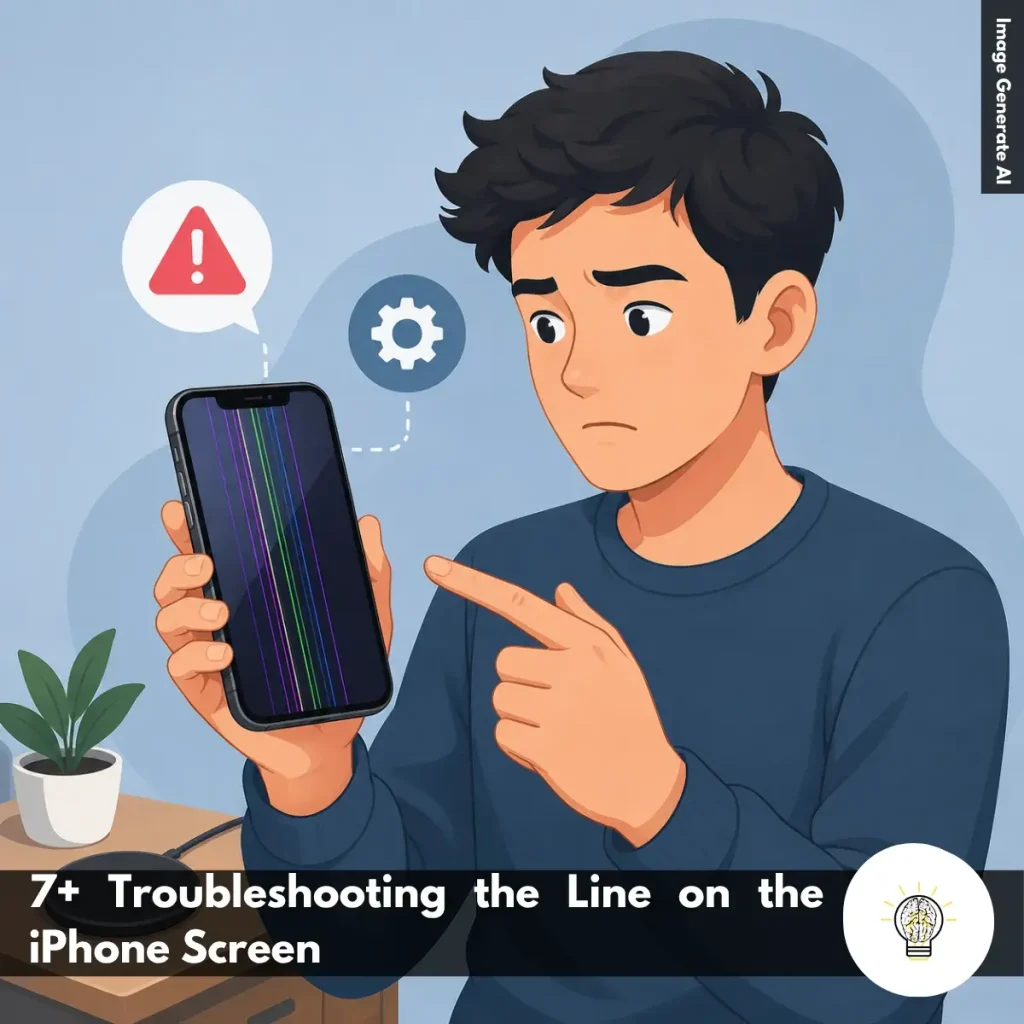
Ruminesia – If you’ve recently noticed strange vertical or horizontal lines on your iPhone, troubleshooting the line on the iPhone Screen is probably the first thing on your mind. The issue can be frustrating, especially when the phone seems to work normally, but the display suddenly looks damaged.
Many people immediately assume the screen needs replacing. However, the cause isn’t always a serious hardware failure. In some cases, a software glitch, loose connection, or even a screen protector can be responsible.
Interestingly, display lines don’t always appear right after a drop, update, or water exposure. That’s what makes the problem confusing—and why understanding the possible causes and fixes can save both time and money.
Key Highlights
- Screen lines aren’t always hardware damage; software issues can cause them too.
- Start with simple fixes like restarting or updating your iPhone.
- Drops and moisture exposure remain the most common causes of display lines.
- A screen protector or trapped debris can sometimes mimic screen damage.
- If lines react to pressure, an internal connection may be loose.
- Professional repair is often necessary when basic troubleshooting doesn’t help.
In many cases, identifying the root cause is the first step in troubleshooting the Line on the iPhone Screen effectively. Here are the most common reasons why vertical or horizontal lines may appear on your device.
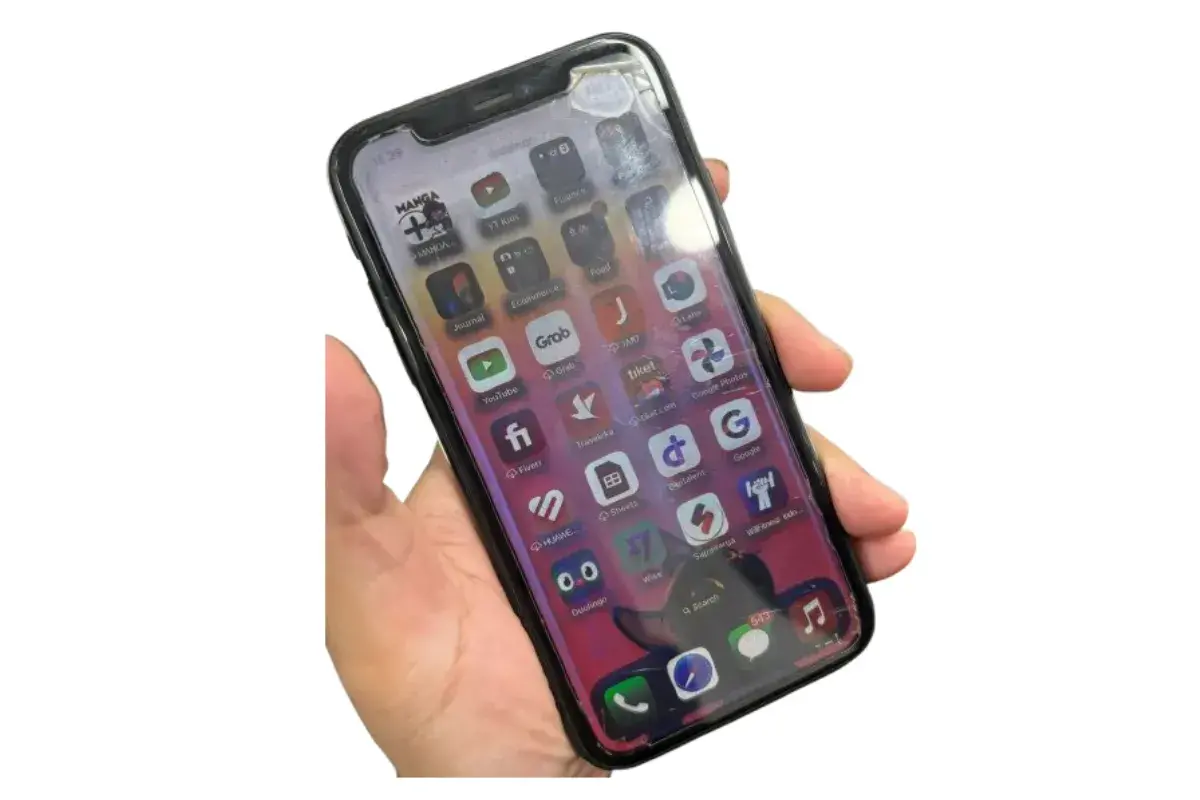
Seeing vertical or horizontal lines on your iPhone screen can be frustrating, especially when you’re not sure whether the issue is serious or temporary. The good news is that not every display line means your screen is permanently damaged.
When troubleshooting the Line on the iPhone Screen, it’s best to start with simple fixes before assuming a hardware failure. Some display issues are caused by software glitches, while others may result from physical damage, moisture exposure, or internal connection problems. The steps below can help you identify the cause and potentially resolve the issue without immediate repair.
A simple restart is often the quickest place to begin. Temporary software glitches can sometimes interfere with how the display functions, causing unexpected lines or visual artifacts. To restart your iPhone:
This sounds basic, but many users skip this step and move straight to more complicated solutions. In practice, a fresh restart can clear temporary system errors and restore normal display behavior.
If the lines remain after restarting, a hard reset may help. Unlike a standard restart, this process forces the system to refresh and can resolve deeper software-related issues. The steps vary depending on your iPhone model:
Interestingly, a hard reset doesn’t erase your personal data. It simply forces the operating system to restart, making it a safe troubleshooting step before trying more advanced solutions.
Software bugs can occasionally affect screen performance, especially after app conflicts or system errors. Keeping iOS updated ensures your device receives bug fixes, security patches, and performance improvements. To check for updates:
What many users don’t realize is that display issues can sometimes be linked to software bugs rather than hardware damage. If the lines appeared shortly after an update or while using specific apps, installing the latest version of iOS may resolve the problem.
Even though modern iPhones offer water resistance, prolonged exposure to moisture can still affect internal components. Water damage often causes display abnormalities, including flickering screens and colored lines. Look for these signs:
The problem is that water damage doesn’t always show immediate symptoms. In some cases, corrosion develops gradually, causing screen issues days or even weeks later.
Physical impact remains one of the most common causes of display lines. Even if the screen glass looks intact, internal display components can still be damaged after a drop. Take a close look at your device:
In practice, even a minor drop can loosen internal display connections. If the lines appeared after an accidental fall, hardware damage becomes a much more likely cause.
Sometimes the issue isn’t with the display itself. A damaged screen protector, trapped moisture, or air bubbles can create visual distortions that resemble LCD lines. To rule this out:
This sounds simple, but it’s an easy step to overlook. Removing the protector helps determine whether the issue is external or actually coming from the display panel.
If a display connector has become slightly loose, applying gentle pressure may temporarily affect the screen behavior. Here’s how to test it safely:
This is not a permanent fix and should be done carefully. If the lines respond to pressure, there’s a good chance the issue involves an internal connection that requires professional attention.
If software-related problems are still suspected, restoring the device can reinstall iOS and eliminate deeper system conflicts. Before proceeding, make sure to back up your data. To restore your iPhone:
Because this process erases the device, it should generally be considered a last software troubleshooting step before seeking repair.
If none of the previous solutions work, the display lines are likely caused by a hardware issue. At this stage, professional diagnosis is usually the safest and most reliable option. Consider the following:
A technician can check for display panel damage, loose internal connectors, or logic board issues that aren’t visible from the outside. Besides that, professional diagnostics can help prevent unnecessary part replacements and ensure the correct repair is performed.
My Experience Fixing Lines on an iPhone Screen
After my iPhone XR fell into water, lines started appearing on the screen. Looking back, I realized I made a mistake that likely made the damage worse. Here’s My Experience Fixing Lines on an iPhone Screen.
Read Also:
If you’re dealing with screen damage or display issues, these Frequently Asked Questions About iPhone LCD cover some of the most common concerns. The answers below are designed to help you understand the problem and make informed repair decisions.
The main difference is how the screen produces light. An LCD uses a backlight behind the display, while an OLED screen lights each pixel individually.
Because OLED pixels can turn off completely, they offer deeper blacks, higher contrast, and better power efficiency. Most newer iPhones use OLED displays, while older models like the iPhone XR and iPhone 11 use LCD panels.
Yes, but it’s not a common repair option. Glass-only replacement requires specialized equipment and carries a high risk of damaging the display underneath.
For this reason, most repair shops replace the entire screen assembly, including the glass, digitizer, and display. This approach is usually more reliable and delivers better long-term results.
Vertical lines are often caused by display hardware damage, especially after a drop or impact. Damaged display connections can prevent pixels from displaying colors correctly.
In some cases, a loose display cable may be responsible. However, persistent lines usually require screen repair or replacement.
Black spots that resemble spilled ink are usually caused by a damaged LCD layer. This often happens after the screen experiences pressure or impact damage.
Unfortunately, these spots do not disappear on their own and typically spread over time. Replacing the display is usually the only effective solution.
Not necessarily, but improper repairs can cause Face ID issues. The Face ID system relies on delicate components connected to the original hardware.
Using qualified technicians and quality replacement parts greatly reduces the risk. Apple Authorized Service Providers are generally the safest option for preserving Face ID functionality.
This usually means the phone is still powered on, but the display is not working. Screen damage, backlight failure, or loose internal connections are common causes.
Before seeking repairs, try performing a force restart. If the screen remains black, professional diagnosis is recommended.
True Tone automatically adjusts screen color temperature based on ambient lighting. It helps make the display look more natural and comfortable for your eyes.
You may lose True Tone if the replacement screen is not properly calibrated. Many reputable repair shops can transfer the necessary calibration data during the repair process.
Start by checking brightness, color accuracy, and viewing angles. The display should look clear, consistent, and free from discoloration or dead pixels.
Also test touch responsiveness by typing, scrolling, and using gestures across the entire screen. A quality replacement should feel smooth and responsive in daily use.
Ghost touches occur when the screen responds without any physical input. This is often caused by a failing digitizer, moisture damage, or a damaged display.
One thing many users overlook is the charger. Faulty third-party chargers can sometimes trigger touchscreen interference, so try using an original or certified charger first.
It depends on the device’s condition and repair cost. If the phone still performs well and the repair is affordable, replacing the screen can extend its lifespan significantly.
However, if the repair cost is close to the phone’s market value, upgrading to a newer device may be the more practical choice.
A line appearing on your iPhone screen can be alarming, but it doesn’t always mean the device is beyond repair. In many cases, taking a step-by-step approach and understanding the possible causes can help you identify whether the issue is something simple or a sign of a deeper hardware problem.
What many users don’t realize is that display issues often leave clues behind. A recent drop, a software update, moisture exposure, or even a worn-out screen protector can tell part of the story. That’s why troubleshooting the Line on the iPhone Screen is often less about finding a quick fix and more about understanding what your device is trying to tell you.
Technology problems can be frustrating, especially when they appear without warning. But sometimes a little patience and the right troubleshooting steps can save both time and unnecessary repair costs. Have you ever dealt with screen lines on an iPhone? It would be interesting to hear what caused the issue and how you eventually solved it.