Physical Address
304 North Cardinal St.
Dorchester Center, MA 02124
Physical Address
304 North Cardinal St.
Dorchester Center, MA 02124

Your Guide to the Latest in Tech
Your Guide to the Latest in Tech
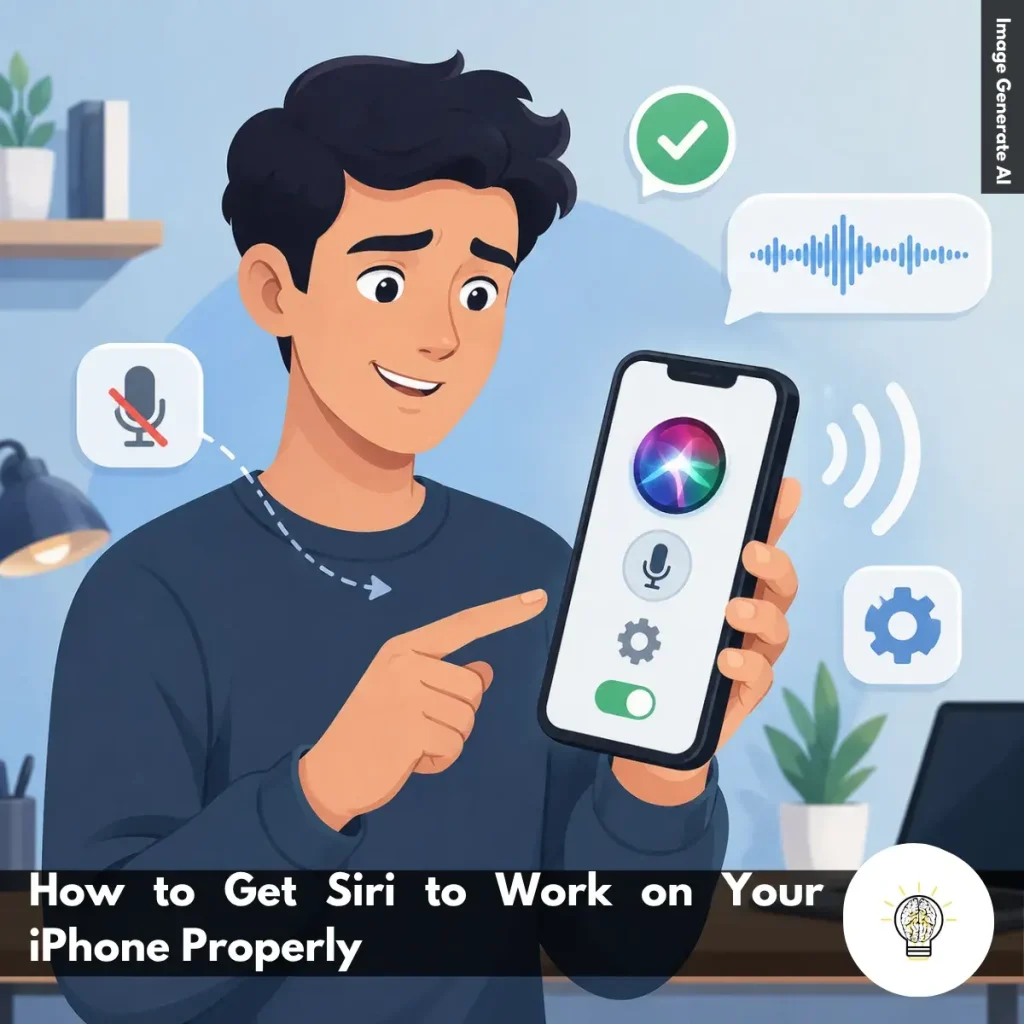
Ruminesia – Ever said “Hey Siri” and got nothing back? It’s a common frustration, especially when Siri was working fine before, or you need a quick hands-free answer.
If you’re wondering how to get Siri to work on your iPhone, the issue is often simpler than it seems. In many cases, a setting needs to be enabled, or a quick adjustment is required.
Interestingly, Siri is one of those features you rarely think about until it stops working. A few simple checks can usually get it responding again and make your iPhone much more convenient to use.
Key Highlights
- Most Siri issues are caused by settings, not hardware problems.
- Enabling voice activation is the first step to getting Siri working.
- Voice training helps Siri recognize commands more accurately and consistently.
- Button activation provides a reliable alternative in noisy environments.
- Type to Siri offers a convenient option when speaking isn’t practical.
- A quick settings review often resolves Siri problems without advanced troubleshooting.
If Siri isn’t responding, the cause is usually a settings issue rather than a problem with your iPhone itself. The good news is that getting Siri up and running only takes a few minutes. Once configured properly, Siri can recognize your voice, respond more accurately, and become much more useful for everyday tasks.
Before you can use Siri, make sure the feature is turned on.
This gives you two ways to activate Siri: with your voice or by pressing a hardware button. In practice, having both options enabled makes Siri much easier to access whenever you need it.
To improve voice recognition and personalization, Siri may ask you to complete a short setup process.
This step helps Siri understand your speech patterns more accurately. What many users don’t realize is that voice training can significantly improve Siri’s responsiveness, especially in noisy environments.
Voice commands are convenient, but they aren’t always practical. If you’re in a crowded place or a quiet meeting, manual activation can be a better option.
Once enabled, simply press and hold the button, then speak your request.
After setup, you can interact with Siri in the way that feels most comfortable.
Typing can be especially useful when you’re in a quiet environment or prefer not to use voice commands. It’s a feature many iPhone users overlook, even though it can make Siri more accessible in everyday situations.
If Siri still isn’t responding, a few quick checks can often solve the problem.
The problem is that Siri relies on both system settings and internet connectivity. Even if everything looks correct at first glance, one small configuration issue can prevent it from working properly.
Once you’ve completed the setup, a few simple adjustments can make Siri feel much smarter and more convenient.
Interestingly, many users only use Siri for basic questions, even though it can handle a wide range of productivity tasks. Spending a little time exploring its capabilities can make your iPhone much more efficient to use.
Read more:
Frequently Asked Questions about Siri often focus on privacy, customization, voice commands, and everyday usability. Below are some of the most common Siri questions, along with concise and practical answers for Apple users.
You can change Siri’s voice by going to Settings > Apple Intelligence & Siri > Siri Voice. From there, choose different accents and voice options, including American, British, Australian, and more.
Once selected, your iPhone will automatically download the voice files over Wi-Fi. This allows Siri to sound more natural based on your preference.
Yes, Siri can handle several basic commands offline on supported iPhones. You can set alarms, open apps, control music, or adjust settings without internet access.
However, requests that need live information, such as weather updates or web searches, still require Wi-Fi or cellular data.
This usually happens because voice activation is disabled or the microphone is blocked. Check Settings > Apple Intelligence & Siri and make sure “Listen for ‘Hey Siri’” is turned on.
Besides that, avoid placing your iPhone face down or inside a thick case that may affect microphone detection. Restarting the device can also help fix temporary Siri issues.
To enable this feature:
Once enabled, Siri can read incoming messages aloud and let you reply hands-free.
Apple does not currently allow completely custom wake words for Siri. However, newer iOS versions let users shorten the phrase from “Hey Siri” to simply “Siri.” If you want more customization, you can use Vocal Shortcuts inside Accessibility settings to trigger certain actions using custom phrases.
You can delete Siri history directly from your iPhone settings. Go to Settings > Apple Intelligence & Siri > Siri & Dictation History, then choose the delete option. This removes stored voice recordings and Siri interaction history linked to your account. One thing many users overlook is that this can improve privacy management.
No, Siri does not continuously record private conversations. Your device only listens locally for the wake phrase like “Hey Siri” or “Siri.” Once Siri detects the trigger phrase, it begins processing your request. If preferred, you can disable voice activation entirely in the settings.
Activate Siri and say, “Learn how to pronounce my name.” Siri will guide you through a short pronunciation setup process. You’ll be asked to repeat your name, then select the pronunciation that sounds most accurate. Siri will save it automatically to your contact profile.
Yes, Siri can help locate a misplaced iPhone using other Apple devices like Apple Watch, HomePod, or iPad. Simply say, “Where is my iPhone?” to trigger the search. Even if the iPhone is in silent mode, it will still make a loud sound to help you find it quickly.
First, enable Siri access for WhatsApp in your iPhone settings. Open Settings > WhatsApp and turn on the “Use with Siri” option.
After that, specify WhatsApp directly in your voice command. For example, say “Send a WhatsApp message to Sarah” instead of only saying “Message Sarah.”
Siri is designed to make everyday tasks easier, but when it suddenly stops responding, even simple actions can become frustrating. Interestingly, the solution is often much simpler than most people expect, with a few settings adjustments making all the difference.
When looking into How to Get Siri to Work on Your iPhone, it’s easy to assume something is seriously wrong. In reality, taking a few minutes to review your setup, voice settings, and connection can usually get everything working smoothly again.
Technology tends to feel invisible when it works well, and Siri is no exception. If you’ve encountered Siri issues before, what helped you fix them? Your experience might be useful to other iPhone users facing the same problem.