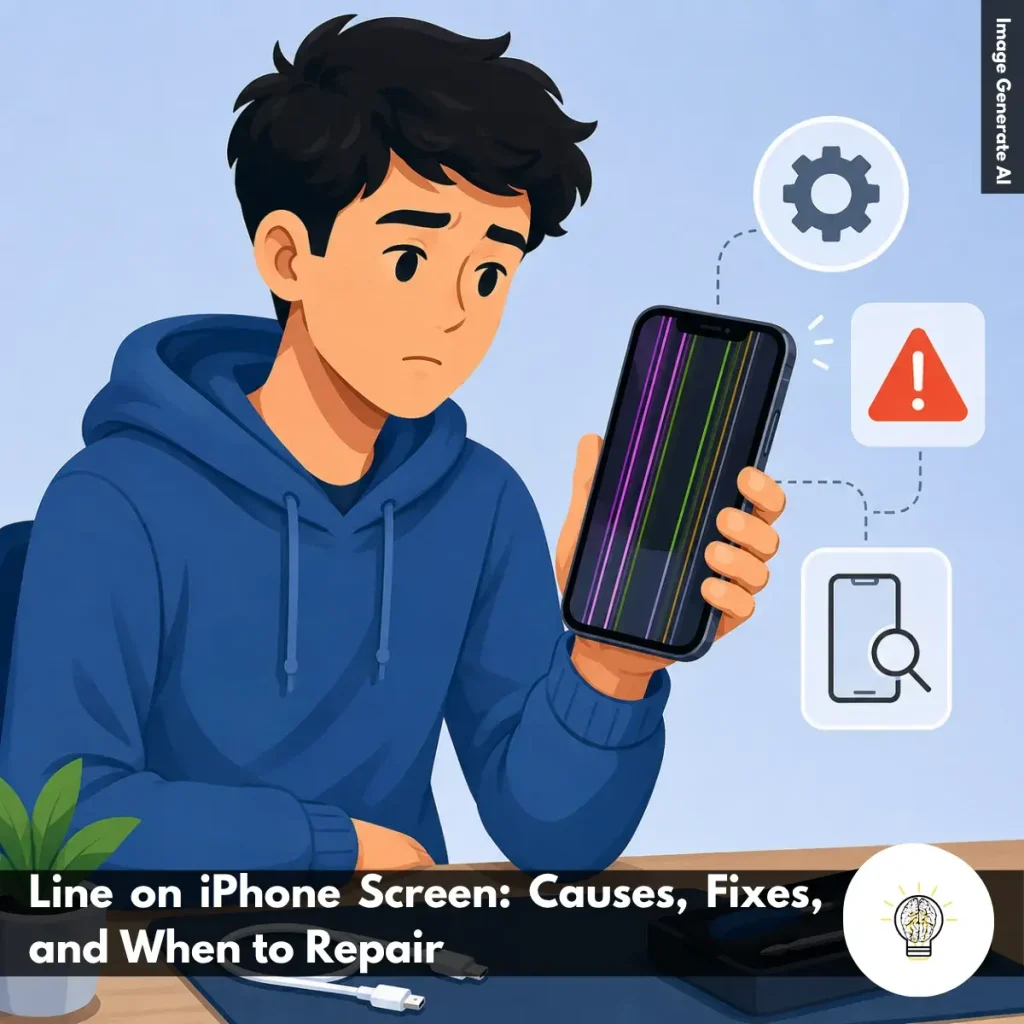
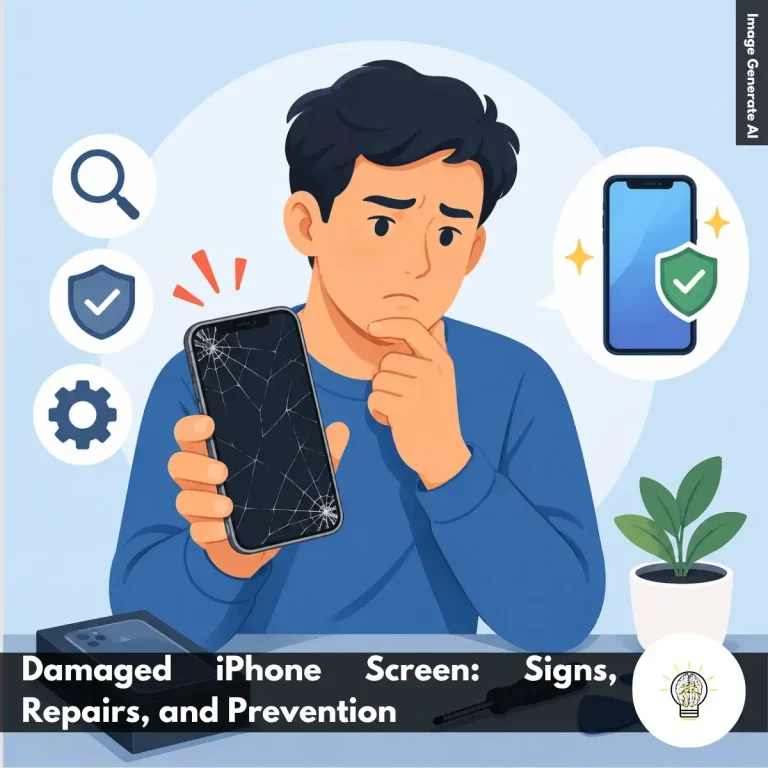
Ruminesia – Have you ever unlocked your iPhone and suddenly noticed strange vertical or horizontal lines running across the screen? A Line on iPhone Screen can be frustrating, especially when the display was working perfectly fine just moments before.
What makes it more confusing is that screen lines don’t always mean the LCD is permanently damaged. Sometimes the cause is as simple as a software glitch, while in other cases it could be linked to a drop, moisture exposure, or an internal hardware issue that’s starting to show signs of trouble.
The challenge is knowing the difference between a temporary problem and one that needs professional attention. Understanding the possible causes and solutions can help you make smarter decisions before spending money on repairs or replacing your device.
Key Highlights
Screen lines can result from software glitches, physical damage, or moisture exposure.
Restarting or updating iOS should be your first troubleshooting steps.
Persistent vertical or horizontal lines often indicate underlying LCD hardware damage.
Early repairs can prevent further damage and help reduce repair costs.
Water exposure and accidental drops are among the most common causes.
If basic fixes fail, professional diagnosis is usually the safest solution.
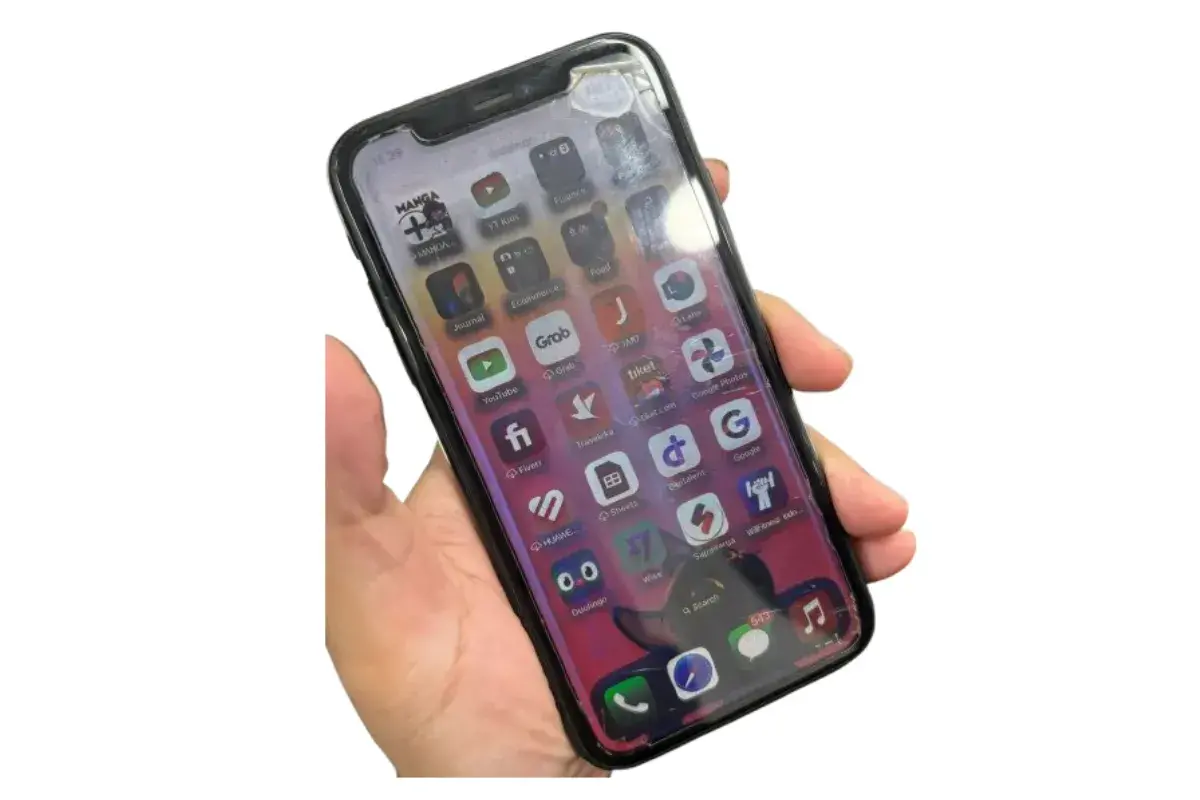
After my iPhone XR accidentally fell into water, lines started appearing on the screen. Looking back, I realized I made a critical mistake while trying to remove the water, which likely made the damage worse. Here’s what happened based on My Experience Fixing Lines on an iPhone Screen.
Don’t Charge a Wet iPhone Immediately: After the phone got wet, I tried using a speaker water-ejection method to remove the water. The battery was low, so I plugged it in to charge, but this turned out to be a mistake because charging a wet device can increase the risk of internal damage.
Watch for Screen Lines After Water Exposure: Not long after, the phone suddenly shut down. When I turned it back on, lines appeared across the display, which is often a sign that water has affected the screen or internal components.
Take Action Before the Damage Gets Worse: At first, the phone was still usable despite the lines. However, the lines gradually spread across the screen until the touchscreen stopped responding completely.
Get Professional Help as Soon as Possible: Eventually, the iPhone stopped turning on altogether. Instead of waiting longer, I took it to a repair shop, which is usually the best option once water damage starts affecting the display and device functionality.
Causes of a Line on the iPhone Screen
Understanding the Causes of a Line on the iPhone Screen can help you determine whether the issue is something simple you can fix yourself or a sign of hardware damage. Here are the most common reasons display lines appear on an iPhone screen and what they usually mean.
Screen Damage After a Drop: If your iPhone has recently been dropped or hit a hard surface, the LCD panel or its internal components may have been damaged. Even if the screen doesn’t crack, impact damage can cause vertical or horizontal lines to appear.
Liquid or Moisture Exposure: Water and moisture can affect the display module and internal circuits. If striped lines appeared after your iPhone came into contact with liquid, internal water damage could be the cause.
Loose LCD Cable Connection: A strong impact or accidental drop can sometimes loosen the cable that connects the LCD to the logic board. When this happens, display issues such as flickering, screen distortion, or vertical stripes may appear.
Static Electricity Interference: Although less common, electrostatic discharge can affect sensitive display components. This can lead to temporary screen abnormalities, including unexpected lines across the display.
Software-Related Display Glitches: Not all striped screen problems are caused by hardware. System bugs, outdated software, or problematic apps can occasionally cause display lines, especially if the issue appears only in certain apps or situations.
Dust or Debris Under the Screen Protector: Sometimes the problem isn’t the LCD itself. Dust, dirt, trapped moisture, or air bubbles beneath a screen protector can create line-like marks that look similar to LCD damage.
Manufacturing Defects Over Time: In some cases, striped lines can result from display defects that originated during manufacturing. These issues may not appear immediately and can become noticeable after months or years of regular use.
Reasons to Fix a Line on the iPhone Screen Promptly
A striped screen may seem like a minor annoyance at first, but delaying repairs can lead to bigger problems down the road. Understanding the Reasons to fix a Line on the iPhone Screen promptly can help you protect your device, save money, and avoid unexpected issues.
Fix the Problem Before It Gets Worse: If you notice screen lines, don’t ignore them. In many cases, early repairs can prevent damage from spreading to the LCD, display connectors, or other internal components.
Keep Your iPhone Easy to Use: Screen stripes can make it difficult to read messages, browse websites, or use apps comfortably. Fixing the issue quickly helps restore normal usability and prevents daily frustration.
Avoid Additional System Issues: Sometimes, display lines are linked to software glitches rather than hardware damage. Addressing the problem early can help prevent related bugs from affecting other iPhone functions.
Protect Your Important Data: What many users forget is that display problems can sometimes be a warning sign of deeper hardware issues. Back up your files and repair the device as soon as possible to reduce the risk of data loss.
Save Money on Repairs: Minor display issues are often less expensive to fix than major hardware failures. In practice, waiting too long can turn a simple repair into a more costly replacement.
Restore a Clear and Clean Display: A striped screen affects both visibility and appearance. Repairing it improves screen clarity, making your iPhone look and feel normal again.
Take Advantage of Warranty Coverage: If your iPhone is still under warranty or covered by AppleCare, act quickly. Addressing the issue early may allow you to get repairs completed with little or no additional cost.
When to Replace a Line on an iPhone Screen?
Knowing when to replace a Line on the iPhone Screen can help you avoid ongoing display issues and keep your device working properly. If the problem keeps getting worse or affects daily use, a screen replacement may be the best solution.
Check for Cracks or Deep Scratches: Inspect your screen closely for visible damage. Cracks and severe scratches can affect display performance and may indicate that the LCD underneath has been damaged.
Look for Unusual Colors on the Screen: Watch for yellow spots, dark patches, or color distortions that don’t disappear. These are common signs that the LCD panel is no longer functioning properly.
Test Touch Response Across the Screen: Try tapping and swiping in different areas of the display. If certain sections stop responding or react inconsistently, the LCD or digitizer may need replacement.
Watch for Random Screen Activity: If your iPhone opens apps, types, or scrolls on its own, you may be experiencing ghost touch issues. This often points to a faulty display layer rather than a software problem.
Pay Attention to Persistent Screen Lines: Vertical or horizontal lines that remain visible after restarting the device are a strong sign of internal display damage. In most cases, software fixes won’t resolve this issue.
Check for Dead or Stuck Pixels: Look for tiny black dots or colored pixels that never change. While a few may be manageable, multiple dead pixels often indicate a failing LCD panel.
Notice Frequent Screen Flickering: If the display flickers regularly or brightness changes unexpectedly, the LCD may be deteriorating. This can become more noticeable over time and affect usability.
Assess Overall Display Quality: Compare the screen’s brightness, sharpness, and contrast to how it normally looks. A dull, dim, or washed-out display can be a sign that the LCD is wearing out.
Inspect for Water Damage Symptoms: If your iPhone was exposed to moisture, watch for display discoloration, touch issues, or screen glitches. Water damage often affects the LCD and may require replacement.
Consider the Device’s Repair History: If your iPhone has already undergone multiple screen repairs, replacing the entire device may be a more practical long-term solution. This is especially true for older models.
Check Your Warranty or AppleCare Coverage: Before paying for repairs, verify whether your iPhone is still covered. If eligible, you may be able to replace the LCD through an authorized service provider at a lower cost or no cost at all.
Troubleshooting Line on iPhone Screen
If you’re seeing vertical or horizontal lines on your screen, don’t panic right away. There are several troubleshooting lines on iPhone Screen issues, ranging from simple software fixes to identifying potential hardware damage.
Restart Your iPhone First: Start with the simplest fix. A quick restart can clear temporary system glitches that may be causing screen lines and often resolve minor display issues within minutes.
Perform a Hard Reset: If restarting doesn’t work, try a hard reset based on your iPhone model. This refreshes the system at a deeper level and can help eliminate persistent software-related display problems.
Update to the Latest iOS Version: Make sure your iPhone is running the latest software. Go to Settings > General > Software Update and install any available updates, as bug fixes can sometimes resolve display abnormalities.
Check for Water Damage: Moisture can affect internal display components and cause screen lines. Inspect the charging port, speaker openings, and Liquid Damage Indicator (LDI) to see if water exposure may be the cause.
Look for Signs of Physical Damage: Carefully inspect the screen and frame for cracks, dents, or impact marks. Even a minor drop can damage internal LCD connections and lead to a striped display.
Remove the Screen Protector: Sometimes the issue isn’t the LCD itself. Try removing the screen protector and check whether dust, trapped moisture, or damage to the protector is creating line-like distortions.
Test the Affected Area Gently: If the lines appear in one specific area, lightly press that section of the screen and watch for changes. If the lines temporarily disappear or shift, a loose internal connection may be involved. Be careful not to apply too much pressure.
Restore Your iPhone if Needed: If you suspect a software issue, back up your data and perform a full restore using Finder or iTunes. This reinstalls iOS and can remove software conflicts that may be affecting the display.
Get Professional Repair Assistance: If none of these ways to fix the line on iPhone Screen problems work, the issue is likely hardware-related. Visit an Apple Store or authorized repair center for a proper diagnosis and repair recommendation.
How to Prevent a Line on the iPhone Screen
Preventing a Line on the iPhone Screen is often easier and cheaper than dealing with screen repairs later. A few simple habits can go a long way in protecting your display and keeping your iPhone working properly.
Install a Reliable Screen Protector: Use a high-quality screen protector to reduce the risk of scratches and minor impact damage. Make sure it’s applied correctly, as trapped dust or air bubbles can sometimes affect screen visibility.
Keep Your iPhone Away from Water: Moisture can damage internal display components and lead to screen issues over time. If your phone gets wet, dry it as soon as possible and avoid charging it until it’s completely dry.
Handle Your Device with Care: Try to avoid drops, hard impacts, or placing heavy objects on your phone. Even if the screen looks fine on the outside, internal LCD connections can still be affected.
Clean the Screen the Right Way: Wipe the display regularly with a soft microfiber cloth to remove dust, fingerprints, and dirt. This sounds simple, but many users overlook it and mistake debris for screen defects.
Avoid Extreme Heat and Cold: Don’t leave your iPhone in direct sunlight, a hot car, or freezing conditions for extended periods. Extreme temperatures can affect the LCD and other internal components.
Keep iOS Up to Date: Regular software updates often include bug fixes and performance improvements. If possible, check for updates regularly to reduce the risk of display-related software glitches.
Avoid Overloading the Device: Running too many apps at once can put extra strain on system resources. While it may not directly cause a Line on the iPhone Screen, keeping your device running smoothly can help prevent unexpected performance issues.
Inspect Your Phone After Accidents: After a drop or impact, take a moment to check for cracks, dents, or display abnormalities. Catching damage early can help prevent small issues from turning into costly repairs.
If you’re dealing with screen damage or display issues, these Frequently Asked Questions About iPhone LCD cover some of the most common concerns. The answers below are designed to help you understand the problem and make informed repair decisions.
1. What is the difference between an iPhone LCD and an OLED screen?
The main difference is how the screen produces light. An LCD uses a backlight behind the display, while an OLED screen lights each pixel individually.
Because OLED pixels can turn off completely, they offer deeper blacks, higher contrast, and better power efficiency. Most newer iPhones use OLED displays, while older models like the iPhone XR and iPhone 11 use LCD panels.
2. Can you replace just the broken glass on an iPhone LCD screen?
Yes, but it’s not a common repair option. Glass-only replacement requires specialized equipment and carries a high risk of damaging the display underneath.
For this reason, most repair shops replace the entire screen assembly, including the glass, digitizer, and display. This approach is usually more reliable and delivers better long-term results.
3. Why are there vertical colored lines running down my iPhone screen?
Vertical lines are often caused by display hardware damage, especially after a drop or impact. Damaged display connections can prevent pixels from displaying colors correctly.
In some cases, a loose display cable may be responsible. However, persistent lines usually require screen repair or replacement.
4. What causes black ink-like spots to appear on an iPhone LCD?
Black spots that resemble spilled ink are usually caused by a damaged LCD layer. This often happens after the screen experiences pressure or impact damage.
Unfortunately, these spots do not disappear on their own and typically spread over time. Replacing the display is usually the only effective solution.
5. Will replacing my iPhone screen disable my Face ID functionality?
Not necessarily, but improper repairs can cause Face ID issues. The Face ID system relies on delicate components connected to the original hardware.
Using qualified technicians and quality replacement parts greatly reduces the risk. Apple Authorized Service Providers are generally the safest option for preserving Face ID functionality.
6. Why is my iPhone screen completely black even though the phone vibrates?
This usually means the phone is still powered on, but the display is not working. Screen damage, backlight failure, or loose internal connections are common causes.
Before seeking repairs, try performing a force restart. If the screen remains black, professional diagnosis is recommended.
7. What is True Tone, and will I lose it after an iPhone screen repair?
True Tone automatically adjusts screen color temperature based on ambient lighting. It helps make the display look more natural and comfortable for your eyes.
You may lose True Tone if the replacement screen is not properly calibrated. Many reputable repair shops can transfer the necessary calibration data during the repair process.
8. How can I test if my new replacement iPhone screen is high quality?
Start by checking brightness, color accuracy, and viewing angles. The display should look clear, consistent, and free from discoloration or dead pixels.
Also test touch responsiveness by typing, scrolling, and using gestures across the entire screen. A quality replacement should feel smooth and responsive in daily use.
9. Why is my iPhone touchscreen acting crazy and registering ghost touches?
Ghost touches occur when the screen responds without any physical input. This is often caused by a failing digitizer, moisture damage, or a damaged display.
One thing many users overlook is the charger. Faulty third-party chargers can sometimes trigger touchscreen interference, so try using an original or certified charger first.
10. Is it worth fixing a cracked screen on an older model iPhone?
It depends on the device’s condition and repair cost. If the phone still performs well and the repair is affordable, replacing the screen can extend its lifespan significantly.
However, if the repair cost is close to the phone’s market value, upgrading to a newer device may be the more practical choice.
Conclusion
A Line on the iPhone Screen can be alarming at first, especially when the lines seem to appear out of nowhere. But in many cases, the screen is simply giving you an early warning that something needs attention, whether it’s a minor software issue or a more serious hardware problem.
Interestingly, the biggest mistake many users make is waiting too long before investigating the cause. A quick check, simple troubleshooting, or timely repair can often prevent a small display issue from turning into a more expensive problem later on.
At the end of the day, your iPhone is something you rely on daily for communication, work, and entertainment. Taking screen issues seriously helps keep it reliable when you need it most. Have you ever dealt with a striped screen or an unexpected display problem on your iPhone? Your experience might help someone facing the same issue.
A technology writer with 5 years of professional experience as a WordPress Developer and SEO Specialist. Focused on covering apps, gadgets, and the latest digital trends, while creating SEO-friendly content that helps readers stay informed and businesses grow their online presence.