Physical Address
304 North Cardinal St.
Dorchester Center, MA 02124
Physical Address
304 North Cardinal St.
Dorchester Center, MA 02124

Your Guide to the Latest in Tech
Your Guide to the Latest in Tech
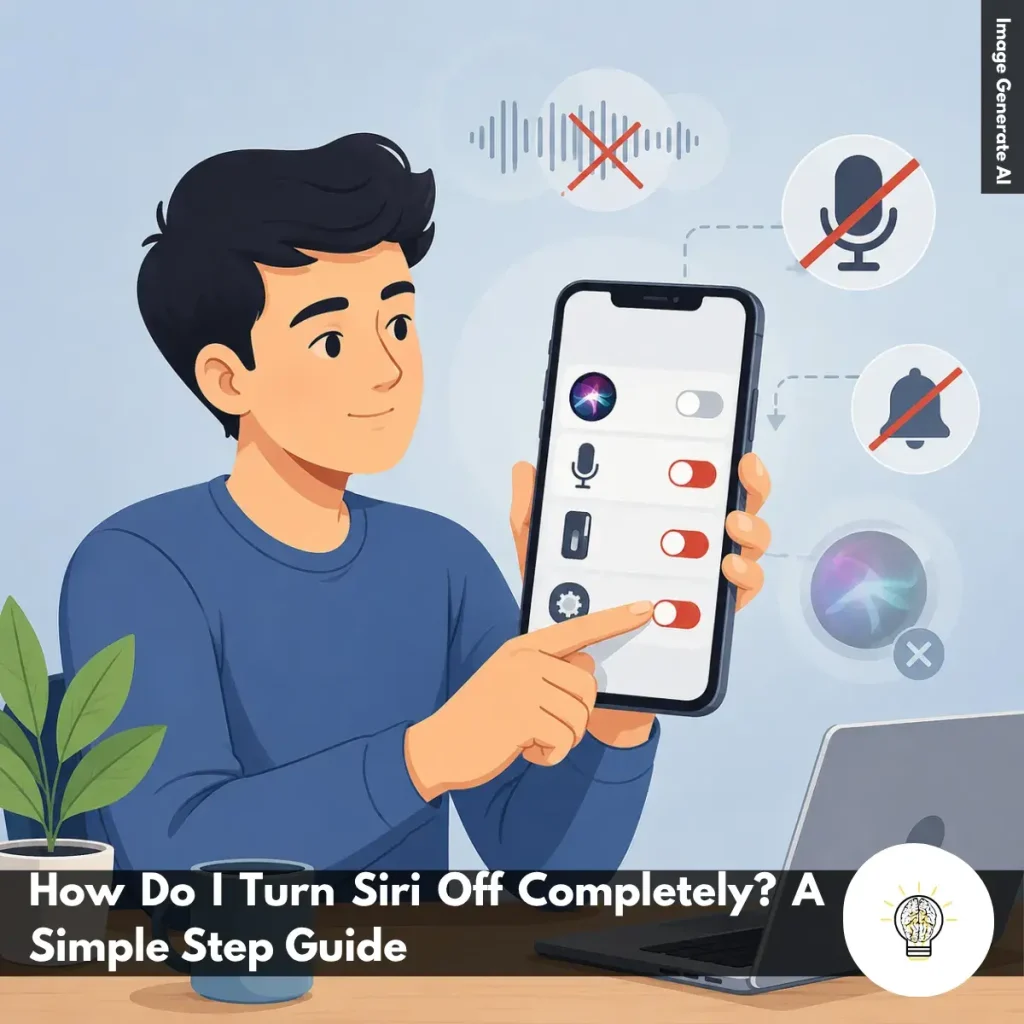
Ruminesia – Have you ever had Siri pop up when you didn’t mean to activate it? Maybe it started listening after you accidentally pressed a button, responded while someone was talking nearby, or kept showing suggestions you never asked for. Moments like these often lead people to ask a simple question: How do I turn Siri Off Completely?
The interesting thing is that turning off Siri isn’t always as straightforward as flipping a single switch. Depending on your device and iOS version, Siri can remain accessible through voice commands, hardware buttons, lock screen access, or even background suggestions that continue to personalize your experience.
For some users, this is about reducing distractions. For others, it’s about privacy, control, or simply keeping their device experience as clean as possible. Whatever the reason, understanding where Siri is integrated across Apple devices can help ensure it’s fully disabled rather than only partially turned off.
Key Highlights:
- Turning off Siri requires disabling voice commands, button shortcuts, and lock screen access.
- Siri suggestions may remain active even after the assistant itself is disabled.
- Newer iOS versions reorganize settings, but the core process stays similar.
- Disabling Siri can help reduce distractions and improve privacy control.
- Screen Time offers an extra layer of protection against accidental reactivation.
- Siri can be turned off across iPhone, iPad, Mac, Apple Watch, and HomePod.
If you want Siri gone for good, simply turning off voice activation isn’t always enough. Siri can also be accessed through hardware buttons, lock screen shortcuts, and system-generated suggestions.
The good news is that you can disable all of these features with a few settings changes. The exact menus may vary depending on your Apple device and software version, but the process is generally straightforward.
For most users, this is the most important step. Siri on iPhone and iPad can be activated through voice commands or physical buttons, so both need to be disabled. Follow these steps to turn off Siri on iPhone & iPad:
To remove Siri-related suggestions:
In practice, this prevents Siri from appearing in searches, lock screen recommendations, and sharing suggestions.
Apple has reorganized Siri settings in newer versions of iOS, but the overall process remains the same. To disable Siri completely:
This ensures Siri cannot be triggered by voice commands, hardware buttons, or from the lock screen.
What many users don’t realize is that Siri can continue powering recommendations even after the assistant itself is turned off. To disable the Siri Suggestions system-wide:
This helps stop Siri from using your activity patterns to generate personalized suggestions throughout iOS.
If you still want Siri available but prefer tighter privacy controls, you can limit what Siri can access on an app-by-app basis. Follow these steps:
This reduces Siri’s ability to analyze app usage and recommend content based on your activity.
For shared devices or children’s devices, Screen Time offers an additional layer of control. To block Siri completely:
The benefit here is that Siri cannot be easily re-enabled without access to the Screen Time settings.
If you use a Mac, Siri can be disabled from System Settings in just a few clicks. Follow these steps:
Once disabled, Siri will no longer respond to voice commands or manual activation.
Apple Watch supports multiple ways to activate Siri, including voice commands, wrist gestures, and button presses. To disable all Siri triggers:
This prevents Siri from launching regardless of how you interact with the watch.
Because HomePod is built around voice interaction, Siri is a core feature. However, you can still disable its listening capabilities. You have two options:
Using a voice command:
Using the Home app:
Once disabled, HomePod will stop responding to Siri wake words.
By following the steps above, you can fully disable Siri across your Apple devices, including voice activation, button shortcuts, lock screen access, and Siri-powered suggestions. This is the most complete answer to How Do I Turn Siri Off Completely, especially if you want to minimize Siri’s presence throughout the Apple ecosystem.
Read more:
Frequently Asked Questions about Siri often focus on privacy, customization, voice commands, and everyday usability. Below are some of the most common Siri questions, along with concise and practical answers for Apple users.
You can change Siri’s voice by going to Settings > Apple Intelligence & Siri > Siri Voice. From there, choose different accents and voice options, including American, British, Australian, and more.
Once selected, your iPhone will automatically download the voice files over Wi-Fi. This allows Siri to sound more natural based on your preference.
Yes, Siri can handle several basic commands offline on supported iPhones. You can set alarms, open apps, control music, or adjust settings without internet access.
However, requests that need live information, such as weather updates or web searches, still require Wi-Fi or cellular data.
This usually happens because voice activation is disabled or the microphone is blocked. Check Settings > Apple Intelligence & Siri and make sure “Listen for ‘Hey Siri’” is turned on.
Besides that, avoid placing your iPhone face down or inside a thick case that may affect microphone detection. Restarting the device can also help fix temporary Siri issues.
To enable this feature:
Once enabled, Siri can read incoming messages aloud and let you reply hands-free.
Apple does not currently allow completely custom wake words for Siri. However, newer iOS versions let users shorten the phrase from “Hey Siri” to simply “Siri.” If you want more customization, you can use Vocal Shortcuts inside Accessibility settings to trigger certain actions using custom phrases.
You can delete Siri history directly from your iPhone settings. Go to Settings > Apple Intelligence & Siri > Siri & Dictation History, then choose the delete option. This removes stored voice recordings and Siri interaction history linked to your account. One thing many users overlook is that this can improve privacy management.
No, Siri does not continuously record private conversations. Your device only listens locally for the wake phrase like “Hey Siri” or “Siri.” Once Siri detects the trigger phrase, it begins processing your request. If preferred, you can disable voice activation entirely in the settings.
Activate Siri and say, “Learn how to pronounce my name.” Siri will guide you through a short pronunciation setup process. You’ll be asked to repeat your name, then select the pronunciation that sounds most accurate. Siri will save it automatically to your contact profile.
Yes, Siri can help locate a misplaced iPhone using other Apple devices like Apple Watch, HomePod, or iPad. Simply say, “Where is my iPhone?” to trigger the search. Even if the iPhone is in silent mode, it will still make a loud sound to help you find it quickly.
First, enable Siri access for WhatsApp in your iPhone settings. Open Settings > WhatsApp and turn on the “Use with Siri” option.
After that, specify WhatsApp directly in your voice command. For example, say “Send a WhatsApp message to Sarah” instead of only saying “Message Sarah.”
At first glance, turning off Siri may seem like a simple setting change. But as many Apple users discover, the assistant is woven into several parts of the ecosystem, from voice commands and button shortcuts to personalized suggestions. That’s why understanding How Do I Turn Siri Off Completely often involves more than flipping a single switch.
Interestingly, the decision to disable Siri isn’t always about privacy alone. Sometimes it’s about reducing distractions, avoiding accidental activations, or simply having more control over how your device behaves. Small settings like these can make everyday technology feel a little more tailored to your preferences.
Technology works best when it adapts to the way you use it, not the other way around. Have you ever turned off Siri for a specific reason, or discovered a setting that noticeably improved your Apple experience? It’s often those small adjustments that make the biggest difference over time.