Physical Address
304 North Cardinal St.
Dorchester Center, MA 02124
Physical Address
304 North Cardinal St.
Dorchester Center, MA 02124

Your Guide to the Latest in Tech
Your Guide to the Latest in Tech
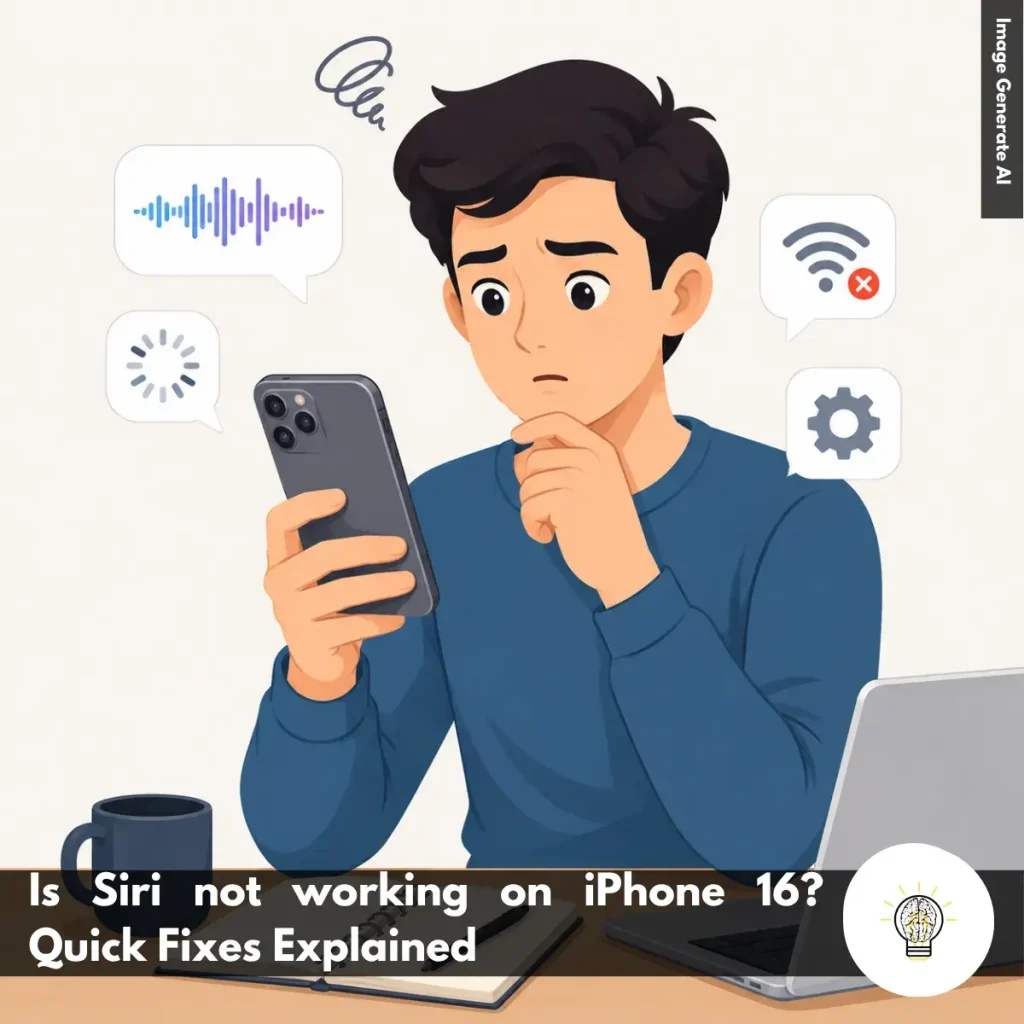
Ruminesia – You probably don’t think much about Siri until the moment it suddenly stops responding. Maybe your iPhone 16 no longer reacts to “Hey Siri,” voice commands feel delayed, or Siri simply stays silent when you need it most. If you’ve been asking yourself, “Is Siri not working on iPhone 16?”, you’re definitely not alone.
Interestingly, most Siri problems don’t come from serious hardware damage. In many real-world situations, the issue is usually connected to software bugs, unstable internet connections, or settings that quietly changed after an iOS update. The frustrating part is that Siri can suddenly stop working even when the rest of the iPhone seems completely normal.
Sometimes the fix is surprisingly simple, while other cases need a few deeper checks to figure out what’s interrupting Siri in the background. That’s why understanding the possible causes first can make troubleshooting much easier instead of randomly changing settings one by one.
Key Highlights
- Most Siri issues on iPhone 16 are caused by software, not hardware damage.
- Weak internet connections can make Siri slow, unresponsive, or unable to process commands.
- iOS updates sometimes change Siri settings without users noticing immediately.
- Restarting the iPhone often fixes temporary Siri glitches surprisingly quickly.
- Apple’s system status showed Siri services operating normally as of March 2026.
- Checking Siri permissions and microphone settings can solve many common voice recognition problems.
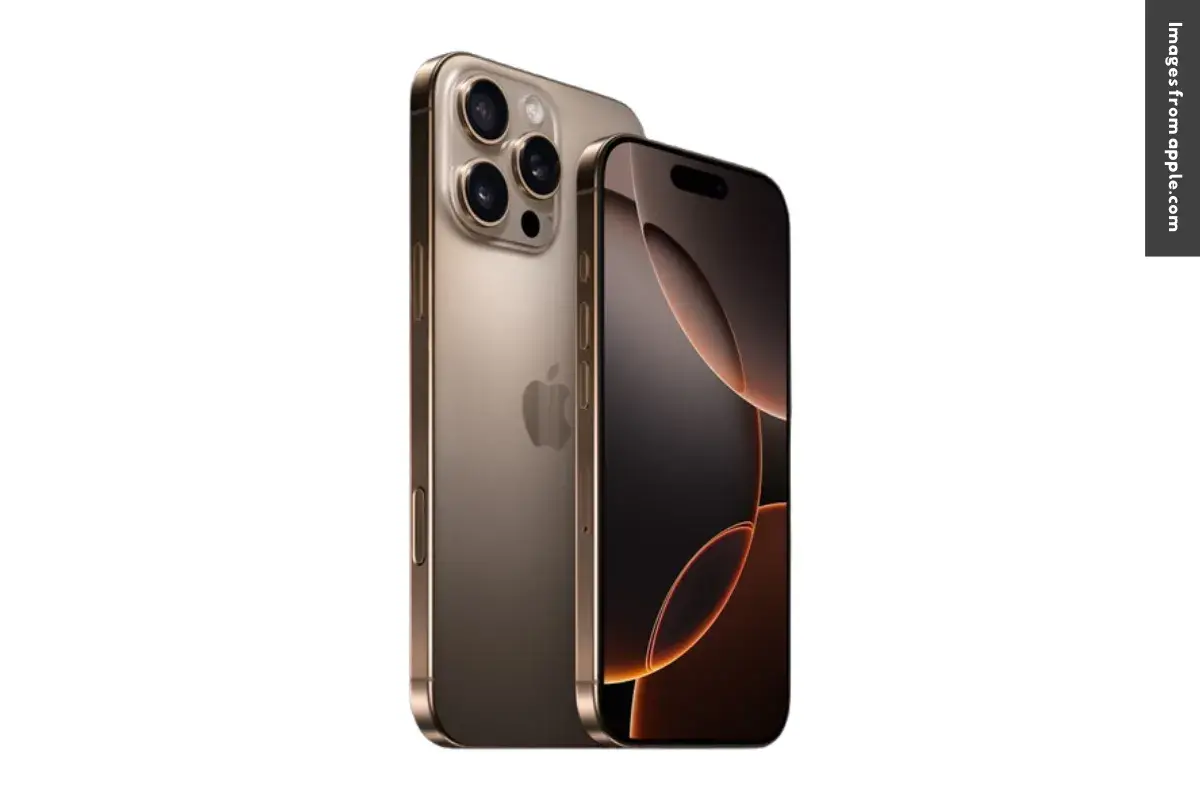
At the moment, there’s no known widespread issue causing Siri to stop working on the iPhone 16. While some users have reported Siri becoming unresponsive or failing to recognize voice commands, these cases are usually temporary and can often be fixed with basic troubleshooting steps.
In most situations, the issue is related to software rather than hardware. Siri may stop responding after an iOS update, when certain settings are disabled, or if the internet connection becomes unstable. Since Siri depends heavily on Apple’s servers and online processing, weak Wi-Fi or poor mobile data can also affect its performance.
Apple’s system status page also showed all Siri-related services running normally as of March 2026. In practice, most Siri problems on the iPhone 16 are caused by minor software bugs, incorrect settings, or temporary network issues—not serious hardware damage.
If Siri suddenly stops responding on your iPhone 16, the issue is often caused by small settings changes, unstable connectivity, or temporary software bugs. The good news is that most Common Reasons for Siri Not Working on iPhone 16 can be fixed quickly without needing professional repair or advanced troubleshooting.
If you are looking for how to fix Siri Not Working on iPhone 16 Pro, these simple troubleshooting steps can help solve the problem quickly. Most Siri issues are usually related to settings, internet connection, or temporary iOS glitches.
Read More:
Many users are curious about the iPhone 16 not only because of the hardware upgrades, but also the everyday experience behind them. Here are some of the most common questions about the iPhone 16 before deciding whether the iPhone 16 is worth buying or upgrading to.
No, Apple Intelligence was not fully available immediately at launch. The first iPhone 16 models shipped with iOS 18, while many AI features arrived gradually through later updates like iOS 18.1.
In practice, Apple introduced features such as writing tools, notification summaries, and improved Siri capabilities in phases. This means the iPhone 16 experience continues evolving instead of delivering every AI feature on day one.
The Camera Control button is a new hardware shortcut placed on the right side of the iPhone 16 lineup. It allows users to instantly open the camera and adjust settings more naturally while shooting photos or videos.
Interestingly, the button also supports touch gestures and pressure sensitivity. Users can slide or lightly press it to control zoom, exposure, or camera modes without touching the main display.
No, the standard iPhone 16 still uses a 60Hz display. Apple continues to reserve 120Hz ProMotion technology for the Pro and Pro Max models.
The main difference is noticeable when scrolling or switching apps quickly. However, many users still find the iPhone 16 smooth enough because iOS animations remain highly optimized.
The iPhone 16 Pro features a larger 6.3-inch display, while the iPhone 16 Pro Max expands to 6.9 inches. This makes the Pro Max the biggest iPhone screen Apple has released so far.
Apple achieved this by reducing the bezel size rather than dramatically increasing the phone body. In practice, the larger display feels more immersive for gaming, editing, and media consumption.
The biggest differences are found in the display, camera system, materials, and chipset performance. The Pro models use titanium frames, 120Hz ProMotion displays, and more advanced camera hardware.
Meanwhile, the standard iPhone 16 focuses more on balanced everyday usability at a lower price point. For many users, the decision depends on whether advanced photography and smoother displays matter daily.
Yes, Apple redesigned the camera layout with vertically stacked lenses on the standard iPhone 16 and 16 Plus. This replaces the diagonal layout used in previous generations.
One thing many users overlook is that this change supports spatial video recording for the Apple Vision Pro ecosystem. The vertical arrangement helps capture more realistic depth information for immersive playback.
Yes, the iPhone 16 lineup offers better battery life compared to previous models. Apple combines larger batteries with more efficient A18-series chips for improved daily endurance.
In real-world usage, most users can comfortably get through a full day without needing to recharge midday. Improved thermal management also helps maintain battery health over time.
Yes, iPhone 16 models sold in the United States continue using eSIM only. Apple removed the physical SIM tray from US variants starting with earlier generations.
The system allows users to store multiple carrier profiles digitally through iOS settings. However, international versions of the iPhone 16 still include a physical nano-SIM slot.
The standard iPhone 16 comes in 128GB, 256GB, and 512GB storage variants. There is no microSD card support for expandable storage.
Because storage cannot be upgraded later, choosing the right capacity matters from the beginning. Users who shoot many videos or high-resolution photos may benefit from larger storage options.
Some early users reported occasional touchscreen responsiveness problems near the screen edges. The issue was mainly related to Apple’s palm rejection software sensitivity.
Because the bezels are thinner, the system sometimes misinterprets normal hand placement as accidental touches. Apple has addressed many of these complaints through iOS software updates.
When Siri suddenly stops responding, it can feel more frustrating than expected—especially because many people rely on it for quick everyday tasks. But interestingly, most cases of “Is Siri not working on iPhone 16” are usually tied to small software or connection issues rather than serious hardware problems. Sometimes, a simple settings adjustment or restart is enough to bring everything back to normal.
What makes Siri issues confusing is how randomly they can appear. One day, everything works perfectly, then after an update or unstable connection, Siri suddenly struggles to recognize commands. In practice, understanding the possible causes first often saves more time than trying random fixes without knowing what changed in the background.
Technology is convenient until the small things stop working unexpectedly. And maybe that’s why problems like this feel surprisingly noticeable in daily life. Have you experienced Siri suddenly becoming unresponsive on your iPhone 16, too?