Physical Address
304 North Cardinal St.
Dorchester Center, MA 02124
Physical Address
304 North Cardinal St.
Dorchester Center, MA 02124

Your Guide to the Latest in Tech
Your Guide to the Latest in Tech
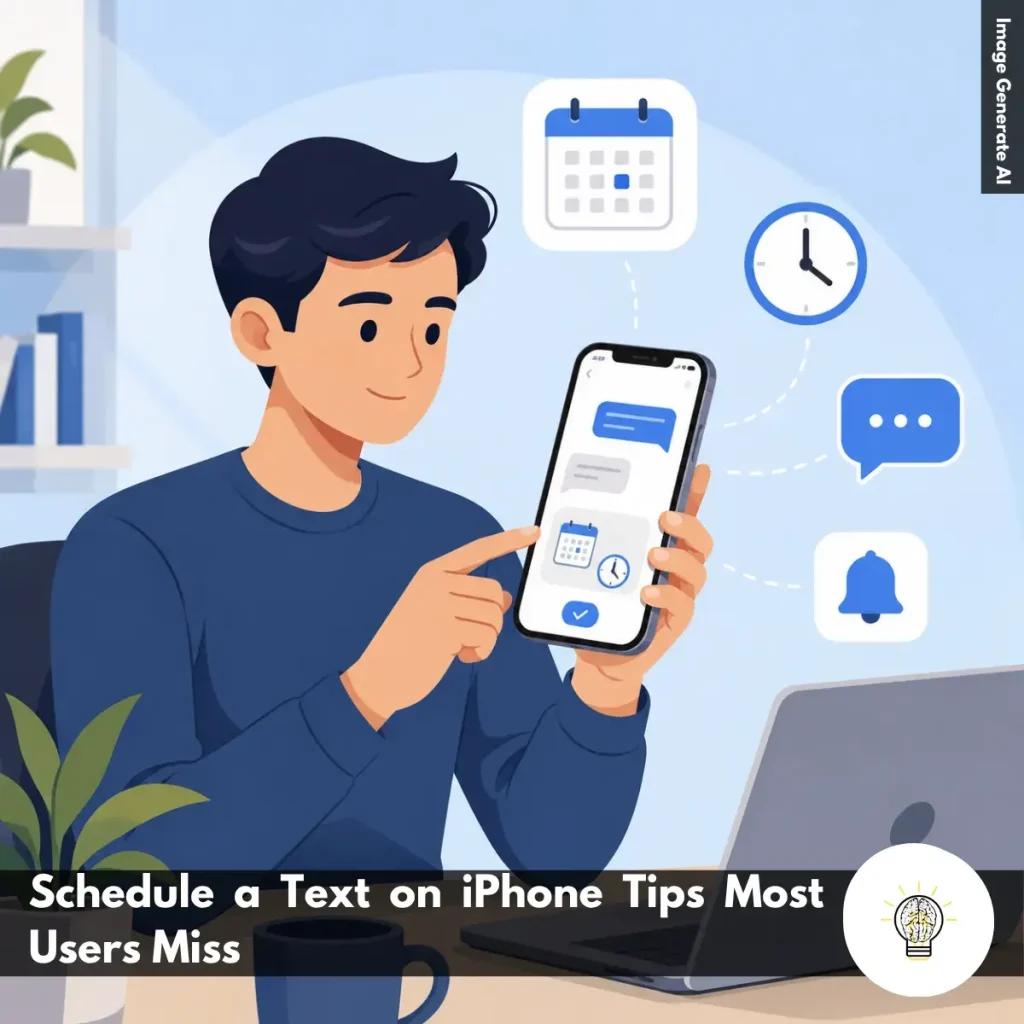
Ruminesia – Have you ever remembered an important message at the worst possible time? Maybe it’s a birthday greeting you don’t want to forget, a work update that needs to go out tomorrow morning, or a reminder you know you’ll miss later. That’s where a few simple Schedule a Text on iPhone Tips can make everyday communication much easier.
Interestingly, many iPhone users still assume they need a third-party app to schedule messages. In reality, Apple now offers a built-in way to plan texts ahead of time, making it easier to stay organized without relying on extra tools or setting multiple reminders.
What many people don’t realize is that scheduled messages aren’t just about convenience. They’re also about reducing mental clutter. When you can prepare a message in advance and trust it will be sent at the right moment, it’s one less thing competing for your attention throughout the day.
Key Highlights
- iPhone’s Send Later feature lets you schedule messages without third-party apps.
- Scheduled texts are ideal for birthdays, reminders, and professional follow-ups.
- Always review message details before scheduling to avoid mistakes later.
- Choosing the right delivery time helps messages feel more timely and thoughtful.
- Scheduled messaging reduces mental clutter by removing tasks from your to-do list.
- Apple’s built-in privacy protections help keep scheduled conversations secure.
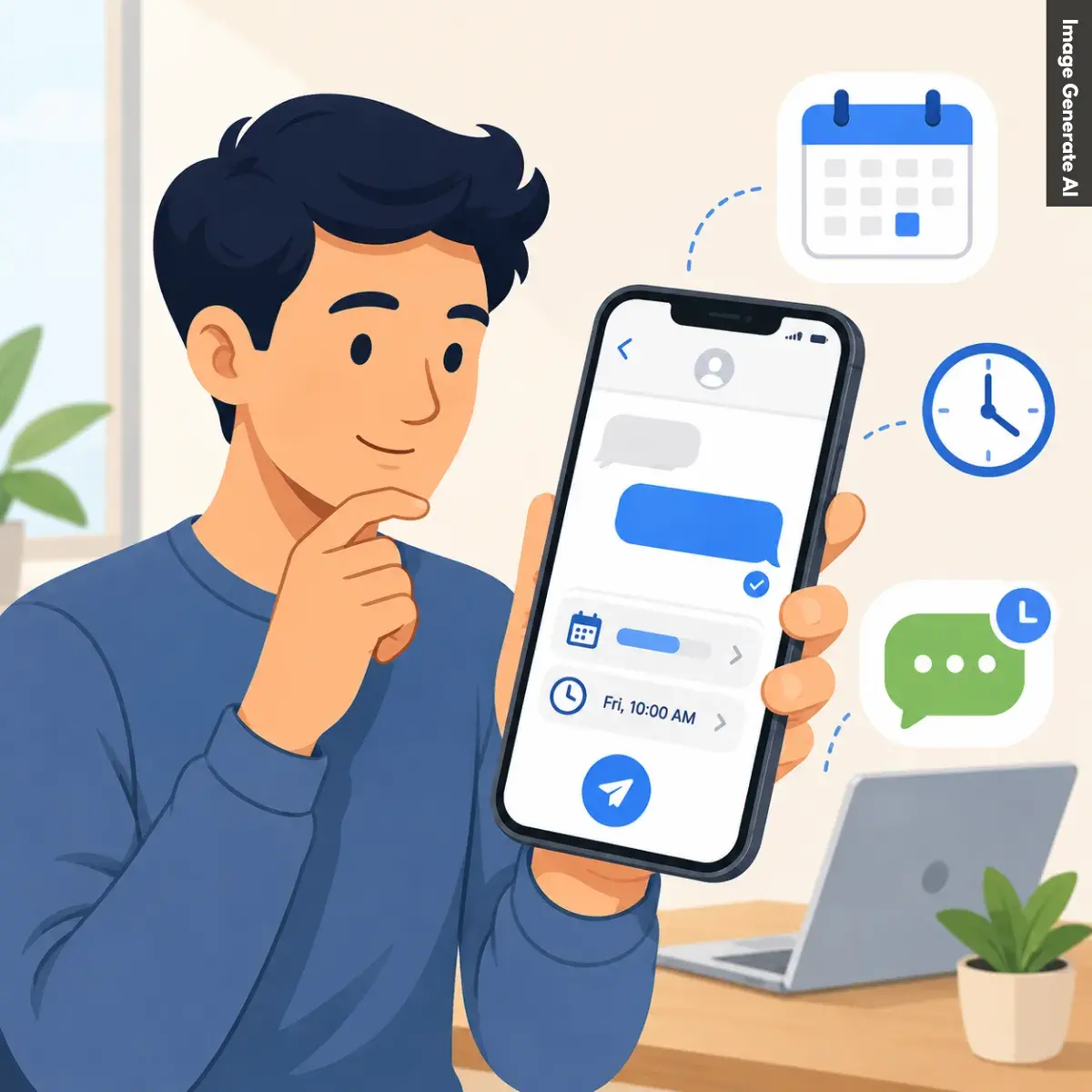
Scheduling messages can make everyday communication much easier, especially when you want to stay organized without constantly thinking about when to hit send. Whether you’re planning personal messages or work-related follow-ups, a few smart habits can help you get better results and avoid common issues.
Enable Messages in iCloud to keep your conversations and scheduled texts synchronized across your iPhone, iPad, and Mac.
This creates a more seamless experience, especially if you regularly switch devices throughout the day. Instead of wondering where a message was created or managed, everything stays consistent and up to date.
Use message scheduling for events that shouldn’t be forgotten. Examples include:
Scheduling ahead gives you peace of mind and helps ensure your message arrives at the right moment.
Timing can make a big difference in professional communication. If you finish work late at night, you can prepare a follow-up message and schedule it for the next business morning. This keeps communication professional while allowing you to work on your own schedule.
Before confirming a scheduled text, take a quick moment to review it. Check for:
A quick review can prevent misunderstandings later, especially when scheduling messages days or weeks in advance.
Apple regularly improves Messages and iOS features through software updates. Keeping your iPhone updated helps ensure scheduling features work properly and reduces the chance of bugs affecting message delivery.
If you’re messaging someone in another city or country, timing matters. What seems like a reasonable hour to you might be the middle of the night for them. Scheduling messages according to their local time can make your communication more thoughtful and effective.
One overlooked benefit of scheduled messaging is that it helps clear tasks from your mind. Instead of remembering to send multiple messages later, you can write them when they’re top of mind and let your iPhone handle the rest. This can be especially useful during busy weeks.
Plans change, and sometimes messages need updates. If a meeting is rescheduled or circumstances change, review your scheduled messages occasionally to ensure they still make sense. A quick check can help avoid sending outdated information.
Privacy remains an important part of the messaging experience.
Scheduled texts continue to benefit from Apple’s built-in security protections, helping keep conversations private throughout the scheduling process. This allows you to take advantage of automation and convenience without compromising security.
When used thoughtfully, scheduled messaging becomes more than just a convenience feature—it becomes a practical tool for staying organized, communicating consistently, and managing your time more effectively.
Learning how to schedule a Text on an iPhone is easier than many people expect. Once you know where the feature is located, you can schedule reminders, birthday messages, or work updates in just a few taps.
Read Also:
If you’re looking for quick answers about iPhone features, settings, and troubleshooting, this FAQ covers the questions users ask most often. These Frequently Asked Questions About iPhone provide practical solutions that are easy to follow.
If your iPhone is frozen and not responding, you can force restart it using the hardware buttons. Press and quickly release the Volume Up button, then press and quickly release the Volume Down button. After that, press and hold the Side button until the Apple logo appears.
This process does not delete your data. It simply forces the device to restart and is often the fastest way to resolve temporary software issues.
Sudden battery drain is usually caused by background app activity, recent iOS updates, high screen brightness, or location services running continuously. In some cases, your iPhone may also be indexing data after a software update. To identify the cause:
The quickest way to free up storage is to review what’s using the most space. You can find this information in Settings > General > iPhone Storage. Useful ways to clear storage include:
The main difference is that iPhone Pro models offer more advanced features. They typically include better cameras, higher-performance chips, premium materials, and ProMotion displays with smoother scrolling.
Standard iPhone models focus on everyday performance and affordability. For most users, they provide excellent performance, while Pro models are designed for photography enthusiasts, gamers, and content creators.
The easiest way is to use iCloud Backup. Once enabled, your iPhone automatically backs up important data when connected to Wi-Fi, charging, and locked. You can also create a local encrypted backup:
Apple’s Quick Start feature makes transferring data simple. Place your new iPhone near your old one and follow the on-screen instructions. Basic steps:
The process moves apps, photos, settings, and most personal data automatically.
Yes, modern iPhones are designed to handle overnight charging safely. Once the battery reaches full charge, the charging system automatically manages power delivery.
One thing many users overlook is the Optimized Battery Charging feature. When enabled, it learns your charging habits and helps reduce long-term battery wear.
You can reduce unwanted calls using the built-in Silence Unknown Callers feature. This automatically sends calls from unknown numbers to voicemail. To enable it:
For additional protection, consider using a trusted caller ID and spam-filtering app.
If your iPhone gets wet, act quickly to minimize potential damage. Turn the device off immediately and gently dry the exterior with a soft cloth. Follow these steps:
Do not place the device in rice, as small particles can enter the ports and cause additional problems.
You can disable location tracking through the Privacy settings. This gives you more control over how apps access your location data. To turn it off:
Alternatively, you can manage location access individually for each app, which is often the most practical option for balancing privacy and convenience.
Scheduling messages might seem like a small feature, but it can have a surprisingly practical impact on your daily routine. Whether you’re managing work conversations, remembering important dates, or simply trying to stay organized, a few Schedule a Text on iPhone Tips can help you communicate more intentionally and with less stress.
Interestingly, the biggest benefit isn’t just convenience. It’s the peace of mind that comes from knowing important messages are already taken care of. Instead of keeping mental reminders throughout the day, you can focus on what you’re doing while your iPhone handles the timing for you.
Mungkin you’ve already found your own creative ways to use scheduled messages, whether for work, family, or personal organization. If so, what has your experience been like? Sometimes the simplest features end up becoming the ones we rely on the most.