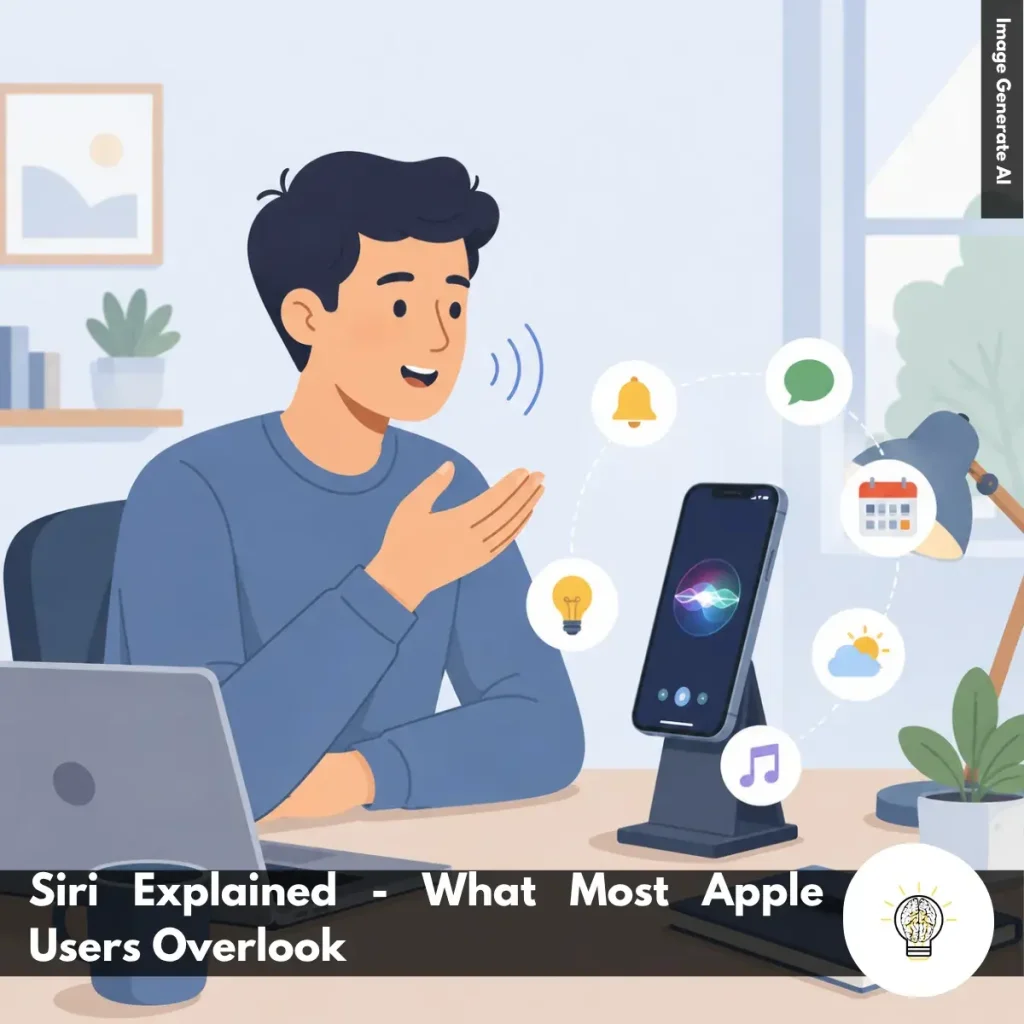
Ruminesia – Have you ever found yourself with your hands full, trying to send a message, set a reminder, or check something quickly on your iPhone? Moments like these are exactly why Siri has become a familiar part of daily life for many Apple users. Instead of navigating through menus, a simple voice command can often get the job done in seconds.
What makes Siri interesting isn’t just that it responds to your voice. It’s how quietly it fits into everyday routines—whether you’re driving, working, exercising, or managing smart devices around your home. Many users know Siri can answer questions, but fewer realize how much it can simplify small tasks that add up throughout the day.
As Apple continues to expand its ecosystem, Siri is evolving from a basic voice assistant into a more practical digital companion. Understanding what Siri can do—and how to use it effectively—can change the way you interact with your devices, often making technology feel less like a tool and more like a natural extension of your routine.
Key Highlights
Siri helps complete everyday tasks faster without constantly navigating menus.
You can activate Siri without “Hey Siri” using buttons or typing.
Simple voice commands often save more time than manually opening apps.
Features like reminders, messaging, and smart home control fit naturally into daily routines.
Type to Siri provides a practical alternative when speaking isn’t convenient.
Many Siri issues can be resolved through settings checks, updates, or a device restart.
Siri becomes more valuable when combined with Apple devices and automation shortcuts.
Siri is Apple’s voice assistant that helps users interact with their devices using voice commands instead of tapping menus manually. Available across iPhone, iPad, Mac, Apple Watch, and other Apple devices, Siri can handle tasks like sending messages, setting reminders, playing music, or checking the weather hands-free.
Sederhananya, Siri acts like a built-in digital helper inside the Apple ecosystem. For example, users can ask Siri to call someone while driving, control smart home devices, or open apps more quickly without touching the screen.
What makes Siri important is not just the voice feature itself, but how naturally it fits into everyday routines. As more devices become connected, Siri reflects how technology is becoming more practical, seamless, and easier to use in daily life.
Can I Call Siri Without Saying Hey?
Many Apple users still ask, “Can I call Siri without saying Hey?” especially when they want faster or more convenient ways to access the voice assistant. Fortunately, Apple already provides several built-in methods that let users activate Siri without relying on the full “Hey Siri” wake phrase.
Use the “Siri” Command Only: If your device runs iOS 17 or newer, you can simply say “Siri” instead of “Hey Siri.” This feels faster and more natural in daily use, especially when using Siri frequently throughout the day.
Press the Side or Home Button: On iPhones, you can open Siri instantly by holding the Side button or Home button. This method is useful in noisy places where voice commands may not work properly.
Use the Digital Crown on Apple Watch: Apple Watch users can press and hold the Digital Crown to activate Siri directly. It’s a quick shortcut when you want to set reminders, reply to messages, or check information while on the move.
Press the Siri Button on Apple TV Remote: On Apple TV, simply hold the Siri button on the remote and start speaking. This makes searching for movies, opening apps, or controlling playback much faster compared to manual navigation.
Enable Type to Siri: If speaking isn’t practical, you can turn on Type to Siri in Accessibility settings. This feature works well in quiet environments like meetings, libraries, or late at night when you don’t want to use voice commands.
Features of Siri
The features of Siri have expanded far beyond simple voice commands. Today, Siri can help with productivity, smart device control, writing assistance, and everyday tasks across the Apple ecosystem.
Activate Siri with Your Voice: Simply say “Hey Siri” or “Siri” to start using the assistant hands-free. This is useful when your hands are busy, like while cooking, driving, or working.
Use the Side or Home Button: If you prefer not to speak, press and hold the Side button or Home button to launch Siri manually. This method often feels faster in noisy environments.
Type Requests Instead of Speaking: Turn on Type to Siri if you want to interact quietly or privately. This sounds simple, but many users overlook how useful it is during meetings or in public spaces.
Control Tasks with AirPods: Compatible AirPods let you use Siri without touching your phone. You can answer notifications, control music, or respond to messages more conveniently while walking or exercising.
Use Siri Offline for Basic Commands: Siri can still handle simple tasks like setting alarms or changing settings even without internet access. In practice, this helps when your connection is unstable or unavailable.
Speak Naturally with Siri: Siri now understands more conversational requests and follow-up questions. You don’t always need to repeat full commands, which makes interactions feel more natural.
Ask About Apple Devices and Features: Siri can explain settings, features, or Apple product functions directly on your device. This is helpful when you want quick answers without searching online manually.
Use On-Screen Awareness: Siri can recognize information currently displayed on your screen. For example, you can ask Siri to save an address, create reminders, or add calendar events from content you’re viewing.
Get Writing and Text Assistance: On supported devices, Siri can help summarize, rewrite, or proofread text using Apple Intelligence features. This can save time when writing emails, notes, or quick drafts.
Manage Everyday Tasks and Smart Devices: Besides productivity tools, Siri can send messages, make calls, control HomeKit devices, check the weather, or search files quickly. These practical features are what make Siri genuinely useful in daily routines.
Hey Siri Features
Want to get more out of Siri? These Hey Siri Features can help you save time, stay organized, and handle everyday tasks without constantly touching your device.
Activate Siri Hands-Free: Say “Hey Siri” to start using Siri without pressing any buttons. It’s especially useful when you’re driving, cooking, or multitasking.
Make Calls and Send Messages: Ask Siri to call someone, send a text, or read incoming messages. This helps you stay connected while keeping your focus elsewhere.
Get Directions Quickly: Use Siri to find locations, get directions, or search for nearby places. It’s a faster way to start navigating on the go.
Set Reminders and Alarms: Create reminders, alarms, and timers with simple voice commands. Great for managing tasks without interrupting your workflow.
Control Music and Podcasts: Play, pause, skip, or search for content using your voice. Perfect for workouts, commutes, or household chores.
Manage Smart Home Devices: Control lights, thermostats, and other HomeKit devices without opening separate apps. Just ask Siri to handle it.
Ask Questions and Get Answers: Check the weather, do quick calculations, or get general information instantly. It’s often faster than searching manually.
Open Apps with Your Voice: Launch apps like Notes, Camera, or Maps without scrolling through your Home Screen. A simple command gets you there faster.
Receive Personalized Suggestions: Siri learns your habits over time and can offer more relevant recommendations. The more you use it, the smarter it becomes.
Try Fun Siri Commands: Ask Siri to tell jokes, flip a coin, or roll a dice. These extra features add a little fun to everyday interactions.
What Siri Can Do?
If you’re wondering what Siri can do, the answer goes far beyond setting timers or answering simple questions. Siri can help with communication, productivity, entertainment, navigation, and smart home control, making everyday tasks faster and more convenient through voice commands.
Send Messages and Make Calls: Ask Siri to send texts or call contacts without opening apps. This is especially useful when you’re driving, cooking, or multitasking.
Set Alarms and Reminders: Use Siri to create alarms, reminders, and calendar events in seconds. It’s a simple way to stay organized throughout the day.
Check Weather and Traffic: Siri can provide real-time weather forecasts and traffic updates. This helps you plan your schedule and avoid unexpected delays.
Play Music and Podcasts: Control music, podcasts, and audiobooks with your voice. You can play, pause, skip tracks, or adjust volume without touching your device.
Open Apps and Adjust Settings: Siri can launch apps and manage settings like Wi-Fi, Bluetooth, brightness, and Focus Mode. This saves time compared to navigating menus manually.
Control Smart Home Devices: If you use HomeKit-compatible devices, Siri can manage lights, thermostats, locks, and more. A simple voice command can control multiple devices at once.
Get Directions with Apple Maps: Ask Siri for directions to destinations, restaurants, or nearby services. It provides hands-free navigation while you’re on the move.
Translate Languages and Convert Units: Siri can translate phrases and convert currencies, measurements, temperatures, and time zones. It’s handy for travel, work, and everyday calculations.
Run Siri Shortcuts and Automations: Siri can trigger custom shortcuts that perform multiple actions at once. This helps automate repetitive tasks and routines.
Search the Web and Answer Questions: Siri can look up information, answer basic questions, and perform quick calculations. It’s useful when you need fast answers without opening a browser.
Connect Your Apple Devices: Siri works seamlessly across Apple’s ecosystem. Reminders, media controls, and smart home commands can sync across your iPhone, iPad, Mac, Apple Watch, and HomePod.
How to Set Up Siri
How to Set Up Siri is actually simpler than many users expect. With just a few settings adjustments, you can start using Siri for voice commands, hands-free control, and everyday tasks across your Apple device.
Open the Settings App First: Start by opening the Settings app on your iPhone or iPad. This is where all Siri setup and customization options are located.
Go to Siri Settings: Scroll down and tap “Apple Intelligence & Siri” or “Siri & Search” on older iOS versions. Here, you can manage voice activation, language settings, and Siri permissions.
Enable Voice Activation: Turn on “Talk to Siri” or “Listen for” and choose whether you want to use “Siri,” “Hey Siri,” or both. Follow the setup prompts so Siri can recognize your voice properly.
Complete the Voice Training: Repeat the phrases shown on the screen clearly and naturally. If possible, do this in a quiet room to help Siri understand your voice more accurately.
Turn On Button Activation: Enable “Press Side Button for Siri” or the Top Button option on iPad. This gives you another quick way to launch Siri without using voice commands.
Allow Siri on the Lock Screen: Turn on “Allow Siri When Locked” if you want to use Siri without unlocking your device first. This is useful for quick tasks like checking reminders or setting timers.
Test Siri After Setup: Try a simple command like “Hey Siri, what’s the weather today?” to confirm everything works correctly. This sounds basic, but many users skip this quick test step.
Enable Type to Siri if Needed: Go to Accessibility settings and turn on “Type to Siri” if you prefer typing instead of speaking. This feature works well in quiet places or during meetings.
Adjust the Siri Language Settings: Choose your preferred language inside Siri settings for better voice recognition accuracy. Make sure the selected language matches how you usually speak.
Restart or Update Your Device if Siri Isn’t Working: If Siri responds slowly or doesn’t activate properly, try restarting your device or installing the latest iOS update. In practice, many Siri issues are fixed with a simple update.
How to Use Siri
Siri can help you save time by handling common tasks with simple voice commands. Once you know the basics of how to use Siri on iPhone, using it becomes second nature.
Activate Siri: Say “Siri” or “Hey Siri,” or press and hold the Side or Home button to start.
Manage Your Schedule: Set alarms, reminders, timers, and calendar events with a quick command.
Send Messages and Get Directions: Ask Siri to text, call, or navigate without opening apps.
Control iPhone Settings: Turn on the flashlight, adjust brightness, or enable Bluetooth instantly.
Get Quick Answers: Use Siri for calculations, conversions, weather updates, and song recognition.
Type Instead of Talking: Enable Type to Siri if you need to use Siri quietly in public or meetings.
Siri Tutorials
These Siri Tutorials cover the most common Siri tasks on iPhone. Use them as quick fixes and setup guides whenever you need help with Apple’s voice assistant.
Get Siri Working Again: Check Siri settings, internet connection, Screen Time restrictions, and microphone access. A quick restart often fixes temporary issues.
Activate Siri: Turn on “Siri” or “Hey Siri” in Siri settings and complete the voice setup. Enable the Side or Home button shortcut for easier access.
Use Siri on iPhone: Ask Siri to set reminders, send messages, get directions, or control settings. You can also use Type to Siri when speaking isn’t practical.
Make Siri Louder: Adjust the volume while Siri is speaking. You can also ask Siri to increase its voice volume.
Make Requests to Siri: Activate Siri, then speak or type your request clearly. Simple and direct commands usually work best.
Remove Siri Suggestions: Turn off Siri Suggestions in Settings > Siri & Search. You can disable them system-wide or for specific apps.
Set Up Siri: Customize Siri’s voice, language, and response style. Adding your contact card also improves personalization.
Stop Siri Announcing Notifications on AirPods: Disable Announce Notifications for headphones. You can also turn it off for selected apps only.
Stop Siri Reading Texts: Turn off message announcements in notification settings. Adjust headphone and CarPlay settings if needed.
Talk to Siri Effectively: Wait for Siri to start listening, then speak naturally and clearly. Rephrase your request if Siri gets it wrong.
Train Siri to Recognize Your Voice: Run the voice setup process and follow the prompts. For best results, do it in a quiet environment.
Disable Siri: Turn off voice activation and the Siri button shortcut. Confirm the change if prompted.
Turn Siri Off Completely: Disable all Siri access methods, including voice, buttons, and Type to Siri. Confirm the settings to fully disable Siri.
Tips for Using Siri
Here’s a more practical version of these tips for using Siri that can help you get faster and more reliable results in everyday situations. Most of these only take a minute to set up, but can make Siri feel much more useful over time.
Activate Siri Clearly: Use “Hey Siri” or “Siri” when you need hands-free help. If Siri regularly misunderstands your voice, retrain voice recognition in Settings to improve accuracy.
Use the Side Button When It’s Loud: In busy places like streets, cafes, or public transport, press and hold the Side button instead of using voice activation. It’s often quicker and more reliable when background noise is high.
Switch to Type to Siri for Privacy: If you’re in a meeting, classroom, or public space, use Type to Siri instead of speaking. This sounds simple, but many people overlook how convenient it is for quick requests.
Add Siri Shortcuts to Control Center: Customize your Control Center so Siri-related actions are easier to reach. This helps you access common features without digging through multiple settings menus.
Use Follow-Up Requests Naturally: After giving Siri a command, continue the conversation without repeating everything. For example, after creating a reminder, simply say, “Change it to 7 PM.”
Take Advantage of Offline Features: Even without internet access, Siri can still set alarms, adjust brightness, control the flashlight, and manage some device settings. This is especially useful when traveling or dealing with a weak signal.
Control Apps with Your Voice: Try asking Siri to open apps, send messages, play music, or share photos. Besides that, many third-party apps support Siri commands, making everyday navigation faster.
Speak Naturally Instead of Memorizing Commands: You don’t need exact phrases to use Siri effectively. Ask questions the way you normally speak, and Siri can often understand the intent behind your request.
Use Dictation to Save Time: Tap the microphone icon on the keyboard to dictate emails, notes, or messages. For longer text, speaking is often much faster than typing.
Create Automations with the Shortcuts App: One of the most useful Tips for Using Siri is combining it with Shortcuts. A simple command like “Good morning” can trigger multiple actions, such as showing the weather, opening your calendar, and displaying the latest news.
Common Issues of Siri and the Solutions
Common Issues of Siri and the Solutions are usually related to settings, internet connections, or temporary software problems. The good news is that most Siri issues can be fixed in just a few minutes without needing complicated troubleshooting steps.
Re-Enable Voice Activation: If Siri does not respond to “Hey Siri” or “Siri,” check whether voice activation is turned on in Siri settings. Try disabling and enabling the feature again, then repeat the voice training process.
Restart the iPhone: A simple restart can fix temporary Siri glitches or background system conflicts. This sounds basic, but many Siri problems disappear after rebooting the device.
Check the Microphone Carefully: Test your microphone using the Voice Memos app to make sure your voice is being detected properly. If the audio sounds unclear, clean the microphone area of dust or dirt.
Make Sure the Internet Connection Is Stable: Siri relies on Wi-Fi or cellular data for most commands and online requests. If Siri loads slowly or fails to answer, an unstable internet is often the main cause.
Adjust Siri Language Settings: Choose the language and accent that best match how you naturally speak. This can improve Siri’s voice recognition accuracy significantly.
Turn On Spoken Responses: If Siri only displays text without speaking, check the “Siri Responses” settings and enable spoken responses. This helps make interactions feel more natural and hands-free.
Increase Siri Volume While Speaking: Try raising the volume buttons when Siri is actively responding. Many users forget that Siri has its own adjustable voice volume.
Update to the Latest iOS Version: Install the newest iOS update through Software Update settings. Apple often fixes Siri bugs and improves performance through system updates.
Disable VPN or Conflicting Apps Temporarily: Some VPNs or network-related apps can interfere with Siri connections. If Siri suddenly stops working, try temporarily disabling it to test the issue.
Reset Device Settings as a Last Option: If nothing works, reset your iPhone settings without deleting personal files. This can resolve deeper configuration issues that prevent Siri from functioning properly.
Comparison of Siri and Other Voice Assistants
Here’s a comparison of Siri with other popular voice assistants, such as Amazon’s Alexa and Google Assistant, highlighting their strengths and weaknesses across various parameters.
Frequently Asked Questions about Siri often focus on privacy, customization, voice commands, and everyday usability. Below are some of the most common Siri questions, along with concise and practical answers for Apple users.
1. How do I change Siri’s voice or accent?
You can change Siri’s voice by going to Settings > Apple Intelligence & Siri > Siri Voice. From there, choose different accents and voice options, including American, British, Australian, and more.
Once selected, your iPhone will automatically download the voice files over Wi-Fi. This allows Siri to sound more natural based on your preference.
2. Can I use Siri on my iPhone without an internet connection?
Yes, Siri can handle several basic commands offline on supported iPhones. You can set alarms, open apps, control music, or adjust settings without internet access.
However, requests that need live information, such as weather updates or web searches, still require Wi-Fi or cellular data.
3. Why is Siri not responding to my “Hey Siri” voice command?
This usually happens because voice activation is disabled or the microphone is blocked. Check Settings > Apple Intelligence & Siri and make sure “Listen for ‘Hey Siri’” is turned on.
Besides that, avoid placing your iPhone face down or inside a thick case that may affect microphone detection. Restarting the device can also help fix temporary Siri issues.
4. How do I make Siri read my incoming text messages out loud?
To enable this feature:
Open Settings > Notifications
Tap Announce Notifications
Turn the feature on
Connect compatible AirPods or Beats headphones
Once enabled, Siri can read incoming messages aloud and let you reply hands-free.
5. Can I change the default wake word from “Hey Siri” to something else?
Apple does not currently allow completely custom wake words for Siri. However, newer iOS versions let users shorten the phrase from “Hey Siri” to simply “Siri.” If you want more customization, you can use Vocal Shortcuts inside Accessibility settings to trigger certain actions using custom phrases.
6. How do I clear my Siri search history and voice recordings?
You can delete Siri history directly from your iPhone settings. Go to Settings > Apple Intelligence & Siri > Siri & Dictation History, then choose the delete option. This removes stored voice recordings and Siri interaction history linked to your account. One thing many users overlook is that this can improve privacy management.
7. Does Siri listen to my private conversations all the time?
No, Siri does not continuously record private conversations. Your device only listens locally for the wake phrase like “Hey Siri” or “Siri.” Once Siri detects the trigger phrase, it begins processing your request. If preferred, you can disable voice activation entirely in the settings.
8. How do I teach Siri to pronounce my name correctly?
Activate Siri and say, “Learn how to pronounce my name.” Siri will guide you through a short pronunciation setup process. You’ll be asked to repeat your name, then select the pronunciation that sounds most accurate. Siri will save it automatically to your contact profile.
9. Can I use Siri to find my lost iPhone in my house?
Yes, Siri can help locate a misplaced iPhone using other Apple devices like Apple Watch, HomePod, or iPad. Simply say, “Where is my iPhone?” to trigger the search. Even if the iPhone is in silent mode, it will still make a loud sound to help you find it quickly.
10. How do I set up Siri to send WhatsApp messages instead of standard iMessages?
First, enable Siri access for WhatsApp in your iPhone settings. Open Settings > WhatsApp and turn on the “Use with Siri” option.
After that, specify WhatsApp directly in your voice command. For example, say “Send a WhatsApp message to Sarah” instead of only saying “Message Sarah.”
Conclusion
At its core, Siri is less about voice commands and more about removing small moments of friction from everyday life. Whether it’s setting a quick reminder, sending a message while your hands are busy, or controlling devices around your home, the real value often comes from the convenience you barely notice until you start relying on it.
Interestingly, many people think of Siri as a feature they occasionally use, when it can become a practical part of their daily routine. Sometimes the difference isn’t what the technology can do, but how naturally it fits into the moments where speed, simplicity, and accessibility matter most.
As devices become more connected, tools like Siri reflect a broader shift toward technology that feels more intuitive and less demanding of our attention. Have you found a Siri feature that genuinely makes your day easier, or is there one you think more people should know about?
A technology writer with 5 years of professional experience as a WordPress Developer and SEO Specialist. Focused on covering apps, gadgets, and the latest digital trends, while creating SEO-friendly content that helps readers stay informed and businesses grow their online presence.