Physical Address
304 North Cardinal St.
Dorchester Center, MA 02124
Physical Address
304 North Cardinal St.
Dorchester Center, MA 02124

Your Guide to the Latest in Tech
Your Guide to the Latest in Tech
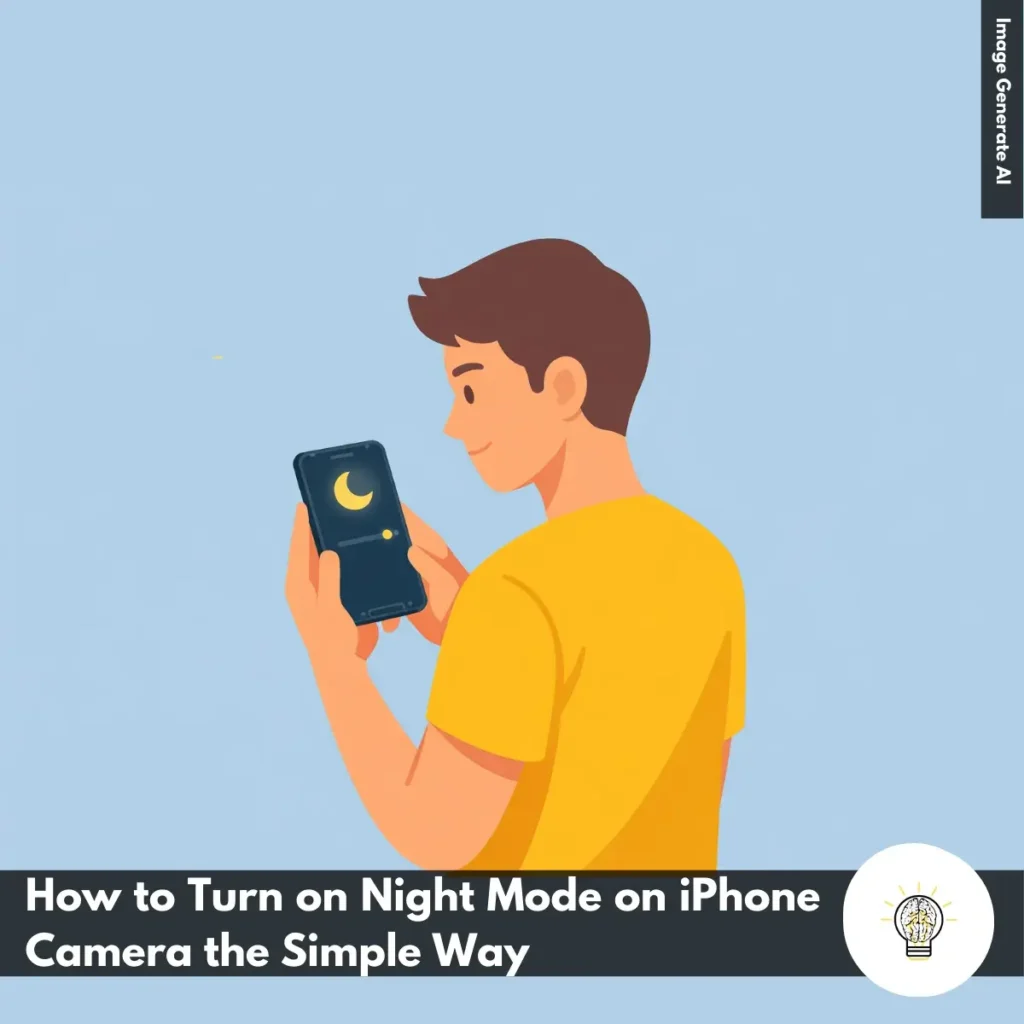
ruminesia – If you’ve ever taken photos at night with your iPhone and ended up with dark or blurry shots, you’ve probably wondered how to turn on Night Mode on iPhone Camera. Night mode can instantly make low-light photos clearer, but it only appears when your iPhone detects dim lighting—something that often confuses users.
Instead of guessing when the feature is active, understanding how Night mode shows up and how to control it can make your night photos look dramatically better with almost no extra effort.
Key Highlights:
- Night mode appears automatically when your iPhone detects low light.
- The moon icon shows whether Night mode is available or actively working.
- You can manually enable Night mode by tapping the moon icon when it appears.
- Adjusting the exposure slider helps brighten darker scenes more effectively.
- Keeping the phone steady is essential for sharp, clean night photos.
Night mode on the iPhone works automatically, so you don’t need to switch it on manually. When your iPhone detects low-light conditions, a small moon icon appears at the top of the Camera app, turning yellow once Night mode is active. The camera then adjusts exposure time to pull in more light without requiring any advanced tweaks from you.
If you want more control, you can tap the arrow at the top of the screen and use the slider to choose an exposure time between 1 and 30 seconds. The iPhone then blends multiple frames into a single HDR image to boost brightness and detail while minimizing noise.
Night mode is available on the iPhone 11 and newer models, with Pro models also supporting it for selfies and portraits. Understanding how it works helps you capture clearer, more natural-looking photos in low light.
Using Night mode is important because it helps your iPhone capture clearer and brighter photos in low-light conditions. Here’s why it makes a difference:
Once you understand why it’s essential to use Night mode for night photography, capturing reliable low-light photos becomes much easier.
The benefits of using Night Mode for Night Photography are especially noticeable when you shoot in low light with your iPhone. Night mode helps you capture more explicit images while keeping the process simple and beginner-friendly.
Overall, the Benefits of using Night Mode for Night Photography include better exposure, cleaner images, and more creative freedom in low-light scenes.

Learning how to turn on Night mode on iPhone camera helps you take clearer, brighter photos in low-light situations without dealing with complicated settings. Here’s how to access and control it effectively.
Launch the built-in Camera app and switch to Photo mode. Night mode doesn’t work in every shooting mode, so make sure Photo is selected before you begin.
Night mode appears only when your iPhone senses low-light conditions—such as indoors at night or outdoors after sunset. When it’s available, you’ll see a moon icon near the flash button.
If Night mode doesn’t activate on its own, tap the moon icon to enable it. Once the icon turns yellow, Night mode is turned on.
For darker scenes, you can extend the exposure time for better results. Tap the arrow above the viewfinder to open controls, select the moon icon, and use the slider to choose your desired capture time. Moving the slider toward Max increases brightness and detail.
After adjusting your settings, hold the iPhone steady—or use a tripod—before tapping the shutter button. Night mode may take a few seconds to capture, so keep the phone still until the exposure completes.
With these steps, you can make the most of Night mode and consistently capture sharper, more accurate low-light photos.

| iPhone Model | Native Night Mode | Manual Control | Notes |
|---|---|---|---|
| iPhone X | No | Third-party apps required | Use apps like NC Pro |
| iPhone XR | No | Third-party apps required | Use apps like NC Pro |
| iPhone 11 | Yes | Yes | Automatic activation |
| iPhone 12 | Yes | Yes | Automatic activation |
| iPhone 13 | Yes | Yes | Automatic activation |
| iPhone 14 | Yes | Yes | Automatic activation |
| iPhone 15 | Yes | Yes | Automatic activation |
| iPhone 16 | Yes | Yes | Automatic activation |
Understanding how to enable Night Mode on your iPhone Camera Across Different Models helps you get better low-light photos without guessing which features your device supports. While newer iPhones handle Night Mode automatically, older models require workarounds.
Knowing how to enable Night Mode on your iPhone Camera Across Different Models helps you use the right approach for your device. Once set up, you can capture clearer and brighter photos in low-light conditions.
Tips for better night mode photos on iPhone help you get clearer, more balanced shots when lighting is limited. With a few minor adjustments, your iPhone camera can perform much better at night.
Night mode helps improve low-light photos, but it may not always work correctly. If you’re experiencing issues, this step-by-step guide will help you troubleshoot Night mode on iPhone and quickly restore its performance.
Read More:
Night Mode on the iPhone camera raises many practical questions, especially for users who want consistent low-light results. These FAQs address the most common issues and help you understand how Night Mode works and how to get the best performance from it.
Night Mode is a feature that automatically activates in low-light conditions to brighten photos without using flash. It captures multiple frames at different exposures and blends them into one clearer, sharper image.
Night Mode won’t show up if the environment is too bright or if features like Flash or Live Photos are enabled. Switching back to the standard Photo mode and pointing the camera at a darker area usually makes the icon appear.
Night Mode is supported on:
Older models like iPhone X, XS, XR, or iPhone 8 do not include Night Mode.
Keep in mind that Ultra Wide may require longer exposure time due to its smaller aperture.
Night Mode uses longer exposure times, so any movement—either from your hand or your subject—can cause blur. Using a tripod or resting your phone on a stable surface helps produce sharper results.
Yes. When Night Mode activates, tap the moon icon and move the slider:
Longer exposures need a steady phone for best clarity.
Night Mode itself is photo-only, but iPhone 12 and newer include Night Mode Time-lapse, which brightens time-lapse videos in very dark environments. Regular videos rely on automatic ISO and stabilization but won’t reach Night Mode’s photo quality.
Yes, starting from iPhone 12. When using the selfie camera in low light, the moon icon appears automatically. iPhone 11 and older models do not support front-camera Night Mode.
This makes the camera remember the last Night Mode state. If you turn it off once, it stays off until you manually re-enable it.
Night Mode may misjudge white balance under mixed lighting (e.g., neon, LED, moonlight). You can improve color accuracy by:
Learning how to turn on Night Mode on iPhone Camera ultimately comes down to understanding when the feature appears and knowing how to control it when it does. Once you’re familiar with the moon icon and the exposure slider, taking sharper, brighter night photos feels much more intuitive.
The biggest advantage is that you don’t need complicated settings or extra gear to get better low-light results—just steady hands and a quick look at the Night mode indicator. Even small adjustments can noticeably improve your shots.
Give it a try the next time you’re out in low light. Test different exposure times, compare results, and see what works best for your style. And if you’ve found a useful trick or favorite setting, feel free to share your experience.