Physical Address
304 North Cardinal St.
Dorchester Center, MA 02124
Physical Address
304 North Cardinal St.
Dorchester Center, MA 02124

Your Guide to the Latest in Tech
Your Guide to the Latest in Tech

Ruminesia – Have you ever picked up your iPhone, knowing Siri could help, but not quite knowing what to say? Maybe you’ve tried asking Siri to send a message, set a reminder, or answer a quick question, only to wonder if there’s a better or faster way to make it work. That’s often where learning how to make requests to Siri becomes surprisingly useful.
The interesting thing about Siri isn’t just that it responds to voice commands. It’s that a few small adjustments—like knowing how to activate Siri, phrase requests naturally, or switch between voice and text input—can make the experience feel much more seamless. In many cases, the difference between a helpful assistant and a frustrating one comes down to understanding how to communicate with it effectively.
If you’ve ever been curious about getting more out of Siri, you’re not alone. Whether you’re completely new to Apple’s voice assistant or simply looking to use it more efficiently, understanding the basics can save time and make everyday tasks feel a little easier.
Key Highlights
- Siri can be activated by voice, button, or text depending on the situation.
- Speaking naturally often works better than memorizing specific Siri commands.
- Type to Siri is useful when speaking aloud isn’t practical or convenient.
- Many Siri issues can be fixed by checking settings and permissions first.
- Offline Siri can handle basic tasks, but live information still needs internet access.
- Small Siri customizations can make everyday interactions faster and more reliable.
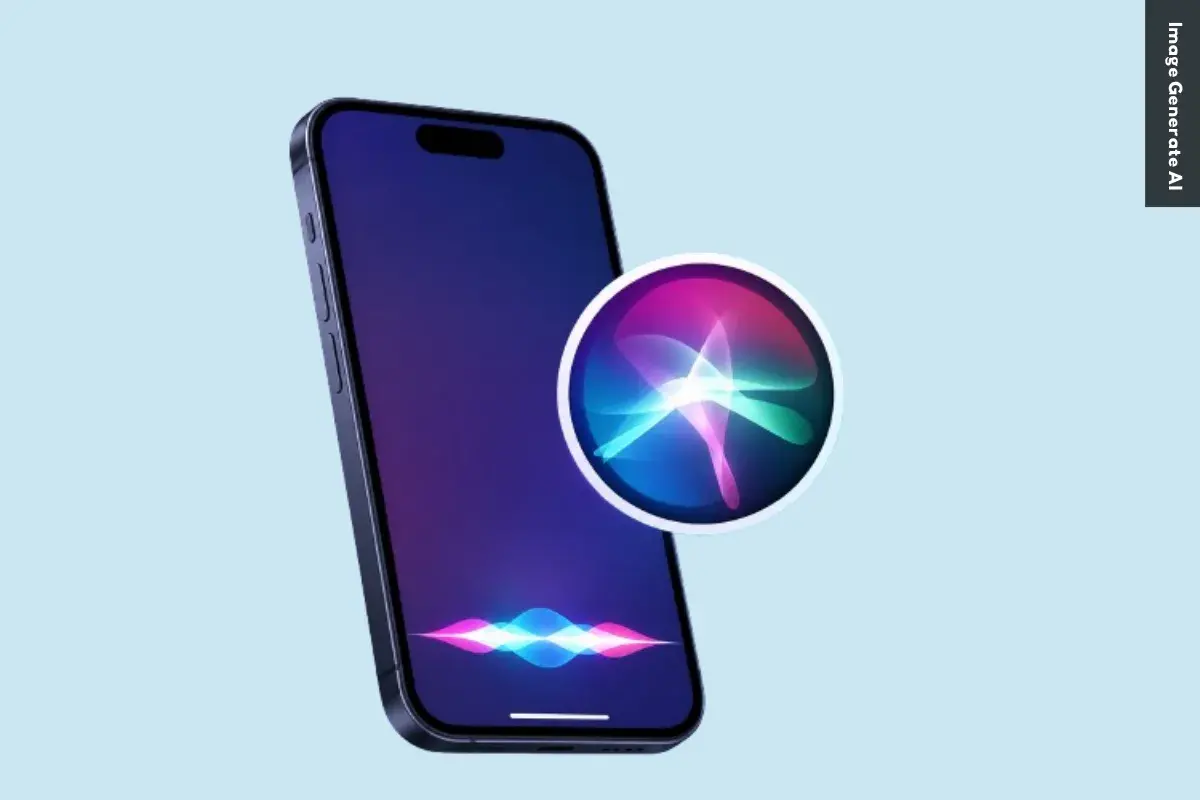
Once Siri is enabled, you can interact with your device using either voice or text. Whether you want to check the weather, send a message, set a reminder, or play your favorite playlist, the process is designed to be quick and convenient.
The key is choosing the method that fits your situation. Some people prefer hands-free voice commands, while others may find typing more practical in quiet environments. Understanding these options makes it easier to get the most out of Siri in everyday use.
The easiest way to use Siri is through a voice command. After enabling the Listen for “Hey Siri” or “Siri” option in Settings, you can simply say the wake phrase to get Siri’s attention.
This hands-free approach is especially useful when you’re driving, cooking, exercising, or doing anything that keeps your hands occupied. Instead of unlocking your device and navigating through apps, you can immediately ask Siri to perform a task.
For example, you can ask Siri to:
In practice, speaking naturally often works better than trying to memorize specific commands. Siri is designed to understand conversational requests, making interactions feel more intuitive and less mechanical.
If voice activation is disabled or unavailable, you can still access Siri using a physical button on your device.
On most iPhones, press and release the Side button. On compatible iPads, press the Top button. Once Siri appears, simply speak your request clearly.
This method is particularly useful in noisy environments where Siri may have difficulty recognizing the wake phrase. It also gives you more control over when Siri starts listening, which some users prefer for privacy or convenience.
Interestingly, many users rely on button activation when making quick requests in public places. It eliminates the need to say “Hey Siri” aloud while still providing full access to Siri’s features.
Not every situation is ideal for voice commands. That’s where Type to Siri becomes useful.
You can enable this feature by going to Settings > Accessibility > Siri and turning on Type to Siri. Once activated, Siri will display a keyboard whenever it opens, allowing you to type requests instead of speaking them.
This option works well when:
What many users don’t realize is that Type to Siri offers the same core functionality as voice requests. You can still ask questions, launch apps, create reminders, and perform everyday tasks—just through text instead of speech.
For many people, having both voice and typing options makes Siri far more flexible and useful throughout the day.
Read more:
Frequently Asked Questions about Siri often focus on privacy, customization, voice commands, and everyday usability. Below are some of the most common Siri questions, along with concise and practical answers for Apple users.
You can change Siri’s voice by going to Settings > Apple Intelligence & Siri > Siri Voice. From there, choose different accents and voice options, including American, British, Australian, and more.
Once selected, your iPhone will automatically download the voice files over Wi-Fi. This allows Siri to sound more natural based on your preference.
Yes, Siri can handle several basic commands offline on supported iPhones. You can set alarms, open apps, control music, or adjust settings without internet access.
However, requests that need live information, such as weather updates or web searches, still require Wi-Fi or cellular data.
This usually happens because voice activation is disabled or the microphone is blocked. Check Settings > Apple Intelligence & Siri and make sure “Listen for ‘Hey Siri’” is turned on.
Besides that, avoid placing your iPhone face down or inside a thick case that may affect microphone detection. Restarting the device can also help fix temporary Siri issues.
To enable this feature:
Once enabled, Siri can read incoming messages aloud and let you reply hands-free.
Apple does not currently allow completely custom wake words for Siri. However, newer iOS versions let users shorten the phrase from “Hey Siri” to simply “Siri.” If you want more customization, you can use Vocal Shortcuts inside Accessibility settings to trigger certain actions using custom phrases.
You can delete Siri history directly from your iPhone settings. Go to Settings > Apple Intelligence & Siri > Siri & Dictation History, then choose the delete option. This removes stored voice recordings and Siri interaction history linked to your account. One thing many users overlook is that this can improve privacy management.
No, Siri does not continuously record private conversations. Your device only listens locally for the wake phrase like “Hey Siri” or “Siri.” Once Siri detects the trigger phrase, it begins processing your request. If preferred, you can disable voice activation entirely in the settings.
Activate Siri and say, “Learn how to pronounce my name.” Siri will guide you through a short pronunciation setup process. You’ll be asked to repeat your name, then select the pronunciation that sounds most accurate. Siri will save it automatically to your contact profile.
Yes, Siri can help locate a misplaced iPhone using other Apple devices like Apple Watch, HomePod, or iPad. Simply say, “Where is my iPhone?” to trigger the search. Even if the iPhone is in silent mode, it will still make a loud sound to help you find it quickly.
First, enable Siri access for WhatsApp in your iPhone settings. Open Settings > WhatsApp and turn on the “Use with Siri” option.
After that, specify WhatsApp directly in your voice command. For example, say “Send a WhatsApp message to Sarah” instead of only saying “Message Sarah.”
Understanding how to make requests to Siri isn’t really about learning a list of commands. It’s about finding the easiest way to interact with your device in everyday situations. Whether you prefer speaking, typing, or using a button shortcut, a few small adjustments can make Siri feel much more helpful and natural to use.
Interestingly, many frustrations with Siri aren’t caused by the assistant itself. More often, they’re the result of settings, habits, or features that users simply haven’t explored yet. Taking a little time to customize how Siri works can often turn it from an occasional tool into something you rely on throughout the day.
At the end of the day, the best Siri experience is the one that fits your routine. Maybe you use it to stay productive, manage reminders, or handle quick tasks without touching your screen. How do you use Siri most often, and is there a feature you’ve discovered that more people should know about?