Physical Address
304 North Cardinal St.
Dorchester Center, MA 02124
Physical Address
304 North Cardinal St.
Dorchester Center, MA 02124

Your Guide to the Latest in Tech
Your Guide to the Latest in Tech
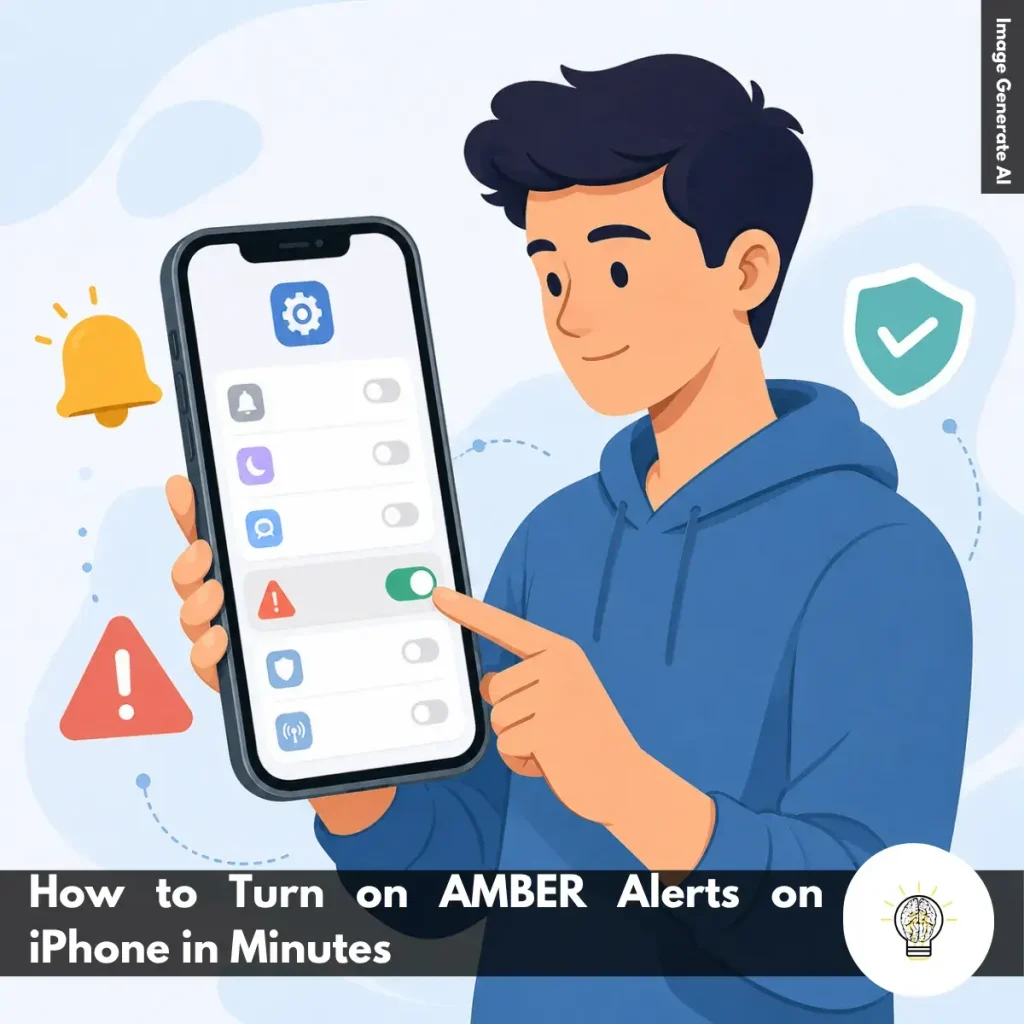
Ruminesia – Have you ever heard an unexpected alert sound on someone’s phone and wondered what it was? Many iPhone users don’t pay much attention to emergency notification settings until they realize some alerts can provide important information that affects their local community.
That’s why understanding how to turn on AMBER Alerts on iPhone is worth a few minutes of your time. While these alerts are enabled by default in many regions, settings can sometimes change without you noticing, especially after customizing notifications or setting up a new device.
Interestingly, AMBER Alerts are one of those features most people hope they’ll never need, yet they’re designed for situations where timely information can make a real difference. A quick settings check can help ensure your iPhone is ready to receive these critical notifications whenever they’re issued.
Key Highlights:
- AMBER Alerts help deliver urgent child abduction information directly to your iPhone.
- Most iPhones enable AMBER Alerts by default, but checking settings is still worthwhile.
- You can manage AMBER Alerts through the Notifications section in Settings.
- Government Alerts options may vary depending on your region and mobile carrier.
- A quick settings check ensures you don’t miss important emergency notifications.
- Once enabled, AMBER Alerts work automatically without any additional setup.

AMBER Alerts are designed to notify you when a child has been reported abducted in your area. These alerts are sent through government emergency systems and can provide critical information that helps locate missing children more quickly.
In most supported regions, AMBER Alerts are enabled by default on iPhones. However, settings can sometimes be changed accidentally during device setup, software updates, or notification customization. Taking a moment to verify that the feature is enabled can help ensure you continue receiving these important notifications.
Below is a step-by-step guide to check and turn on AMBER Alerts on your iPhone.
The first step is accessing your iPhone’s system settings. Open the Settings app from your Home Screen or App Library. This is the central hub where Apple stores all device controls, including privacy, security, accessibility, and notification preferences.
If you have dozens of apps installed and cannot immediately find the Settings icon, there are a few quick alternatives:
In practice, using Spotlight Search is often the fastest method, especially on devices with multiple Home Screen pages.
Next, you’ll need to access the section where alert preferences are managed. Inside the Settings app:
This page controls how alerts are delivered across your iPhone. Besides regular app notifications, it also contains settings for critical government-issued alerts.
What many users don’t realize is that emergency notifications are managed separately from standard app alerts. Even if you customize how apps send notifications, government alerts can still have their own dedicated settings and behaviors.
Once you’re in the Notifications menu, scroll to the very bottom of the page. Here you’ll find a section labeled Government Alerts. Depending on your country, carrier, and regional regulations, you may see several different alert categories. Common options may include:
Interestingly, not every iPhone user sees the same options. Apple adjusts available alert categories based on local government requirements and carrier support, which means the Government Alerts section may look slightly different from one region to another.
Finally, make sure the AMBER Alerts option is turned on. To enable it:
When enabled, your iPhone will automatically receive AMBER Alert notifications whenever authorities issue an alert relevant to your area. These notifications often include details such as vehicle descriptions, suspect information, or other identifying characteristics that may help the public assist in locating a missing child.
Besides that, AMBER Alerts are designed to bypass many of the notification limitations that affect regular apps. This helps ensure important information reaches users quickly, even if they are not actively using their devices.
Once the toggle is enabled, no additional setup is required. Your iPhone will continue monitoring supported emergency channels and display AMBER Alerts automatically whenever they are issued.
Read Also:
If you’re looking for quick answers about iPhone features, settings, and troubleshooting, this FAQ covers the questions users ask most often. These Frequently Asked Questions About iPhone provide practical solutions that are easy to follow.
If your iPhone is frozen and not responding, you can force restart it using the hardware buttons. Press and quickly release the Volume Up button, then press and quickly release the Volume Down button. After that, press and hold the Side button until the Apple logo appears.
This process does not delete your data. It simply forces the device to restart and is often the fastest way to resolve temporary software issues.
Sudden battery drain is usually caused by background app activity, recent iOS updates, high screen brightness, or location services running continuously. In some cases, your iPhone may also be indexing data after a software update. To identify the cause:
The quickest way to free up storage is to review what’s using the most space. You can find this information in Settings > General > iPhone Storage. Useful ways to clear storage include:
The main difference is that iPhone Pro models offer more advanced features. They typically include better cameras, higher-performance chips, premium materials, and ProMotion displays with smoother scrolling.
Standard iPhone models focus on everyday performance and affordability. For most users, they provide excellent performance, while Pro models are designed for photography enthusiasts, gamers, and content creators.
The easiest way is to use iCloud Backup. Once enabled, your iPhone automatically backs up important data when connected to Wi-Fi, charging, and locked. You can also create a local encrypted backup:
Apple’s Quick Start feature makes transferring data simple. Place your new iPhone near your old one and follow the on-screen instructions. Basic steps:
The process moves apps, photos, settings, and most personal data automatically.
Yes, modern iPhones are designed to handle overnight charging safely. Once the battery reaches full charge, the charging system automatically manages power delivery.
One thing many users overlook is the Optimized Battery Charging feature. When enabled, it learns your charging habits and helps reduce long-term battery wear.
You can reduce unwanted calls using the built-in Silence Unknown Callers feature. This automatically sends calls from unknown numbers to voicemail. To enable it:
For additional protection, consider using a trusted caller ID and spam-filtering app.
If your iPhone gets wet, act quickly to minimize potential damage. Turn the device off immediately and gently dry the exterior with a soft cloth. Follow these steps:
Do not place the device in rice, as small particles can enter the ports and cause additional problems.
You can disable location tracking through the Privacy settings. This gives you more control over how apps access your location data. To turn it off:
Alternatively, you can manage location access individually for each app, which is often the most practical option for balancing privacy and convenience.
Knowing how to turn on AMBER Alerts on iPhone is one of those small device settings that can have a much bigger purpose than most people realize. It only takes a minute to check, yet it helps ensure your phone can receive important information when authorities need the public’s attention most.
Interestingly, features like AMBER Alerts often stay in the background until a critical situation occurs. That’s why it’s worth occasionally reviewing your notification settings—not because you expect an emergency, but because being prepared is usually easier than scrambling to fix a setting later.
At the end of the day, your iPhone isn’t just a communication device; it’s also a tool that can keep you informed when it matters. Have you ever checked your emergency alert settings before, or was this something you hadn’t thought about until now?