Physical Address
304 North Cardinal St.
Dorchester Center, MA 02124
Physical Address
304 North Cardinal St.
Dorchester Center, MA 02124

Your Guide to the Latest in Tech
Your Guide to the Latest in Tech
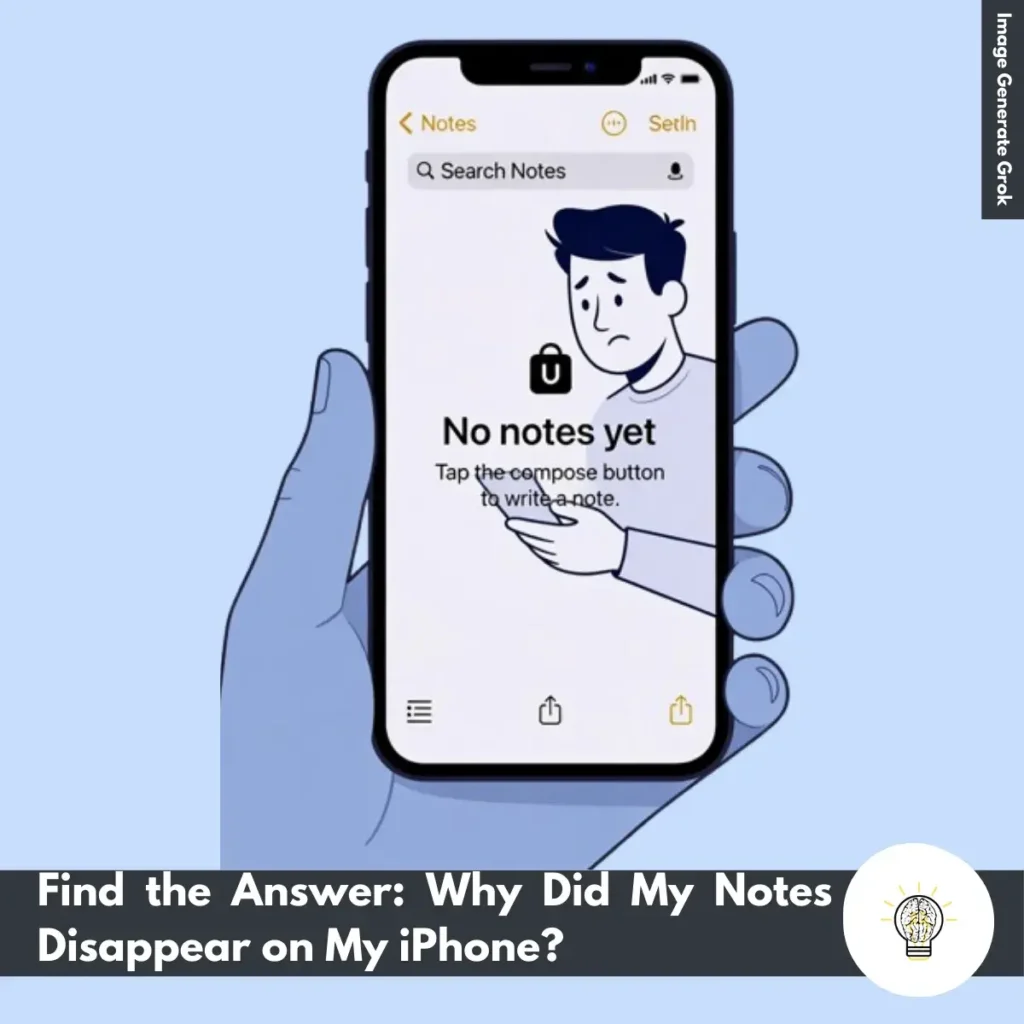
ruminesia – If you’ve ever opened the Notes app only to find something missing, you’re not alone. Many users suddenly ask themselves, “Why did my notes disappear on my iPhone?”—usually at the worst possible moment, like right before a meeting or when trying to pull up an important idea. It’s frustrating because Notes feels like one of the safest places to store quick thoughts, reminders, or even work-related info.
The good news is that disappearing notes don’t always mean they’re gone forever. In most cases, the issue comes down to simple settings, syncing mix-ups, or accidental actions that can be reversed with a few quick checks. Understanding what caused the problem is often the fastest way to get everything back in place.
So instead of panicking, it helps to know the most common reasons behind missing notes and how you can recover them quickly. With the right steps, your notes are usually just a few taps away from reappearing.
Key Highlights:
- Software glitches after updates can temporarily hide notes.
- Accidentally deleted notes can often be restored from the Recently Deleted folder.
- Incorrect iCloud or email sync settings are a common source of missing notes.
- Removing the Notes app doesn’t delete your data and can be fixed by reinstalling it.
- Most missing notes can be recovered with simple checks rather than complex fixes.
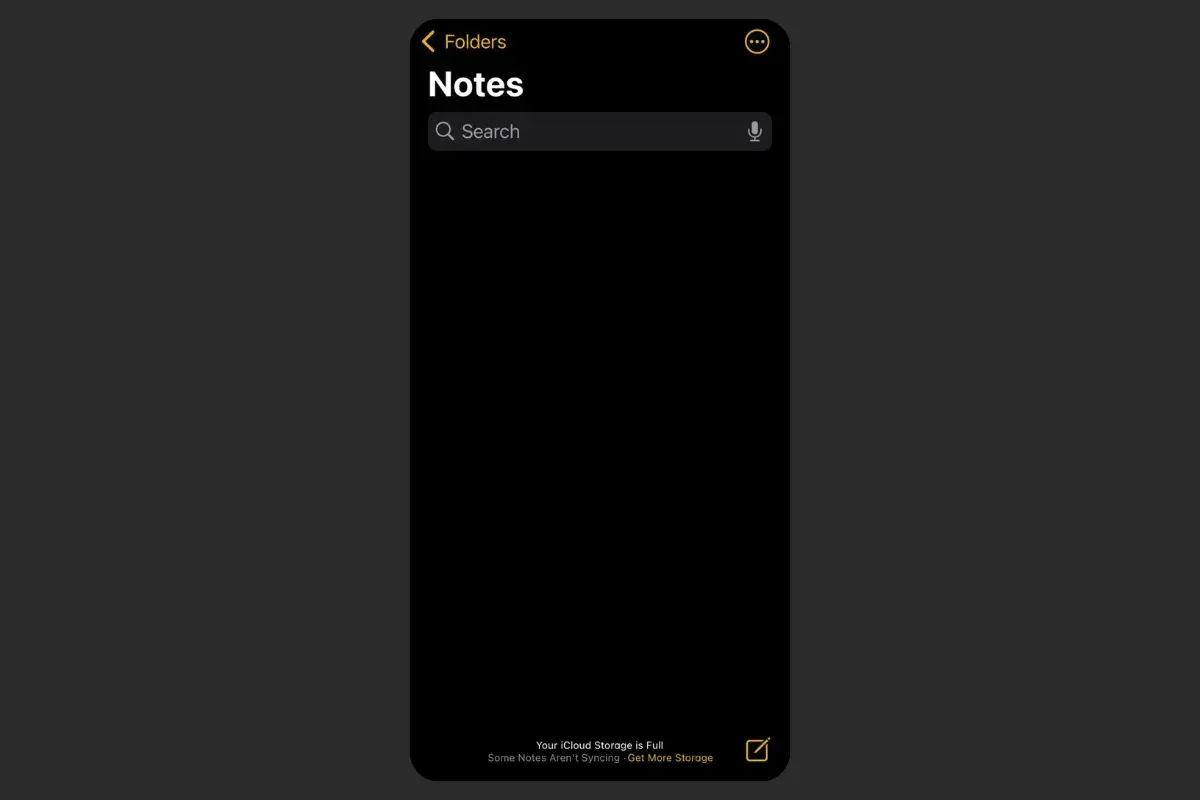
Understanding why your iPhone notes may have disappeared is the first step to identifying the root cause and restoring them. Missing notes typically result from a handful of common issues—ranging from software errors to sync misconfigurations—so reviewing these scenarios can help you quickly determine what went wrong and how to fix it.
iOS can occasionally run into temporary bugs, especially right after a major or minor update. These glitches may cause the Notes app to behave unpredictably, making some notes appear missing even though they still exist in the system.
In many cases, a simple restart or updating to the latest available patch can resolve these inconsistencies. Keeping your device on the most stable version of iOS helps reduce the chances of your notes disappearing due to software instability.
One of the most common reasons notes vanish is accidental deletion. This can happen during routine clean-ups, when reorganizing folders, or from unintentional swipes or taps.
Fortunately, deleted notes typically move to the “Recently Deleted” folder, where they remain recoverable for a limited time.
Reviewing this folder should be one of the first steps when trying to restore missing notes, as many users find their content still intact and easy to recover.
If your notes are linked to iCloud or an email service, incorrect sync settings can cause them to disappear from the Notes app.
Notes stored under accounts that are disabled, removed, or not properly synced will not show up on your device—even if they still exist in the cloud or email server.
Reviewing your iCloud settings, confirming that Notes syncing is turned on, and reactivating any disabled email accounts can often bring your missing notes back instantly.
Removing the Notes app—either intentionally or by mistake—can make it seem like all your notes have vanished. While the app may no longer appear on your Home Screen, your saved notes typically remain linked to your iCloud or email accounts.
Reinstalling the app from the App Store usually restores access to your data immediately. For devices using iCloud Notes, your content will sync back automatically once the app is reinstalled and connected to your account.
When your notes suddenly disappear, understanding how to recover lost notes on your iPhone helps you restore them quickly. The following methods guide you through the most reliable steps, starting from the simplest checks to more advanced recovery options.
Many missing notes are simply removed by accident and stored temporarily in the Recently Deleted folder. To check it, open the Notes app, go to the Folders view, and tap Recently Deleted.
If your notes appear there, select them and tap Recover to restore them to an active folder. This should be your first recovery step because it often resolves the issue immediately.
If your notes were synced with iCloud, you may be able to bring them back through your account settings. Go to Settings > [Your Name] > iCloud and ensure the Notes toggle is turned on.
If syncing was disabled earlier, re-enabling it may instantly restore your notes. After that, revisit the Recently Deleted folder, as iCloud may place recovered notes there.
Sometimes notes aren’t deleted—they’re just misplaced.
This is especially useful when notes were moved unintentionally.
If earlier steps don’t work, third-party data recovery tools designed for iPhones can be your last option. These tools scan your device or backup files to locate deleted data that may still be recoverable. While results vary and are not guaranteed, they can sometimes retrieve notes that no longer show up in the Notes app or iCloud.
Taking a few simple steps can greatly reduce the chances of your notes disappearing again. By applying these preventive measures to avoid future loss, you can keep your information safer and easier to recover if something unexpected happens.
Also Read:
Here is a clear and practical FAQ section based on Frequently Asked Questions about Notes on iPhone.
You can secure any note by opening it, tapping the three-dot menu, and selecting Lock. Set a password or use Face ID/Touch ID to protect it. A lock icon will appear next to the note once enabled.
Locked notes remain readable only after authentication, so be sure to remember the password—Apple cannot recover it if forgotten.
Deleted notes are stored temporarily in the Recently Deleted folder for around 30 days. To restore one, open the folder, select the note, and tap Move to return it to an active folder. If the note is missing after 30 days, check your iCloud or iTunes backups. Restoring from a backup may bring older notes back.
Notes often disappear when an email account tied to your Notes app is removed, or its sync settings are turned off. When an account is disabled, its notes are hidden from the app. You may also find misplaced notes in the Recently Deleted folder or under another account, especially if you use multiple email services.
Go to Settings > [Your Name] > iCloud and toggle Notes on. This keeps your notes updated across your iPhone, iPad, and Mac. If you use Gmail or Outlook, enable Notes sync under each account. However, iCloud generally supports more features and faster updates.
Inside any note, tap the camera icon and select Scan Documents. Position your iPhone over the document until the edges are detected, then capture and adjust the corners if needed. Saved scans become PDFs within the note and can be shared or searched using built-in OCR text recognition.
Open the note you want to share and tap the collaboration icon at the top. Send the invitation through Messages, Mail, or a shareable link. You can allow others to view or edit. All updates appear in real time, and edits are color-tagged, making collaboration easy to track.
Tap the checklist icon at the top of the keyboard to turn each new line into a task item. Every press of “Return” creates another checkbox. Completed items can automatically move to the bottom, helping you keep long to-do lists tidy and focused.
Tap the pen icon to open drawing tools, including pens, pencils, erasers, and a digital ruler. You can draw with your finger or Apple Pencil (on supported iPhones). Shapes can auto-correct when you hold your finger after drawing, and sketches can be resized, moved, or converted to text.
Use the search bar at the top of the Notes list to find notes by title, text, images, or scanned document content. You can also filter results by categories such as locked notes or notes with attachments. Siri can help locate notes using simple voice commands.
Open the On My iPhone folder, tap Edit, select the notes, and choose Move. Select a folder under iCloud to transfer them. Once moved, notes automatically sync across your devices and become part of your cloud backup, reducing the risk of data loss.
Understanding why my notes disappeared on my iPhone often comes down to a few simple causes—whether it’s syncing issues, accidental deletion, or temporary software glitches. The good news is that most of these situations can be reversed with quick checks, and your notes are often still recoverable.
If you’ve traced the issue to one of the common culprits, try the fixes that match your situation and see which one brings your notes back. Small habits like keeping sync enabled and making regular backups can also help prevent the problem from happening again.
If you’re still dealing with missing notes or found a different cause not covered here, feel free to share your experience or ask a question. Your insight could help others facing the same frustration.