Physical Address
304 North Cardinal St.
Dorchester Center, MA 02124
Physical Address
304 North Cardinal St.
Dorchester Center, MA 02124

Your Guide to the Latest in Tech
Your Guide to the Latest in Tech
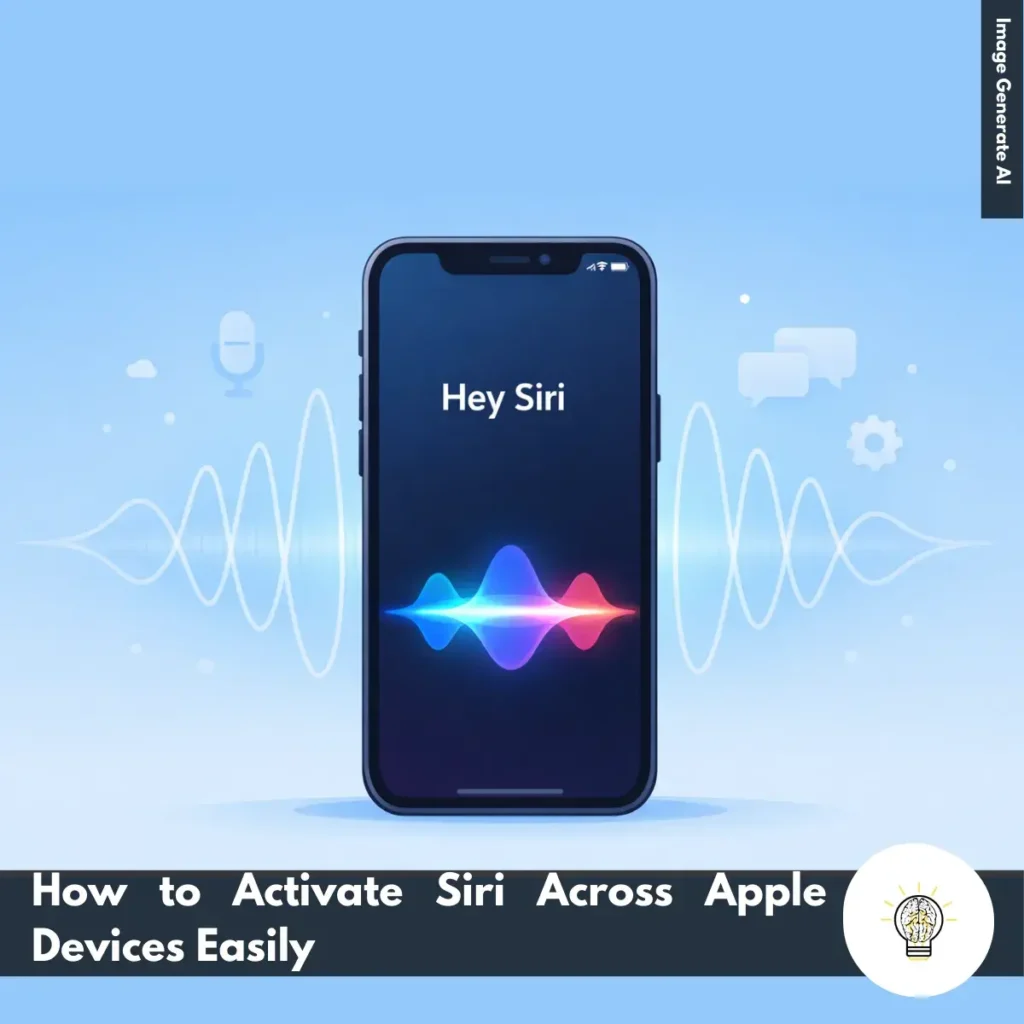
ruminesia – If you’ve recently started using an Apple device, you might be wondering how to activate Siri and start using its voice assistant features. Whether you want to send messages, check the weather, set reminders, or control apps with simple voice commands, Siri is designed to make everyday tasks faster and more convenient.
The good news is that activating Siri is simple once you know where to look. Apple allows you to launch Siri in several ways, including voice commands like “Hey Siri,” physical buttons on your device, or shortcuts on other Apple products such as Mac, Apple Watch, and HomePod.
Understanding these activation methods can help you access Siri quickly whenever you need it. The following guide explains the different ways to enable and use Siri across Apple devices, along with practical tips to make voice activation work smoothly.
Key Highlights
- Siri can be activated using voice commands such as “Hey Siri” or “Siri,” allowing hands-free interaction with your device.
- Voice activation requires the Listen for “Hey Siri” setting to be enabled in your device’s Siri settings.
- You can manually trigger the assistant by pressing the Side button on iPhones with Face ID or the Home button on older models.
- Siri is available across multiple Apple devices, including Mac, Apple Watch, HomePod, AirPods, and Apple TV.
- A stable internet connection and clear microphone help Siri recognize voice commands more accurately.
- Correct language and region settings ensure voice activation works properly on your device.
Before using Siri to perform tasks or answer questions, you need to know how to activate it on your Apple device. Apple provides several ways to trigger Siri, including voice commands and physical buttons. The exact method depends on the device you’re using, but the process is generally simple and designed for quick access.
Voice activation allows you to use Siri hands-free. This method is especially useful when you’re multitasking, driving, or when your hands are occupied.
To activate Siri with your voice, simply say “Hey Siri” or “Siri,” depending on your device and software version. Siri will listen for the command and respond immediately.
For voice activation to work properly, make sure the feature is enabled, and your device is set up correctly. Consider the following factors:
Once configured, voice activation provides one of the fastest and most convenient ways to interact with Siri.
If you prefer not to use voice commands, you can manually activate Siri using physical buttons. This method is useful in quiet environments or when voice activation is disabled. The exact button depends on the device model:
Button activation offers quick and reliable access to Siri without needing to speak first.
Siri is integrated across the Apple ecosystem, meaning you can access it on multiple Apple devices beyond the iPhone. Each device has its own activation method. Here are the common ways to launch Siri on different Apple devices:
Understanding these activation methods helps you access Siri quickly across your devices, making it easier to control apps, search for information, and perform everyday tasks within the Apple ecosystem.
Read More:
Here are some Frequently Asked Questions about Siri to help clarify how Apple’s voice assistant works in everyday situations. These answers cover common questions users have when using Siri across different Apple devices.
Siri helps you perform everyday tasks using voice commands. You can ask Siri to send messages, make calls, set reminders, check the weather, control smart home devices, open apps, and search for information.
There are several ways to activate Siri depending on your device settings.
Once activated, simply speak your request.
Most Siri features require an internet connection because requests are processed through Apple’s servers. However, some basic tasks like opening apps, setting alarms, or adjusting certain device settings may work offline on newer iOS versions.
Yes, you can customize Siri’s voice and language in the settings menu. Apple provides several voice options, including different accents and languages depending on your region.
Yes, Siri works across multiple devices in the Apple ecosystem. You can use Siri on iPad, Mac, Apple Watch, AirPods, HomePod, Apple TV, and Apple Vision Pro.
You can disable Siri through the settings menu.
This will stop Siri from activating.
Yes, Siri can control compatible smart home devices through Apple HomeKit. You can use voice commands to turn lights on or off, adjust thermostats, or manage other connected home accessories.
Siri may not respond if voice recognition is disabled, the microphone is blocked, or your internet connection is unstable. Checking Siri settings and ensuring your device has a stable connection often resolves the issue.
Yes, Apple offers a Type to Siri feature for users who prefer typing.
You can then type commands instead of using voice input.
Siri only listens for the activation phrase like “Hey Siri” or “Siri” when the feature is enabled. Apple states that voice data is processed with privacy protections, and Siri does not continuously record conversations unless activated.
Learning how to activate Siri is one of the easiest ways to get more out of your Apple devices. Whether you prefer using voice commands like “Hey Siri” or activating it through device buttons, the setup process is simple and designed to give you quick access to Apple’s built-in voice assistant.
Once Siri is enabled, you can use it to handle everyday tasks such as sending messages, checking information, setting reminders, or controlling apps without navigating through menus. Making sure voice activation is properly configured, your microphone is clear, and your internet connection is stable will help Siri respond more reliably.
If you haven’t tried it yet, take a moment to activate Siri on your device and experiment with a few simple commands. You may find that using voice assistance makes many daily tasks faster and more convenient.