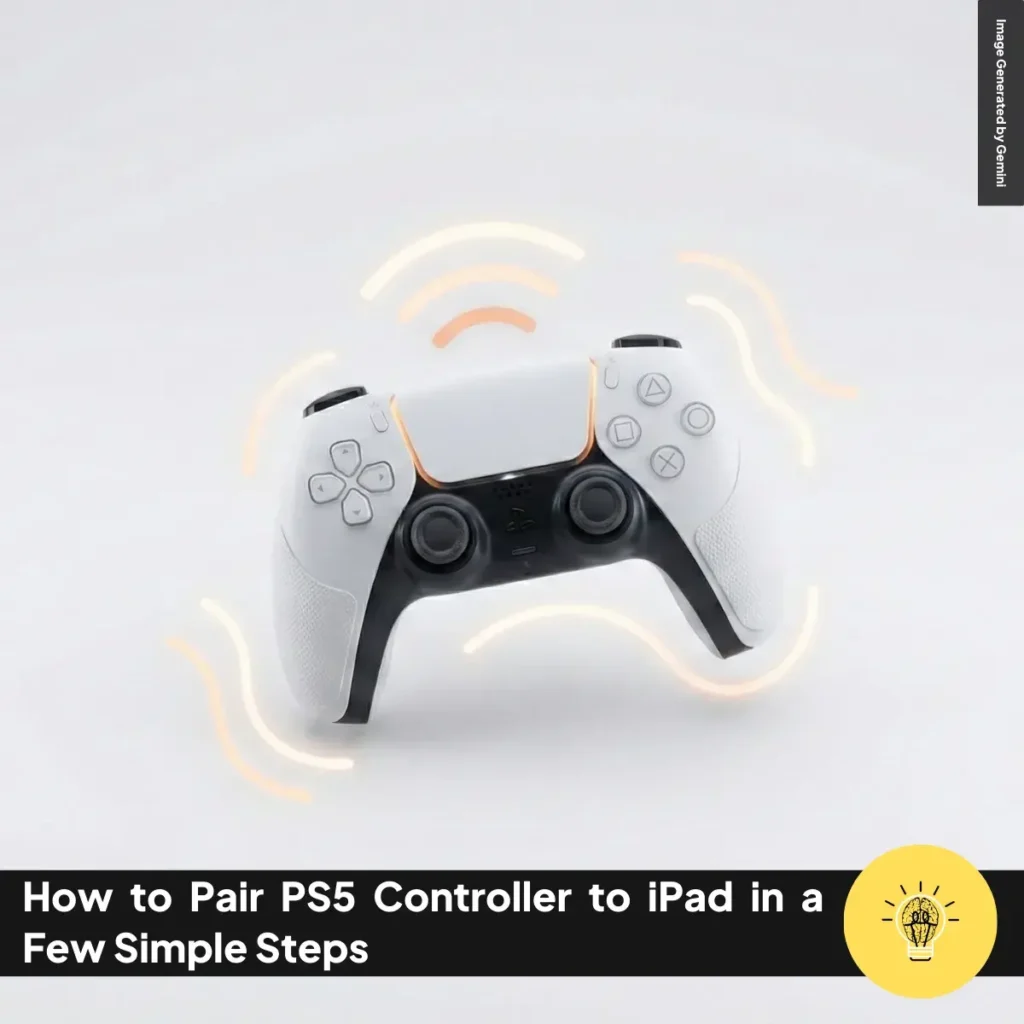
How to Pair PS5 Controller to iPad in a Few Simple Steps

ruminesia – Connecting a PS5 controller shouldn’t feel complicated, especially when you just want to jump into a game or try a new app. Many people look up How to Pair PS5 Controller to iPad because they want a smoother and more familiar way to play on mobile.

The good news is that modern Apple devices make this kind of setup easier than it seems. You only need a few quick steps to get your DualSense ready without any extra accessories.

Before we get into those steps, it helps to understand what your device expects during the pairing process. With that in mind, let’s walk into the guide so you can start playing comfortably.

Can I use my PS5 controller with other devices?

The PS5 DualSense controller is compatible with various devices beyond just the PlayStation 5 console, giving you the flexibility to enjoy gaming across multiple platforms.

This versatility enhances your gaming experience, allowing you to use the controller with PCs, mobile devices, and more. It is a great choice for gamers who want to play their favourite titles in different environments.

Can I use my PS5 controller with iPad?

Yes, you can definitely use your PS5 DualSense controller with an iPad. This compatibility allows you to enhance your gaming experience on your iPad, making it easier to play your favourite games with a more comfortable and familiar controller.

Benefits of Using a PS5 Controller with iPad

Using a PS5 DualSense controller with your iPad has several benefits that can significantly enhance your mobile gaming experience. Here are the key advantages you should know:

  1. Improved Control: The DualSense controller offers a more tactile and responsive gaming experience than touchscreen controls. This allows for precise movements and better overall performance, especially in action-packed games like Call of Duty Mobile and PUBG.
  2. Comfort: Thanks to its ergonomic design, the DualSense controller is comfortable to hold during long gaming sessions. This helps reduce fatigue compared to using the iPad’s touchscreen.
  3. Wide Game Support: Many games on Apple Arcade and other platforms support controller input. This means you can enjoy a broader range of titles with enhanced control options, including popular games like Madden NFL 21 and various competitive shooters.
  4. Customizable Controls: With iOS 14.5 and later, you can customize button mappings for each game through the settings. This feature allows you to tailor the controller layout to your preferences, creating a more personalized gaming experience.
  5. Haptic Feedback: While not all games utilize it, the advanced haptic feedback of the DualSense controller can provide a more immersive experience in compatible games, enhancing the sensory feedback during gameplay.
  6. Easy Pairing: Connecting the DualSense controller to your iPad is a simple process via Bluetooth. This ease of connection allows you to switch between devices effortlessly, giving you a console-like experience on your mobile device without a complicated setup.
  7. Screenshot and Recording: The Share button on the DualSense makes it easy to take screenshots or record gameplay. This feature provides quick access to share your gaming moments directly from your iPad.
  8. Charging Convenience: You can charge the DualSense controller using the same USB-C cable as newer iPads. This simplifies your setup by reducing the number of cables you need.

Requirements for Pairing PS5 Controller to iPad

To successfully pair your PS5 DualSense controller with your iPad, there are a couple of important requirements you need to meet:
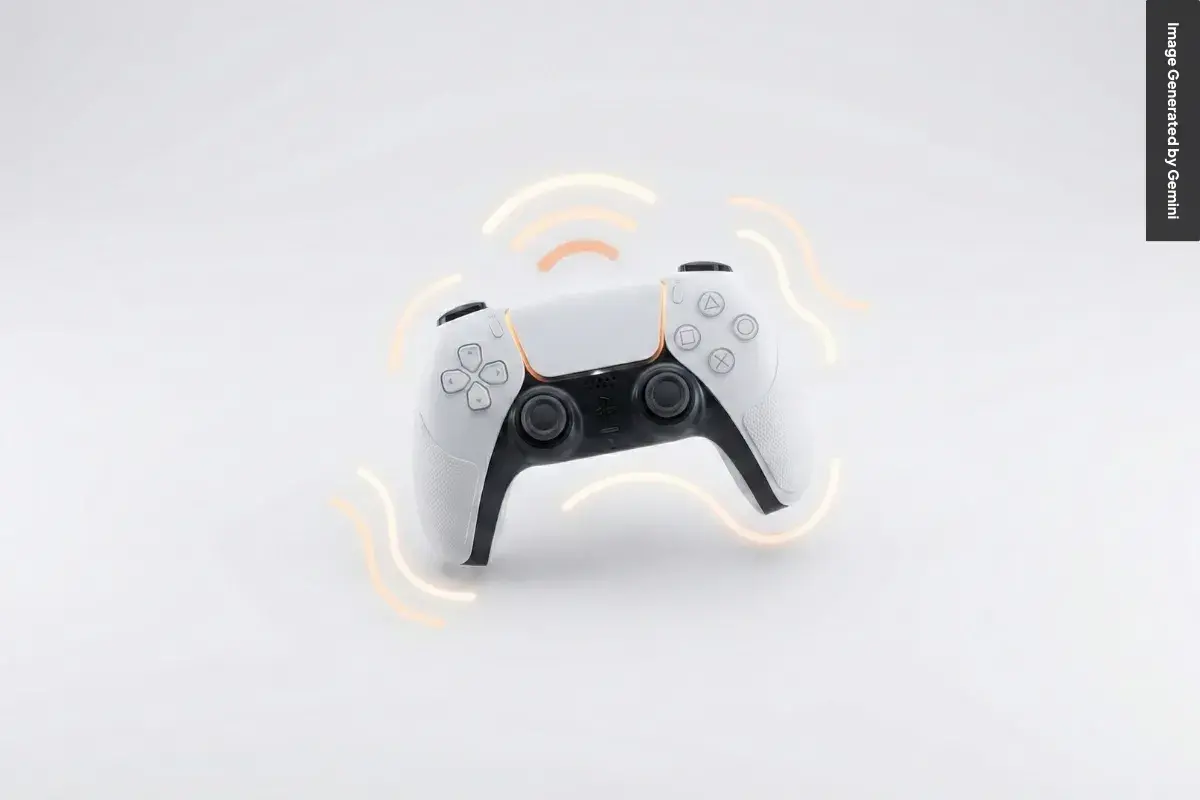
  1. iPadOS Version: First, ensure your iPad is running iPadOS 14.5 or later. This version added support for the DualSense controller, allowing you to connect and use it seamlessly.
  2. Charged Controller: Make sure your DualSense controller is fully charged. A charged controller helps prevent connectivity issues during pairing, ensuring a smooth gaming experience.

How to Pair PS5 Controller to iPad

how to pair PS5 controller to iPad

Here’s a friendly, mobile-readable guide to help you enjoy smoother gameplay on your iPad using a PS5 DualSense controller. If you’ve ever wondered how to Pair PS5 Controller to iPad, the steps below explain everything clearly.

1. Enable Bluetooth on Your iPad

Turning on Bluetooth is the first step because your iPad needs a wireless channel to recognize the DualSense controller. Open the Settings app and tap the Bluetooth menu to check its status. Make sure the toggle is enabled so your iPad can start scanning for nearby devices.

You can also glance at the list of previously connected accessories to avoid confusion during setup. If Bluetooth shows a delay in detecting devices, try toggling it off and back on. This small refresh often helps your iPad scan again and discover your controller quickly.

2. Put Your DualSense Controller Into Pairing Mode

Before your iPad can connect to the controller, the DualSense needs to broadcast its signal. Press and hold the PS button and the Create button at the same time until the light bar begins flashing rapidly. This blinking pattern confirms the controller is now shareable and ready to be found through Bluetooth.

If the light bar does not flash, release both buttons and try again. Some users find it easier to perform this with the controller placed on a flat surface for better grip. Remember that pairing mode will time out after a while, so stay close to your iPad during this step.

3. Connect to the Controller From Your iPad

Once your controller is in pairing mode, your iPad will list it among available devices. Look under “Other Devices” for names such as “DualSense” or “Wireless Controller” and tap the one that appears. The iPad will initiate the pairing request and attempt to link with the controller automatically.

If the name does not appear at first, wait a few seconds because Bluetooth scanning can take time. You can also back out of the Bluetooth menu and reopen it to refresh the device list. This step helps ensure your iPad catches the broadcast from your PS5 controller.

4. Confirm the Successful Connection

A stable connection becomes obvious once the DualSense light bar switches from blinking to a steady glow. This solid light indicates that your iPad has paired successfully with the controller. You should now see the DualSense listed under “My Devices” in your Bluetooth settings.

If the light continues flashing, the pairing may not have gone through. In that case, tap the device name again or re-enter pairing mode on the controller. These retries are normal and often resolve minor connection hiccups.

5. Test the Controller in a Compatible Game

Before you jump into a long gaming session, make sure everything responds the way you expect. Open a game that supports external controllers and try moving, selecting, or navigating using the DualSense buttons. This quick test ensures the connection works reliably and avoids surprises later.

If a game does not respond, check its App Store description to confirm controller support. You can also disconnect and reconnect the controller from Bluetooth settings to refresh the signal. Once everything is smooth, you’re ready to enjoy a more comfortable gaming experience on your iPad.

By following these steps, you now know how to Pair PS5 Controller to iPad and get the most out of portable gaming. Enjoy exploring your favourite titles with better controls and a more familiar feel.

Troubleshooting Common Issues Pairing PS5 Controller to iPad

If you’re having trouble pairing your PS5 DualSense controller with your iPad, here are some quick troubleshooting steps to help you out:

  1. Ensure Bluetooth is Enabled: Check that Bluetooth is on by going to Settings > Bluetooth and toggling it if necessary.
  2. Charge the Controller: Make sure your DualSense controller has enough battery. A low charge can prevent proper connection.
  3. Put the Controller in Pairing Mode: Press and hold the PS and Create buttons until the light bar flashes, indicating it’s ready to pair.
  4. Forget and Reconnect: If the controller was previously paired but isn’t connecting:
    • Go to Settings > Bluetooth, tap the (i) icon next to the controller’s name, and select Forget This Device. Restart your iPad and try pairing again.
  5. Restart Bluetooth: Turn off Bluetooth in settings, then turn it back on. Alternatively, restart your iPad.
  6. Update iPadOS: Ensure your iPad is updated by checking Settings > General > Software Update.
  7. Reset the Controller: If needed, reset the controller by pressing the small reset button on the back for about five seconds, then try pairing again.
  8. Test with Another Device: Try connecting the controller to another device. If it doesn’t connect there, the controller may be faulty.

How do I disconnect the PS5 controller from my iPad?

If you’ve already learned How to Pair PS5 Controller to iPad, disconnecting it is just as simple. Here are the quickest ways to do it without any extra steps.

  1. Turn off the controller: Hold the PS button for about 10 seconds until the light bar turns off, which means the controller has disconnected.
  2. Disable Bluetooth on your iPad: Open Settings, go to Bluetooth, and toggle it off to instantly disconnect all paired devices, including your controller.
  3. Forget the controller on your iPad: Go to Settings > Bluetooth, tap the (i) next to the controller, choose Forget This Device, and confirm to remove it completely.

What games are compatible with the iPad PS5 controller?

Here are some games compatible with the PS5 DualSense controller on the iPad, enhancing your gaming experience:

  1. Action and Adventure:
    • Call of Duty: Mobile: Supports controller input for improved aiming.
    • Grand Theft Auto Series: Titles like GTA: Vice City and GTA: San Andreas work well with controllers.
    • Skyrim: Offers controller support for immersive gameplay.
  2. Racing Games:
    • Asphalt 9: Legends: Benefits from precise controls.
    • GRID Autosport: Delivers a console-quality racing experience.
    • F1 Mobile Racing: Features full controller compatibility.
  3. Role-Playing Games (RPGs):
    • Divinity: Original Sin 2: Enhances strategic gameplay with controller support.
    • Alien Isolation: Increases immersion in this survival horror game.
  4. Platformers and Indie Games:
    • Hyper Light Drifter: Plays smoothly with a controller.
    • Stardew Valley: Easier navigation with a controller enhances the experience.
  5. Apple Arcade Titles: Many Apple Arcade games, like Sky: Children of the Light and The Unfinished Swan, support controllers.
  6. Streaming Services: Games from services like Xbox Game Pass or Nvidia GeForce Now can also be played with the PS5 controller, turning your iPad into a portable gaming console.

Read Also:

Frequently Asked Questions About the PS5 Controller

Here is a quick and helpful overview of the most common questions people ask about using and optimizing the PS5 Controller.

1. Can the PS5 controller be used on a PC?

Yes, the DualSense works on PC.

  • USB-C cable or Bluetooth connection
  • Steam: Full native support
  • Non-Steam games: May need tools like DS4Windows

2. How long does the PS5 controller battery last?

Typically 6–12 hours.

  • Heavy features (Haptics & Adaptive Triggers) drain faster.

3. Can the PS4 controller (DualShock 4) be used on the PS5?

Yes, with limitations.

  • Works for PS4 games on PS5
  • Cannot be used for PS5-only games

4. How long does it take to charge a PS5 controller?

About 3 hours from empty to full when using a USB port or official charging dock.

5. Why is my PS5 controller experiencing drifting?

Common causes include:

  • Dust/Dirt: Clean around the stick
  • Software: Reset or update firmware
  • Hardware: Worn sensors may require repair or replacement

6. How do I reset a PS5 controller?

  • Turn off the PS5
  • Press the small reset button on the back for 3–5 seconds
  • Reconnect via USB and press the PS button

7. What is the difference between the regular DualSense and the DualSense Edge?

Key differences:

  • Price: $69 vs $199
  • Customization: Programmable back buttons
  • Replaceable stick modules
  • Adjustable trigger stops

8. Does the PS5 controller have a built-in microphone?

Yes.

  • Built-in mic and speaker
  • Mute button under the PS logo (orange light = muted)

9. How do I turn off the PS5 controller without turning off the console?

  • Press PS button → Accessories → Wireless Controller → Turn Off
  • Or hold the PS button for 10 seconds

10. How much does a PS5 controller cost?

Approximate pricing:

  • Standard DualSense: $69.99–$74.99
  • DualSense Edge: $199.99

If you want, I can also format this into a full article or add SEO-optimized descriptions.

Conclusion

Getting your controller to work the way you want always feels satisfying, especially when it removes small frustrations that slow you down. It’s a simple reminder that the right setup can make your everyday tech feel more personal and enjoyable.

By now, you understand the essentials of How to Pair PS5 Controller to iPad and why this quick process can improve your mobile gaming experience. The goal wasn’t just to show the steps, but to help you feel confident about connecting your devices whenever you need.

If you’ve tried these steps or found a trick that works even better, feel free to share your experience in the comments. Your insight might help someone else set up their controller with less hassle.

References

Share This Article

Athif Amirudin Muhtadi

Athif Amirudin Muhtadi

A technology writer with 5 years of professional experience as a WordPress Developer and SEO Specialist. Focused on covering apps, gadgets, and the latest digital trends, while creating SEO-friendly content that helps readers stay informed and businesses grow their online presence.

Leave a Reply

Your email address will not be published. Required fields are marked *