Physical Address
304 North Cardinal St.
Dorchester Center, MA 02124
Physical Address
304 North Cardinal St.
Dorchester Center, MA 02124

Your Guide to the Latest in Tech
Your Guide to the Latest in Tech
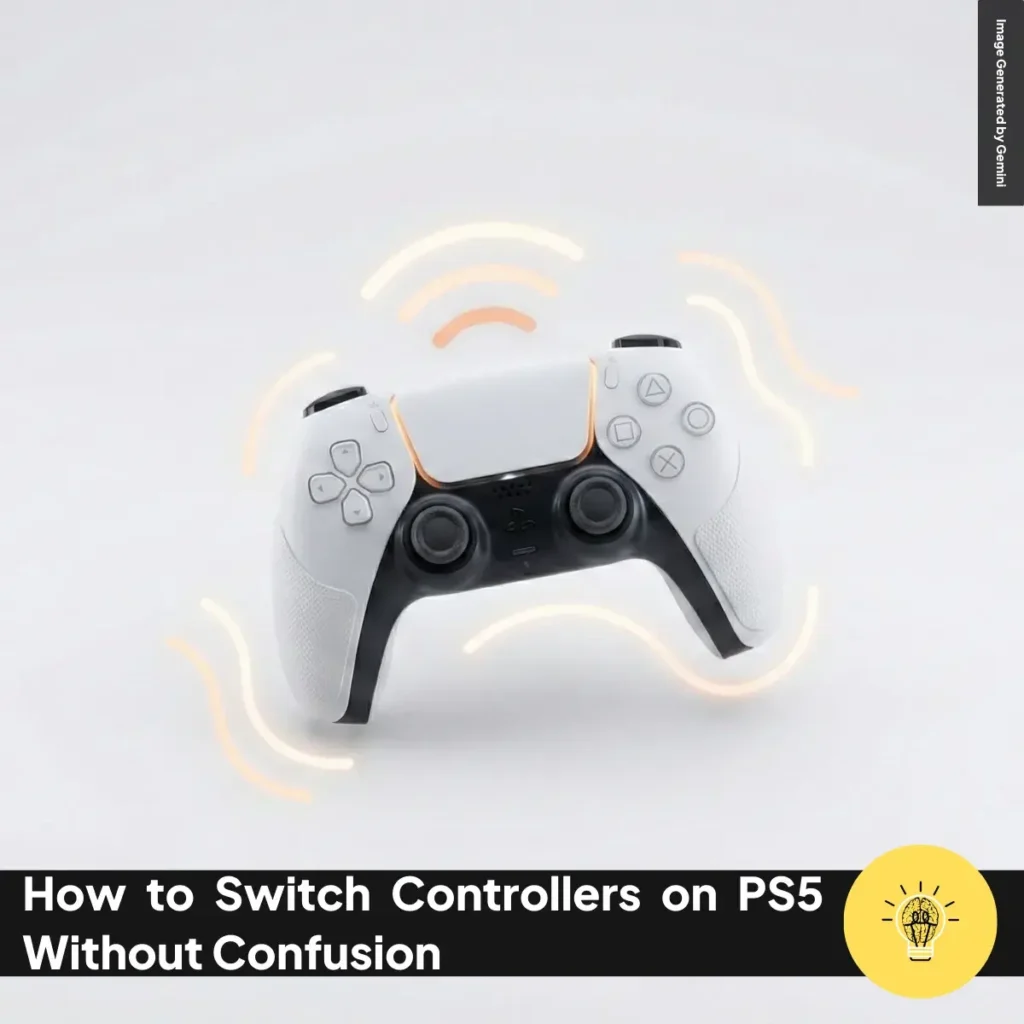
ruminesia – If you use multiple gamepads, knowing how to switch controllers on PS5 can save time and frustration. This often matters when a DualSense controller disconnects, runs low on battery, or stops responding mid-session.
The PS5 handles controllers differently from older consoles, especially because everything links back to user profiles. Once you notice this design choice, the process makes more sense and leads to what you need to know next.
Whether you play solo or share a console, switching controllers smoothly keeps your gaming flow uninterrupted. Understanding this early helps you avoid small issues before they break immersion or interrupt gameplay.
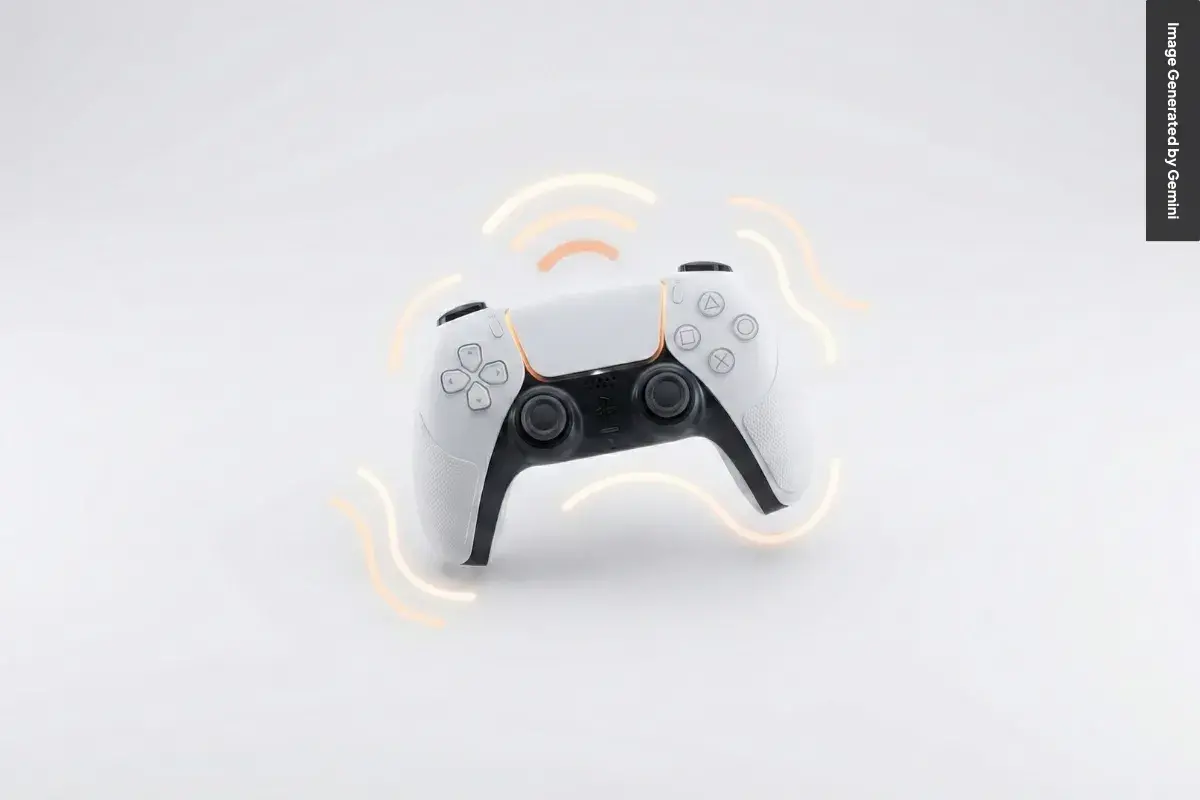
Switching controllers on PS5 is structured and intentional, not automatic. The console is designed around user profiles instead of physical controllers, which helps keep settings, progress, and purchases separated. This design is especially useful on shared consoles.
Each controller must be assigned to a user before it can control the system. When you press the PS button, the console always checks which user the controller belongs to. Once you understand this basic flow, switching controllers feels consistent and predictable.
Every controller switch begins by making sure the controller is properly connected. You can connect a controller using a USB-C cable or through Bluetooth pairing, depending on your situation. Without a proper connection, the PS5 cannot detect or respond to the controller.
A wired connection is ideal for first-time setup or troubleshooting issues. Wireless pairing works better for daily use once the controller is already registered. After the connection is established, the controller is ready to be activated.
The PS button is the main trigger for activating a controller. Pressing it wakes the controller and sends a signal to the console. The PS5 then automatically opens the user selection screen.
At this point, the controller is awake but not fully assigned. The system waits for you to choose a user before allowing control. This prevents accidental inputs from controllers that are not meant to be active.
Each PS5 controller must be linked to a specific user account. When you select a profile, that controller becomes the active one. The selected user controls the menus and supported games as Player 1.
This step protects saved data and personal preferences. It also ensures trophies and progress are recorded correctly. Once the user is selected, the controller is fully functional.
The PS5 treats controllers as extensions of user profiles rather than shared inputs. This approach prevents save files, settings, or store access from mixing between players. It also allows fast switching without restarting the console.
Multiple controllers can remain connected at the same time. Only controllers assigned to a user can control gameplay or menus. This setup works well for families or shared gaming spaces.
After switching, the old controller does not turn off automatically. You can leave it connected, turn it off to save battery, or disconnect it entirely. The best option depends on whether another player will use it.
Turning off the controller helps extend battery life. Disconnecting it removes it from the console’s device list. Both options help keep your gaming setup clean and responsive.
Read Also:
Here is a clear and practical overview of common questions people ask when using and maintaining a PS5 controller.
Yes, the PS5 DualSense controller works on a PC, and setup is fairly simple. You can connect it using a USB-C cable for the most stable connection, or pair it wirelessly via Bluetooth if your PC supports it. Most modern systems recognize the controller instantly.
On Steam, the DualSense has native support, meaning buttons and features work with minimal setup. For non-Steam games, compatibility may vary depending on the game engine. In those cases, third-party tools like DS4Windows help map buttons correctly and improve compatibility.
The PS5 controller battery typically lasts between 6 and 12 hours on a full charge. The exact duration depends on how you play and which features are active. Games that use advanced feedback tend to consume more power.
Features like haptic feedback, adaptive triggers, and the built-in speaker drain the battery faster. Lowering vibration intensity or speaker volume can help extend playtime. Keeping brightness settings moderate also improves battery efficiency.
Yes, the DualShock 4 can be used on a PS5, but with important limitations. It only works for playing PS4 games that run on the PS5 through backward compatibility. It will not function with native PS5 games.
Sony designed PS5 titles specifically for DualSense features. Because of this, the system blocks DualShock 4 usage in PS5-only games. For full compatibility and features, the DualSense controller is required.
Charging a PS5 controller from empty to full usually takes around three hours. This applies when charging through a PS5 USB port or an official charging dock. Charging time may vary slightly depending on the power source.
Using a wall charger with proper output can also charge the controller effectively. However, Sony recommends using official or certified accessories. This helps protect battery health and ensures stable charging.
Controller drifting usually happens when the analog stick registers movement without being touched. One common cause is dust or debris inside the stick housing. Light cleaning around the stick base can sometimes reduce the issue.
Software problems can also contribute to drifting. Updating the controller firmware or resetting the controller may help. If the issue continues, internal hardware wear is likely, and repair or replacement may be required.
Resetting a PS5 controller can fix connection or input problems. Start by turning off the PS5 completely. Then locate the small reset hole on the back of the controller near the L2 button.
Use a paper clip to press and hold the reset button for 3–5 seconds. After that, reconnect the controller to the PS5 using a USB cable and press the PS button. The controller should reconnect normally.
The standard DualSense focuses on immersive features like haptics and adaptive triggers. The DualSense Edge is a premium version designed for advanced players. It offers deeper customization and higher durability.
Key upgrades include programmable back buttons, replaceable analog stick modules, and adjustable trigger stops. These features allow better control and a longer lifespan. The higher price reflects its competitive and customization-focused design.
Yes, the PS5 controller includes a built-in microphone and speaker. This allows quick voice chat without a headset, which is useful for casual communication. Sound quality is basic but functional.
There is a dedicated mute button below the PS logo. When muted, the button shows an orange light. This makes it easy to control your microphone status during gameplay.
You can turn off the controller while keeping the console running. Press the PS button to open the Control Center. Then go to Accessories, select Wireless Controller, and choose Turn Off.
Another method is holding the PS button for about ten seconds. The controller light will turn off, indicating shutdown. This helps save battery when the controller is not in use.
The standard DualSense controller typically costs between $69.99 and $74.99. Prices may vary depending on color, retailer, or promotions. Special editions may cost slightly more.
The DualSense Edge is priced at around $199.99. Its higher cost reflects advanced customization features and premium build quality. It is mainly targeted at competitive or long-term players.
Switching controllers should feel simple, not like a problem that breaks your gaming mood. When your setup works as expected, the experience stays smooth and enjoyable.
This guide showed you how PlayStation connects controllers to user profiles and why that matters. Once you understand how to switch controllers on PS5, small issues become easier to handle without stress.
If you have your own tips or ran into a unique situation, feel free to share them. Your experience might help someone else play with fewer interruptions.