Physical Address
304 North Cardinal St.
Dorchester Center, MA 02124
Physical Address
304 North Cardinal St.
Dorchester Center, MA 02124

Your Guide to the Latest in Tech
Your Guide to the Latest in Tech
Ruminesia – Many iPhone users rely on Siri for quick tasks, but not everyone wants a voice assistant active all the time. If you’ve noticed Siri activating accidentally, responding when you didn’t ask, or simply prefer more privacy, you might be wondering how to turn off Siri on your device.
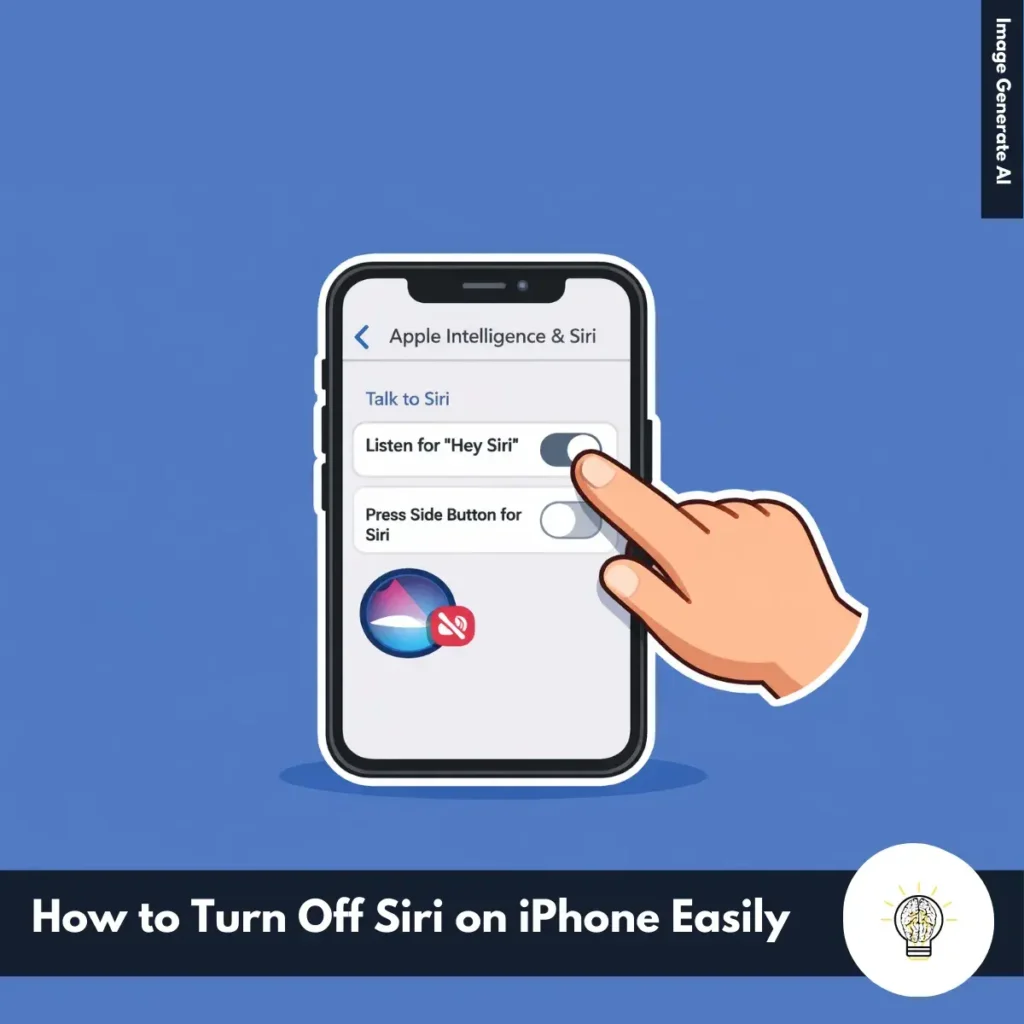
The good news is that Apple makes it relatively easy to disable Siri through the Settings menu. You can stop voice activation like “Hey Siri,” prevent the side button from triggering the assistant, and even disable related features such as dictation or lock screen access.
In the sections below, you’ll find simple steps to fully disable Siri on newer iPhones, along with a few additional settings you can adjust if you want tighter control over voice features on your device.
Key Highlights
- Siri can be completely disabled through the Apple Intelligence & Siri settings on iPhone.
- Turning off Listen for “Hey Siri” and Press Side Button for Siri prevents both voice and manual activation.
- Disabling Siri can help improve privacy and reduce accidental voice assistant triggers.
- Additional features like Dictation can also be turned off to limit voice input on the device.
- Screen Time restrictions allow you to block Siri access if needed.
- Siri can be re-enabled anytime by turning the same settings back on in the Settings app.
Turning off Siri on your iPhone can help improve privacy, reduce accidental voice activation, or simply minimize distractions. On newer devices such as the iPhone 16 running iOS 18 or later, Siri settings are located in the Apple Intelligence & Siri section within Settings. The steps below explain how to disable Siri completely and adjust related options if needed.
If you want to fully turn off Siri so it no longer activates through voice commands or the side button, you can disable it directly from the Siri settings menu. Follow these steps:
Once these settings are disabled, Siri will no longer respond to voice commands like “Hey Siri” or activate using the side button.
Besides turning Siri off completely, you may also want to disable related features that rely on voice input or Siri integration. These options can further limit background voice processing or assistant access. Some optional adjustments include:
After completing these adjustments, Siri should no longer activate accidentally. If you ever want to use Siri again, simply return to the same menus and re-enable the options. If the settings do not apply correctly after an iOS update, restarting your iPhone can help refresh the system configuration.
Read More:
Here are some Frequently Asked Questions about Siri to help clarify how Apple’s voice assistant works in everyday situations. These answers cover common questions users have when using Siri across different Apple devices.
Siri helps you perform everyday tasks using voice commands. You can ask Siri to send messages, make calls, set reminders, check the weather, control smart home devices, open apps, and search for information.
There are several ways to activate Siri depending on your device settings.
Once activated, simply speak your request.
Most Siri features require an internet connection because requests are processed through Apple’s servers. However, some basic tasks like opening apps, setting alarms, or adjusting certain device settings may work offline on newer iOS versions.
Yes, you can customize Siri’s voice and language in the settings menu. Apple provides several voice options, including different accents and languages depending on your region.
Yes, Siri works across multiple devices in the Apple ecosystem. You can use Siri on iPad, Mac, Apple Watch, AirPods, HomePod, Apple TV, and Apple Vision Pro.
You can disable Siri through the settings menu.
This will stop Siri from activating.
Yes, Siri can control compatible smart home devices through Apple HomeKit. You can use voice commands to turn lights on or off, adjust thermostats, or manage other connected home accessories.
Siri may not respond if voice recognition is disabled, the microphone is blocked, or your internet connection is unstable. Checking Siri settings and ensuring your device has a stable connection often resolves the issue.
Yes, Apple offers a Type to Siri feature for users who prefer typing.
You can then type commands instead of using voice input.
Siri only listens for the activation phrase like “Hey Siri” or “Siri” when the feature is enabled. Apple states that voice data is processed with privacy protections, and Siri does not continuously record conversations unless activated.
Turning off Siri is a simple way to reduce accidental voice activations and improve privacy on your iPhone. Once you understand how to turn off Siri, you can disable voice triggers like “Hey Siri,” remove the side button shortcut, and adjust related settings such as dictation or lock screen access directly from the Settings app.
The most practical takeaway is that you stay in control of how your iPhone responds to voice input. If Siri isn’t useful for your daily routine, disabling it takes only a few moments and can always be reversed later if you decide to use the assistant again.
Try the steps on your device and see if the experience feels more comfortable without Siri running in the background. If you’ve found another useful way to manage Siri settings, feel free to share your experience.