Physical Address
304 North Cardinal St.
Dorchester Center, MA 02124
Physical Address
304 North Cardinal St.
Dorchester Center, MA 02124

Your Guide to the Latest in Tech
Your Guide to the Latest in Tech
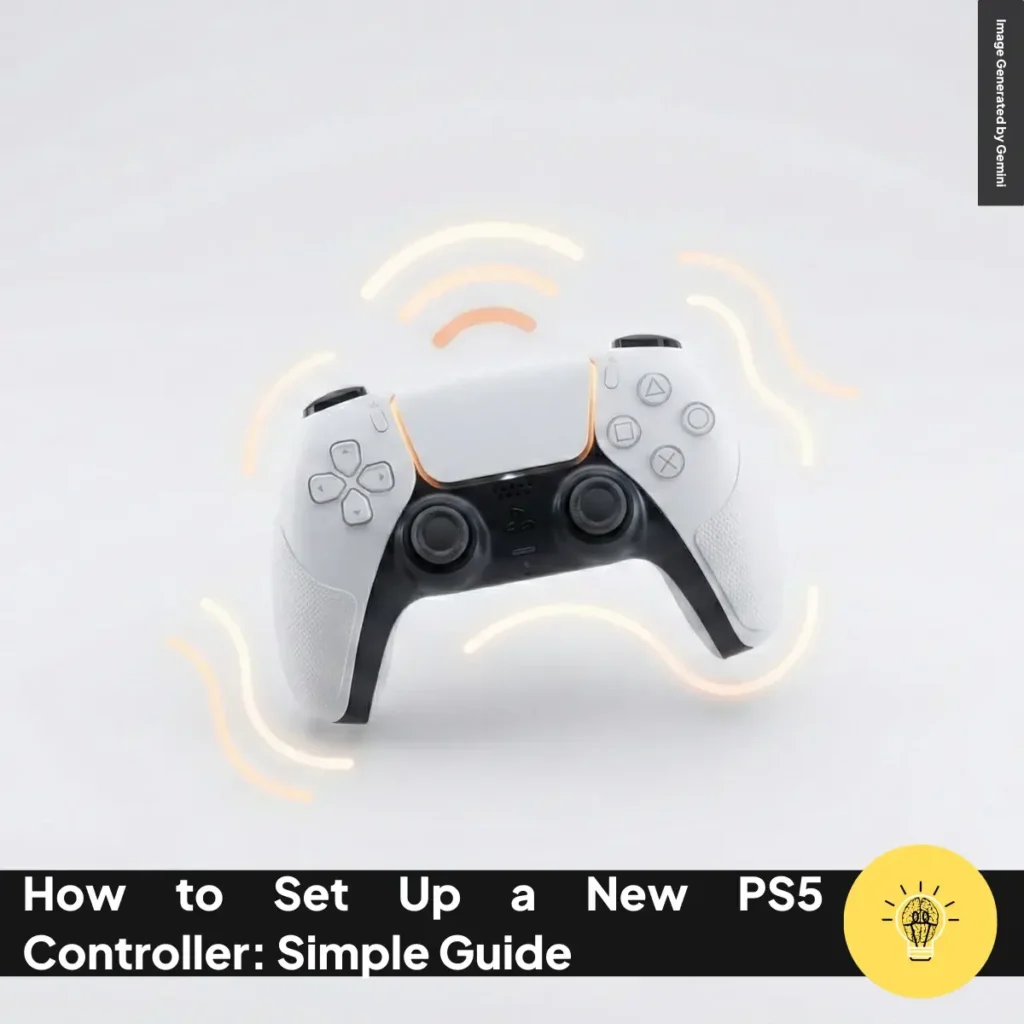
ruminesia – Setting up a new PS5 controller is exciting, especially when you just want to jump into a game. But if you are unsure how to set up a new PS5 controller, the process can feel confusing.
You might wonder why the console is not responding or why the light bar keeps blinking. Small details can slow you down, even though the controller is designed to be simple.
With a few clear pointers, you can get everything working in minutes and avoid random guesswork. Let’s walk through what you need to know so the setup feels smooth and stress-free.
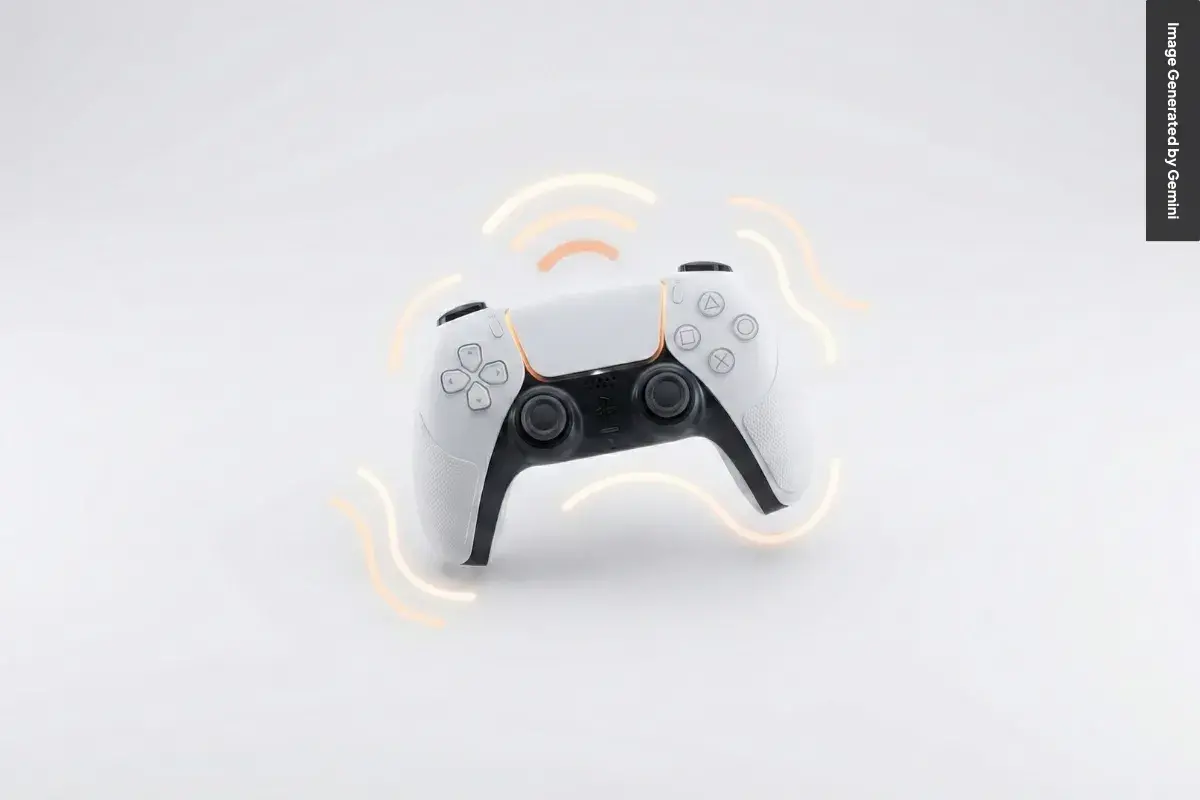
Getting a new PS5 controller up and running is simple once you know the steps. This guide shows how to set up a new PS5 controller quickly, with options that suit any setup.
Most first-time setups begin with a USB-C cable. Plug the controller into your PS5, press the PS button, and wait for the light bar to turn solid. Once that happens, your controller is paired and ready to use, wired or wireless. This is helpful if you’ve just unboxed your console or replaced an old controller. It also avoids pairing issues that can happen with wireless mode.
If the controller ever stops responding, try pairing with the cable again to reset the connection. This method works well because the console recognizes the controller instantly. It’s also the fastest way to get started if you prefer fewer menus. For anyone learning how to set up a new PS5 controller, it’s the most reliable option. Once connected, you can tweak settings for vibration, audio, or brightness from the Accessories menu.
A wired setup is ideal for your first or main controller. It charges the battery while pairing and keeps things simple. You’ll only need a powered-on PS5 and a USB-C cable. Once paired, the controller works wirelessly at any time. Here’s how to do it:
This method is handy if you’re adding extra controllers or fixing a connection issue. It works fast, avoids menus, and needs just one cable.
Wireless setup is best when adding a second controller. You’ll need one controller already paired to access the Bluetooth menu. Once connected, both controllers work the same. It’s clean, cable-free, and great for multiplayer. Follow these steps:
Wireless pairing feels quick and flexible. It also helps if your cable isn’t nearby. If you’re exploring options for how to set up a new PS5 controller, this is the smoothest wireless path.
Now you know two fast ways to connect a controller: wired or wireless. Choose the one that fits your setup and start playing with your newly paired PS5 controller.
Learning how to set up a new PS5 controller is usually simple, but small issues can pop up during pairing. These quick troubleshooting steps help you solve common setup problems fast.
These steps help you connect and troubleshoot more confidently, especially if you’re learning how to set up a new PS5 controller for the first time. If problems continue, repeat the steps or try pairing with a USB-C cable for a quick reset.
Read Also:
Here is a quick and helpful overview of the most common questions people ask about using and optimizing the PS5 Controller.
Yes, the DualSense works on PC.
Typically 6–12 hours.
Yes, with limitations.
About 3 hours from empty to full when using a USB port or official charging dock.
Common causes include:
Key differences:
Yes.
Approximate pricing:
It feels good when a small piece of tech just works. A PS5 controller is simple, but getting it ready can feel personal, especially when gaming is how you unwind.
Now you know how to set up a new PS5 controller without the stress or guesswork. You learned the key steps, common pairing options, and simple fixes that help you avoid slowdowns. With this knowledge, you can move from setup to play with confidence.
If you have a moment, share how your setup went or what surprised you most. Someone else might find comfort or clarity in your experience.


