Physical Address
304 North Cardinal St.
Dorchester Center, MA 02124
Physical Address
304 North Cardinal St.
Dorchester Center, MA 02124

Your Guide to the Latest in Tech
Your Guide to the Latest in Tech
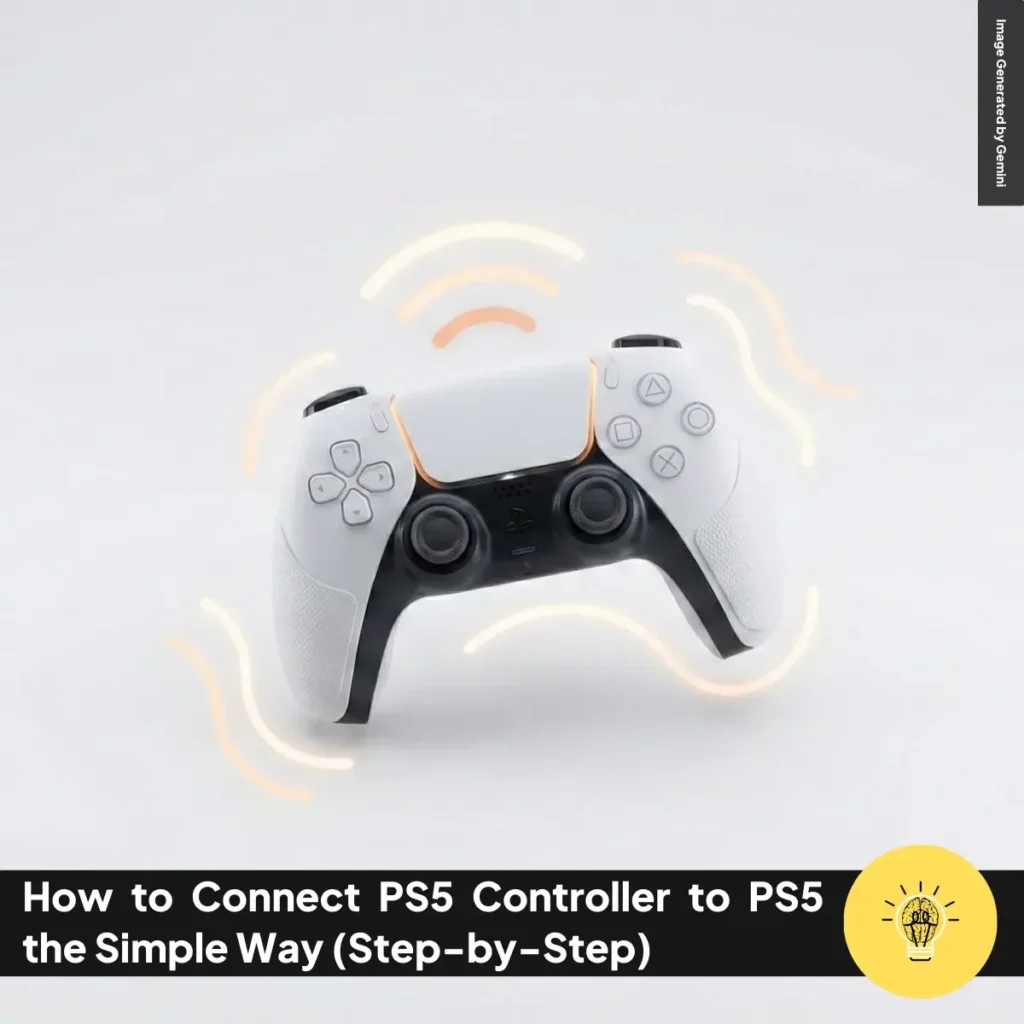
ruminesia – Setting up a new console can feel overwhelming, especially when small things slow you down. That’s why understanding How to Connect PS5 Controller to PS5 matters when you just want to start playing.
Many players run into pairing issues that seem simple but still interrupt the moment. A clear guide helps you connect quickly without guessing through menus.
In this article, I walk you through the essentials so you can get your DualSense working right away. Let’s move into the steps and make the setup smooth from the start.
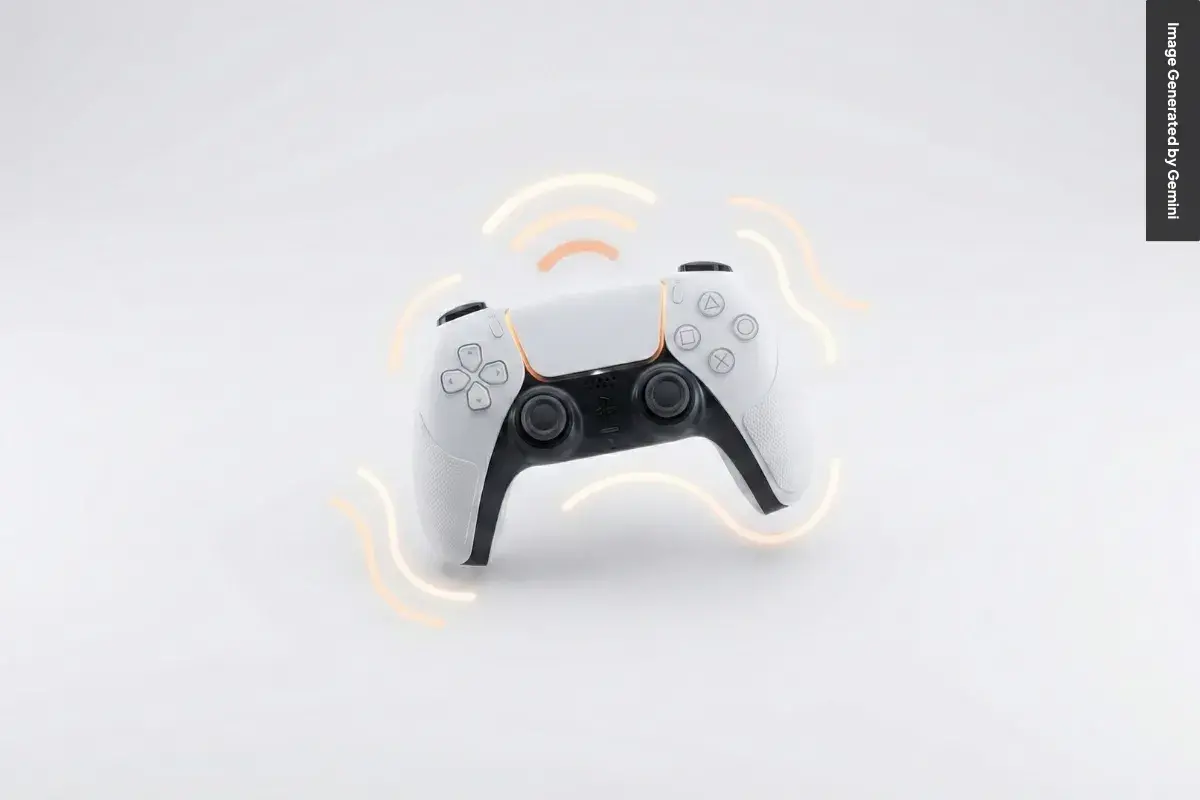
Before you start gaming, it helps to know how to connect PS5 controller to PS5 the right way. A smooth setup saves you time and avoids common pairing issues many new players run into.
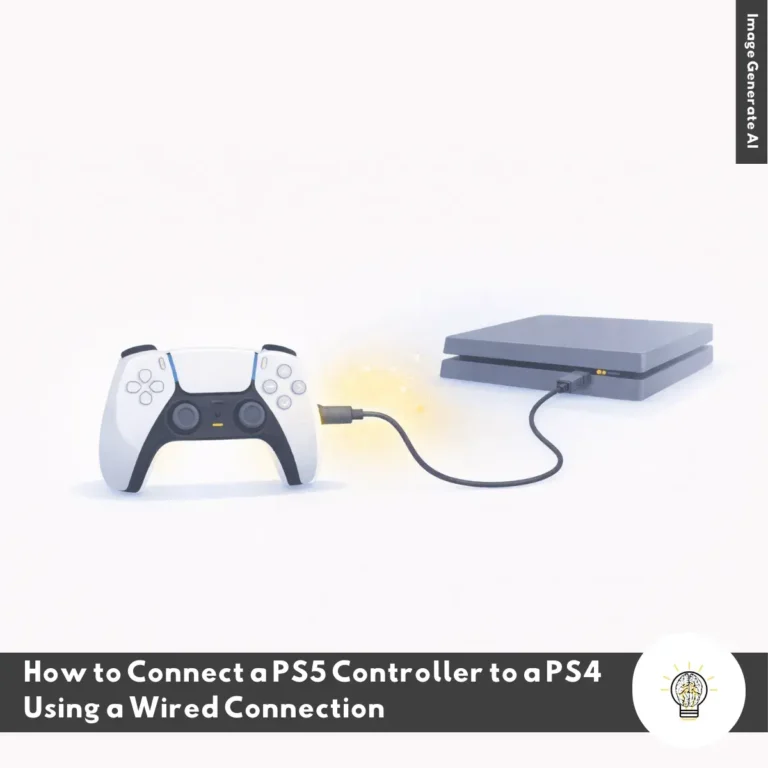
A wired setup is the fastest way to pair a new DualSense controller because the console recognizes it instantly. You only need the included USB-C cable and one front USB port on your PS5 to begin the process. This method also charges your controller at the same time, which is convenient if it has been unused for a while.
Once connected, press the PS button and wait for the light bar to blink and turn solid. That solid light means the controller has synced successfully without any extra steps. You can then remove the cable and continue using the controller wirelessly with full functionality.
If you want to add more controllers for multiplayer, wireless pairing works well and keeps your setup clutter-free. You will need an already-paired controller to open your PS5 settings and access the Bluetooth menu. This helps the console recognize new controllers that enter pairing mode.
Press and hold the PS and Create buttons on the new controller until the light bar flashes rapidly. The flashing pattern signals that the controller is ready to connect through Bluetooth accessories. Select it on-screen, confirm the pairing, and the controller should connect within seconds.
When the controller refuses to sync, a quick reset often brings it back to normal operation. You can press the small reset button on the back with a pin and hold it for a few seconds. This action clears minor software glitches that interrupt pairing.
If issues continue, check for firmware updates in the controller settings menu. Updated devices usually connect more reliably because compatibility improves with each update. Also remember that your PS5 supports only four controllers at once, which matters for families or local multiplayer setups.
Getting your DualSense ready should now feel straightforward, and you can revisit these steps anytime you need to pair another device. With this simple guide, you can handle how to connect PS5 controller to PS5 confidently and start playing right away.
Read Also:
Here is a quick and helpful overview of the most common questions people ask about using and optimizing the PS5 Controller.
Yes, the DualSense works on PC.
Typically 6–12 hours.
Yes, with limitations.
About 3 hours from empty to full when using a USB port or official charging dock.
Common causes include:
Key differences:
Yes.
Approximate pricing:
If you want, I can also format this into a full article or add SEO-optimized descriptions.
Getting your controller connected is a small step, but it often decides how smoothly your play session begins. I’ve been there too, wanting everything to work right away so the focus stays on the game, not the setup.
By now, you know the essentials of How to Connect PS5 Controller to PS5 and how simple the process can be with the right guidance. The goal is to help you skip the confusion, handle any quick fixes, and get back to enjoying your console without interruption.
If you’ve tried these steps or found a trick that works even better for you, feel free to share your experience in the comments. Your insights might help the next player set up their controller just as smoothly.