Physical Address
304 North Cardinal St.
Dorchester Center, MA 02124
Physical Address
304 North Cardinal St.
Dorchester Center, MA 02124

Your Guide to the Latest in Tech
Your Guide to the Latest in Tech
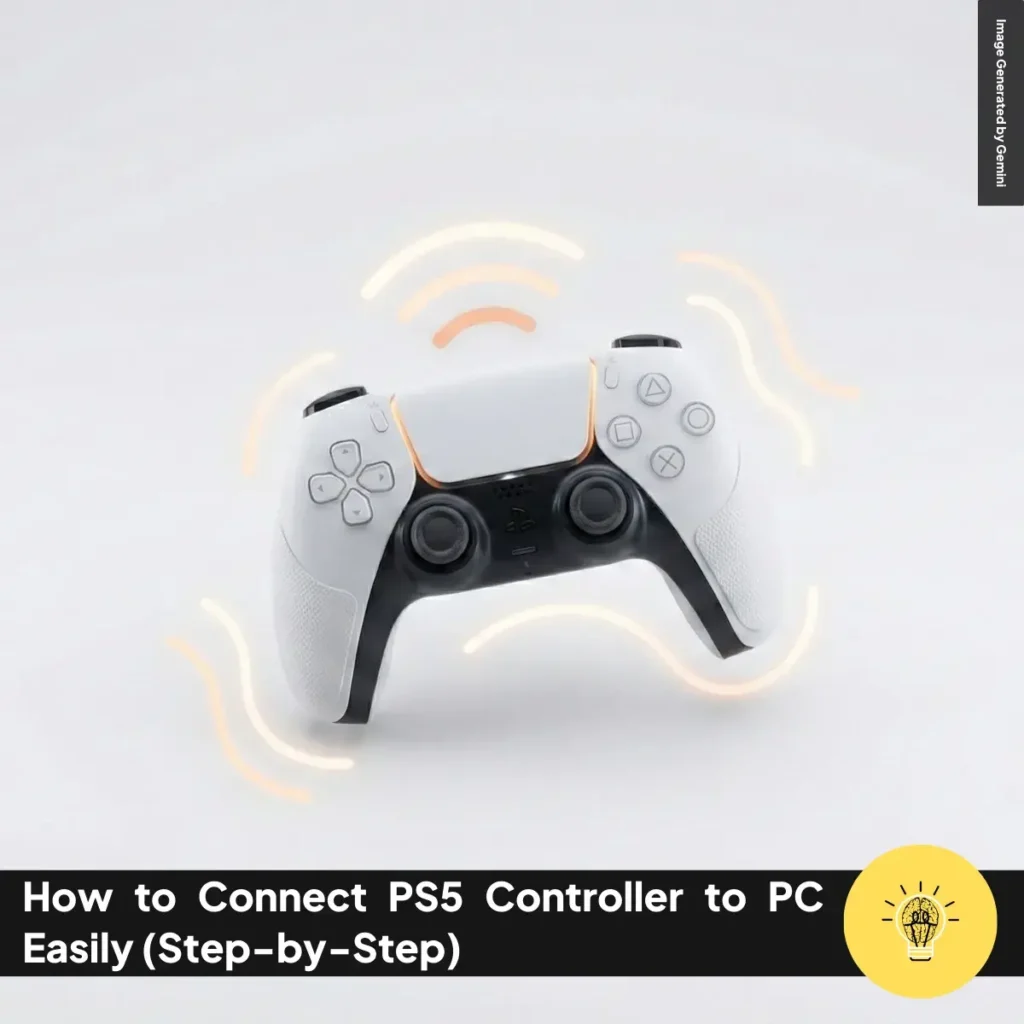
ruminesia – Many players want a seamless way to use their PS5 controller on a Windows setup, but the process can feel confusing at first. Learning How to Connect PS5 Controller to PC helps you bring your favorite console controls to your everyday gaming space.
The DualSense works smoothly on most PCs once you know the right steps, and it can make your games feel instantly more familiar. This guide keeps things simple so you can start playing faster.
Whether you prefer a quick cable setup or a wireless option, the process is easier than it looks. Let’s walk through it so you can choose the method that fits you best.
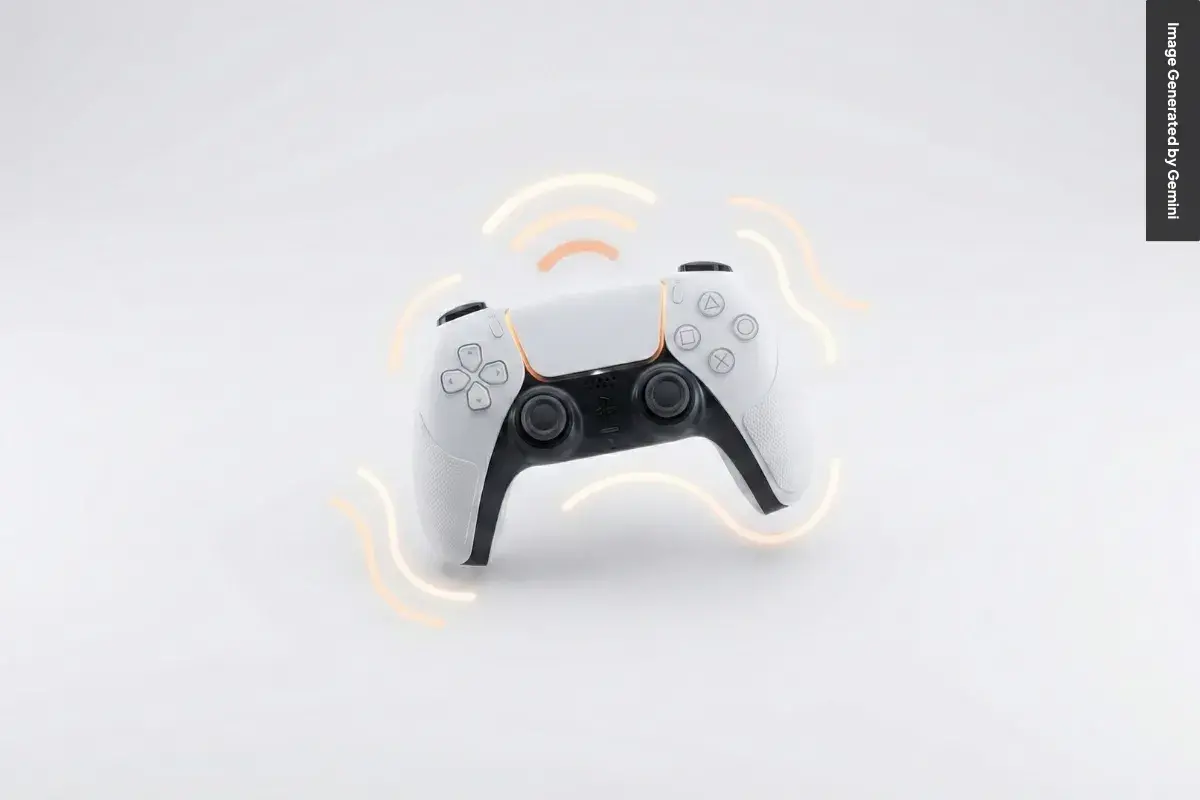
Connecting your PS5 DualSense to a Windows computer is easy, and it gives you more flexibility when switching between platforms. Here’s a quick guide on How to Connect PS5 Controller to PC using both wired and wireless methods, plus a few simple tweaks to improve your experience.
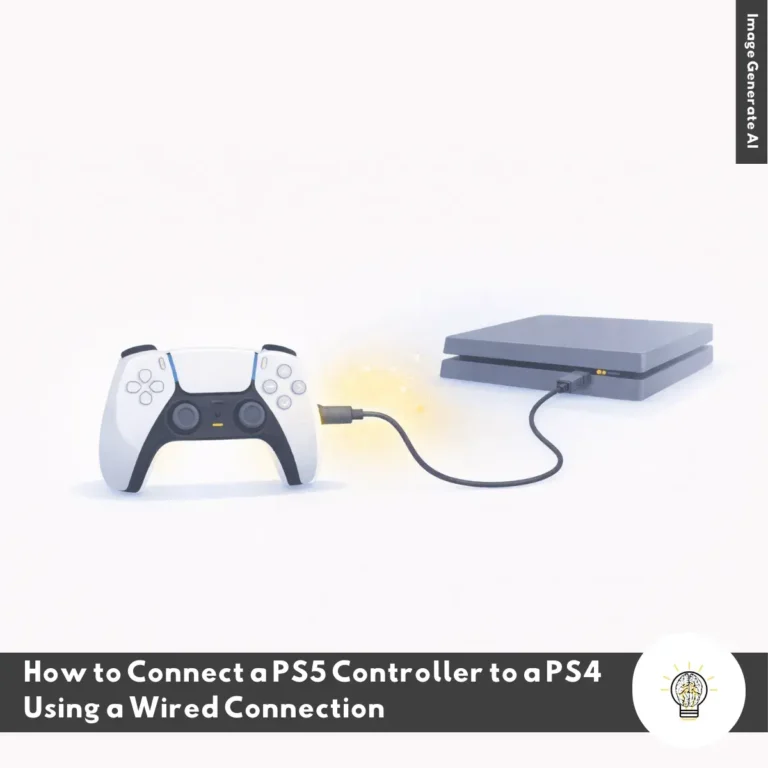
A wired setup is the fastest way to start playing, and it avoids common Bluetooth issues. Just plug a data-capable USB-C cable into your DualSense and then into a USB port on your PC. Press the PS button, and Windows should detect the controller instantly.
This method gives you steady input with almost no delay, which is helpful for fast-paced games. It also charges your controller while you play, so you don’t need to think about battery levels. Steam usually recognizes the controller right away, making setup even easier.
If you prefer fewer cables, pairing over Bluetooth only takes a moment. Hold the PS and Create buttons until the light bar flashes, putting the controller in pairing mode. On your PC, go to Settings > Bluetooth & devices > Add device, then choose Wireless Controller.
Once paired, the controller works well for most games that support gamepads. Just remember that performance depends on your PC’s Bluetooth hardware. If you notice lag, try moving closer to the adapter or switching to a wired connection.
You can improve controller support with a few quick adjustments. In Steam, enable PlayStation Configuration Support in Settings > Controller for smoother handling.
For non-Steam games, tools like DS4Windows or DualSenseX can help with remapping and feature control. Updating your controller via the PlayStation Accessories app also keeps everything running smoothly.
With these simple steps, you can choose the connection method that feels right and enjoy a smoother setup for How to Connect PS5 Controller to PC.
Read Also:
Here is a quick and helpful overview of the most common questions people ask about using and optimizing the PS5 Controller.
Yes, the DualSense works on PC.
Typically 6–12 hours.
Yes, with limitations.
About 3 hours from empty to full when using a USB port or official charging dock.
Common causes include:
Key differences:
Yes.
Approximate pricing:
If you want, I can also format this into a full article or add SEO-optimized descriptions.
Taking a moment to set things up often makes your gaming feel more personal, and using the hardware you already enjoy is part of that comfort. It’s one of the reasons many players look for simple ways to bring the DualSense into their PC routine.
By now, you know the essentials of How to Connect PS5 Controller to PC and how each method fits different play styles. A stable wired setup or a flexible wireless option both help you enjoy smoother control without extra complications.
If you’ve tried one of these methods or found a setup that works best for you, feel free to share your experience. Your insight might help others get started more confidently.