Physical Address
304 North Cardinal St.
Dorchester Center, MA 02124
Physical Address
304 North Cardinal St.
Dorchester Center, MA 02124

Your Guide to the Latest in Tech
Your Guide to the Latest in Tech
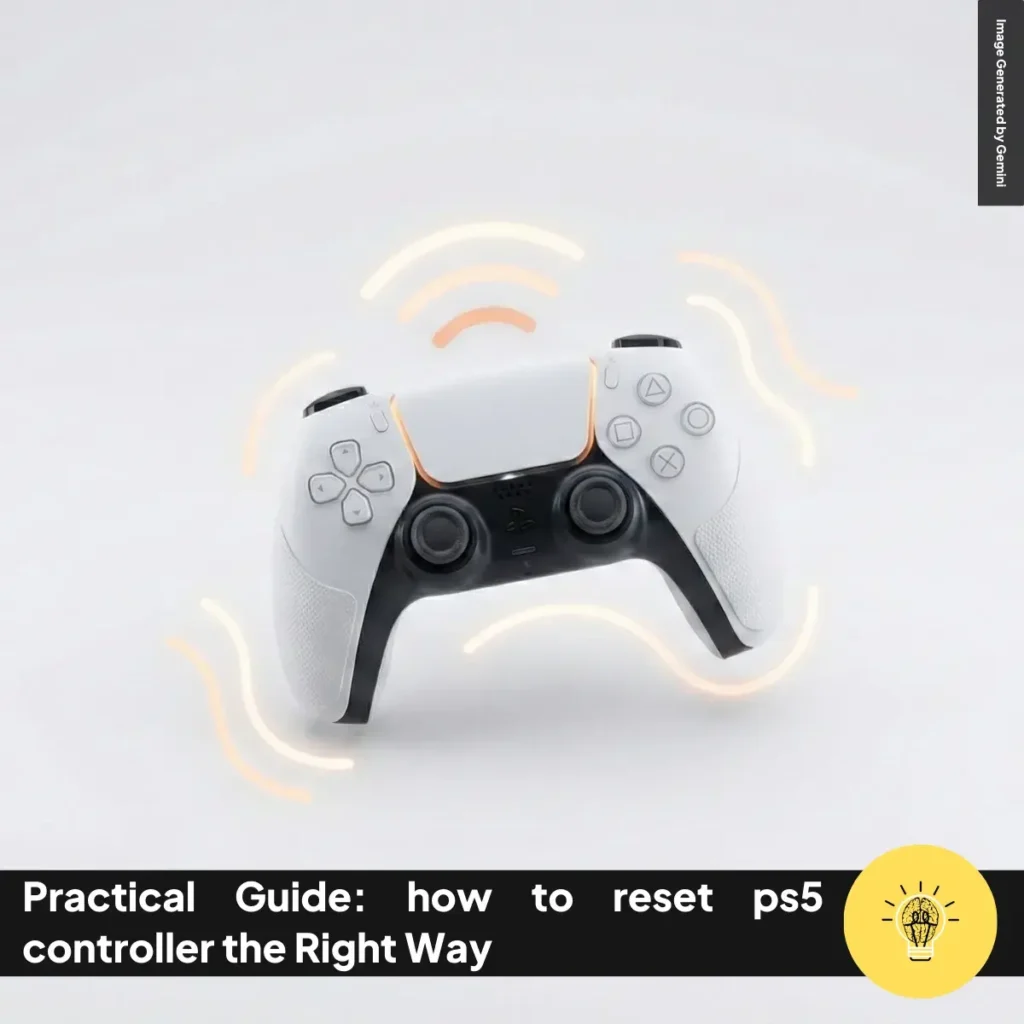
ruminesia – A PS5 controller usually works without trouble, so it’s frustrating when it stops responding during a game. That’s when learning how to reset PS5 controller issues becomes genuinely helpful, especially if you rely on stable wireless play.
Many problems start with simple pairing glitches or temporary system hiccups that appear without warning. Knowing what to reset—and when—can save you from guessing or replacing a controller too soon.
In this guide, I’ll walk you through each reset method in a calm, straightforward way. You’ll see what each option does and when it makes sense to use it, setting you up for the next steps.
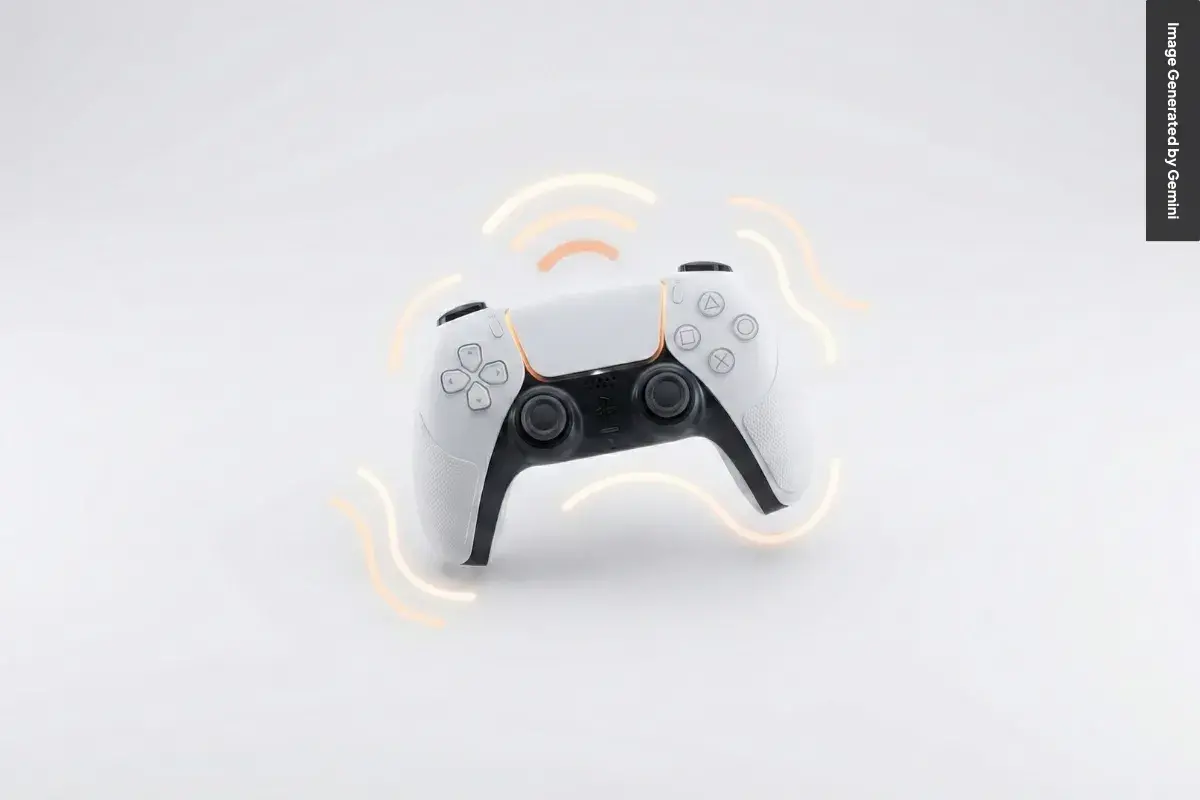
Resetting your DualSense can solve many connection problems, drifting, or button glitches. Below, you’ll find beginner-friendly explanations of each method so you know exactly how to reset PS5 controller issues without guessing.
A soft reset is your first stop when the controller acts up, because it clears temporary glitches without removing any saved pairings. You might use it when the controller won’t connect, certain buttons feel unresponsive, or drift appears without a clear hardware problem. This method works fast and gives your DualSense a clean refresh so it can reconnect properly.
To get started, you must entirely shut down the PS5 instead of using Rest Mode, because the controller needs a fresh signal. Next, flip the controller and locate the tiny reset hole near the Sony logo—pressing it resets the internal chip. After holding the button for a few seconds, plug the controller back in with a USB-C cable, then tap the PS button to pair it again.
Before you begin, prepare a thin tool.
This approach resolves most everyday issues, including minor drifting, pairing failures, and slow response during gameplay. If problems return often, you may explore deeper resets or check for physical stick wear. Still, it’s the safest first step when learning how to reset PS5 controller without messing with your console settings.
A hard reset clears all stored connections and settings on your DualSense, which can be helpful when soft resets don’t stick. You might use this method before selling a controller or when Bluetooth pairing glitches keep returning. It restores the controller to its original state and forces a fresh link with your console.
The easiest way is through the PS5 system menus, which guide you step by step. Connect the controller to a USB cable, open the Accessories menu, and remove the saved Bluetooth entry. Once deleted, the system reset option wipes any leftover configurations so your controller can start clean.
Here’s a quick look at the two methods:
A manual reset helps when the PS5 isn’t nearby or the menus won’t load. After completing either method, plug the controller into the console and press the PS button to pair it again. This deeper reset often resolves stubborn issues and complements other troubleshooting steps if your Bluetooth database feels unreliable—a helpful semantic_terms-related fix for some users.
Sometimes the controller isn’t the real issue—your PS5’s internal Bluetooth database may be causing the conflict. When the DualSense works on other consoles but not on yours, rebuilding the database refreshes the system’s internal structure. It won’t delete your games or saves, so it’s a safe maintenance step.
You start by turning off the console completely, which ensures Safe Mode loads fresh system utilities. Then, by holding the power button until the second beep, you access the Safe Mode menu. Selecting “Rebuild Database” prompts the PS5 to reorganize system files and clean up any corrupted Bluetooth references.
For many players, this step removes invisible pairing conflicts that can’t be fixed alone. It’s instrumental after system crashes, long updates, or repeated connection failures. While it isn’t required often, rebuilding the database can restore smooth communication between your console and controller.
If problems persist after rebuilding the database, combine this method with earlier steps to create a more complete troubleshooting routine. It rounds out the core options for understanding how to resolve PS5 controller issues on both the controller and system sides.
Here’s a quick guide to help you resolve PS5 controller issues more efficiently by ruling out simple causes first.
Solving controller issues often requires simple checks before deeper resets. These steps help you pinpoint the cause faster and make the process of resetting the PS5 controller smoother.
Read Also:
Here is a quick and helpful overview of the most common questions people ask about using and optimizing the PS5 Controller.
Yes, the DualSense works on PC.
Typically 6–12 hours.
Yes, with limitations.
About 3 hours from empty to full when using a USB port or official charging dock.
Common causes include:
Key differences:
Yes.
Approximate pricing:
It’s easy to forget how central a controller is until it stops behaving the way you expect. Moments like that remind you how minor fixes can restore the flow of your games.
By now, you’ve seen the essential steps for understanding how to reset PS5 controller issues with confidence. You also know which checks help you separate simple glitches from real hardware concerns.
If you’ve tried these methods, I’d love to hear what worked for you. Share your experience or pass this guide to someone facing the same controller troubles.